|
| [Flash Games] [Wallpapers] [Computer Tips] [Web Designing Tips] [Chat Room] [Love Calculator] |
|
|
Tips & Tricks
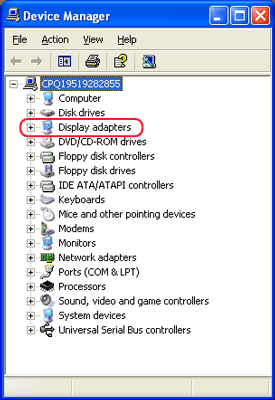
Does your display flicker? Are your animations not working correctly? Have you been notified that you have “display problems. This program can’t continue”? This tip will help you solve those video problems. Hold down the Alt key and double click on the My Computer icon, then select the Device Manager tab (XP Users: it’s the Hardware tab). Double click Display Adapters.
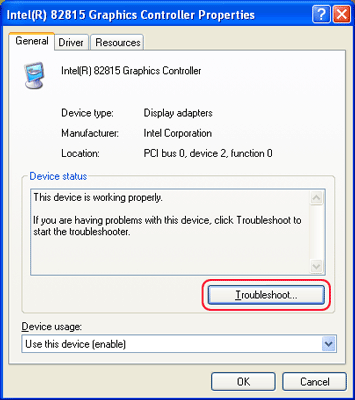
Next, double click your video card. The Device Status window will list any problems with your video card. If a problem is listed here it is usually a conflict between two devices. Click on the Resources tab. If there are any conflicts listed in the Conflicting Device List, make sure the Use Automatic Settings is checked and reboot your computer. You can also try running through the steps under the Troubleshooting button in the General tab of the Properties window.
If either of these solutions doesn’t solve your problem, reload your video driver by repeating the above steps up to double clicking on your video card. From there click on the Driver tab, then Update Driver and follow the on-screen instructions. Have your video card driver disk or cd ready when you reinstall the driver. |
|
Tips & Tricks
Your computer just started making a strange sound when you turn it on. It sounds like rapid ticking or rattleing (not hard drive sounds either) and goes away after a few minutes. It sounds like a problem with one of your fans (no, not the people who love you, the ones that blow air). Your computer probably has two internal fans - one that sits on top of the CPU and one inside your power supply. Most of the time the sound you're describing comes from the fan in the power supply. Note they can make that annoying noise for a long time before they finally belly up and die. However, if it's your CPU fan, you may have a serious issue. If that puppy dies, your CPU can turn to toast in a hurry (and trust me, they're not very good with butter and jelly). So, the best advice is to wait till your computer is completely cooled off and remove the case cover. Turn the computer on and see if you can determine where the sound is coming from. If it's the CPU fan, that'll need replaced. If it's the power supply fan, you'll need to repalce the entire power supply to get rid of the noise. If you think you're going to open the power supply and fix the fan - don't. They're not user serviceable. Besides, if you touch one of its capacitors on accident you'll take a nice little flight across the room. You may want to listen to your hard drive too (it's the square, slim box looking thingy). The sound described in the question above probably isn't hard drive related, but it's always a good idea to give it a quick listen. Remember, most of the time these power supply fans still work for years after they start rattling, so usually there's no rush - just keep a close eye on it. If that fan dies, your computer can overheat in a hurry. Oh, after you're done playing with your machines innards, be sure to put the cover back on. Believe it or not, your computer can overheat with the cover off. The computer is desigend to pull air thorugh the case in a certain pattern. If there's no cover, the airflow is all wrong and things don't cool as they should. |
 :
[email protected]
:
[email protected]
Best view at 1024 x 768 resolution and above internet explorer 6. Copyright © 1999-2003 ShahrukhWeb.TK. All Rights Reserved. |
 Troubleshooting Video Problems