[Flash Games] [Wallpapers] [Computer Tips] [Web Designing Tips] [Chat Room] [Love Calculator]


Tips & Tricks

Printer Sharing


If the computers are networked together, enable printer sharing on the computer with the printer. This is done under the Network icon in the Control Panel.

Then, install the networked printer you created above on the second computer. You do this from the Printers folder in My Computer (XP users, head to the Control Panel). Just click "install Printer" and when asked, tell it you're installing a network printer. There's a handy little wizard to guide you through the process (it's actually very easy). That should get you printing.

The only potential problem I can see is if the printer is not able to be used on a network. Most can be, but there are some that will refuse to run.

OK, but what if the computers aren't networked together?

If they're not networked, you still have an option. Most computer stores sell a switch box device that can be used to connect a single printer to several computers. Although this doesn't work everytime (some printers are funny about switchboxes), most of the time it does the trick. You should be able to get these switch boxes for under $30.00.

A word of caution - you may want to check your printer documentation to make sure that the switch box is safe for the printer in question. I've never really seen a problem with using a switchbox, but it never hurts to check.


Tips & Tricks

Multiple Monitors


If one monitor is good, two is better, right?

I've been using two monitors simultaneously with my laptop for over 3 years now. Let me tell ya, it's great having all that desktop real estate to play with. Your mouse moves from screen to screen and you can move open windows from one screen to the other just as if you were using a single large monitor.

So how do you set it up?

Basically, all you need to have is two video adapters (cards). Your computer already has one, but you'll need to either install another one yourself or take your computer to someone who can.

Keep in mind that depending on your configuration, you may not have any space (or interrupts) left for adding another video card. Due to the millions of possible configurations, I don't really have any guidelines to give you in regard to this. If you're not sure, take your machine into a computer shop and have them look at it.

If you're using a laptop, you may already have multiple video adapters. One for your LCD display and one for a standard monitor. Just plug your regular monitor in and go. It's that easy. Of course, you'll want to confirm this before you go out and buy a new monitor, buy most newer laptops will support this configuration.

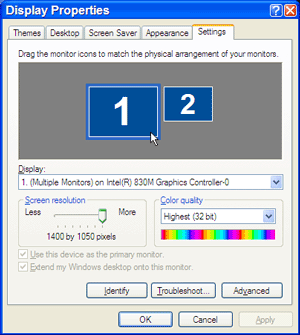
Once you get the hardware taken care of, the rest is easy. Right-click your desktop and select "Properties" from the resulting menu. Hit the "Settings" tab.

You'll see both monitors displayed. You can set resolution and color depth for each individually as well as drag the monitor icons themselves into their real world positions (makes transitions from one monitor to the next smoother).


: [email protected]

Best view at 1024 x 768 resolution and above internet explorer 6.

Copyright © 1999-2003 ShahrukhWeb.TK. All Rights Reserved.

Hosted by www.Geocities.ws

1