How to disable Microsoft Task Scheduler
Task Scheduler will appear in your system tray
when you have a fresh copy of Windows on your system.
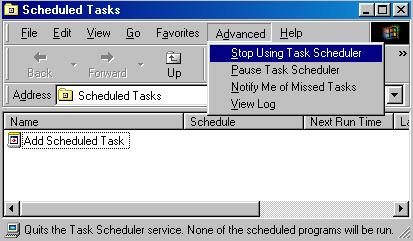
You have 2 Options,
Option 1. Simply open the scheduler from the sys tray,
select the task one by one and disable them,
Then open the advanced tab and select 'stop using task scheduler'.
Close task scheduler.
To reactivate Task Scheduler,
from the start button select run,
type "mstask"
hit OK,
Then re-enable all the tasks.
Option 2. Simply open the scheduler from the sys tray,
select the task one by one and delete them,
Then open the advanced tab and select 'stop using task scheduler'.
Close task scheduler.
Option 2 assumes you're not going to re-enable task scheduler.
You shouldn't need to reboot after closing Task Scheduler.
One thing to note here,
If you Critical Update Notifier it will reactivate Task Scheduler each time you re-boot.
I do not use Critical Update Notifier,
simply because I don't like Bill knowing when i'm online, or how long I stay online.
Critical Update Notifier contacts Microsoft at set times,
to see if more updates have become available.
You will have to experiment with the Notifier package to disable it.
3 - Windows Start Menu
Performance Index