|
Advocacy Services
- Hardware and Software - Viruses
Protecting your computers from viruses
Basic background on computer viruses, plus tips for keeping your computers virus-free.
What is a virus?
(Adapted from the alt.comp.virus FAQ, maintained by David Harley at
http://www.bocklabs.wisc.edu/~janda/acv_faq.html
)
A computer virus is a program which attaches itself to, overwrites or otherwise replaces another program in order to reproduce itself without the knowledge of the PC user.
Most viruses are comparatively harmless, and may be present for years with no noticeable effect: some, however, may cause random damage to data files (sometimes insidiously, over a long period) or attempt to destroy files and disks. Others cause unintended damage. Even benign viruses (apparently non-destructive viruses) cause significant damage by occupying disk space and/or main memory, by using up CPU processing time, and by the time and expense wasted in detecting and removing them.
A Trojan horse is a program intended to perform some covert and usually malicious act which the victim did not expect or want. For most intents and purposes, it is similar to a virus, although Trojan horses are generally not self-propagating, like viruses or worms.
A worm is a program which spreads (usually) over network connections. Unlike a virus, it does not attach itself to a host program, but exists as independent entity. Recent worms such as Melissa and ILOVEYOU spread by sending themselves via email to the victim's entire address book. Worms can spread very quickly and can cripple mail servers across the globe in less than 24 hours.
Viruses, Trojan horses, and worms are all often lumped together as "viruses" and antivirus software typically offers protection against all three.
Where can I get more information about a specific virus?
There is a great deal of very detailed information about viruses available online. The most user friendly information on virus comes from two of the major anti-virus software manufacturers, Symantec
and McAfee
. F-Secure
is another good source for more in-depth information.
For more links to sources of virus information, try the Yahoo directory
.
How can I find out if a "virus alert" is real or a hoax?
Many of the "virus alerts" you may receive via email are hoaxes. The VMyths.com (aka Computer Virus Myths Page)
exists solely to debunk the massive amount of misinformation about viruses that itself infects the Internet. Any time you receive a virus alert via email, check its veracity at VMyths.com before forwarding it to everyone you know. (And even if it's real, you probably shouldn't bother forwarding it.)
5 keys to preventing virus infection
1. Use anti-virus software! Every computer in your organization should have up-to-date virus protection software that is regularly updated with new virus definitions. At USHCR we use Norton AntiVirus, one of the market-leading antivirus products. One of the best features of Norton AntiVirus is the fact that it can automatically update itself over the Web, with little need for regular human intervention. And Symantec, the makers of Norton
AntiVirus, have an excellent product donation program.
2. Update your virus definitions at least every month! Your anti-virus software is only as good as the virus definitions it uses to catch them. Most anti-virus software can be configured to automatically update virus definitions or at least to schedule a reminder to do so manually. It is essential that you update virus definitions at least once a month on all the machines in your organization. If you're especially paranoid, update them once a week--and whenever there are credible news
reports of new viruses.
3. Be very careful of attachments. Many current viruses--including some extremely destructive ones--are spread via email attachments--often from people you know! (These viruses use folks' email address books to spread themselves.) You should never open an unexpected attachment, even from someone you know particularly if the file has a .exe, .vbs, or .shs extension. To be safe, you should save even "trusted" attachments to disk, and scan them with antivirus software
before you open them! When in doubt, ask an expert BEFORE opening a suspect attachment. (See below for more recommendations on protecting yourself from email-borne viruses.)
4. Check all incoming floppy disks. Make sure that either your antivirus software is configured to automatically scan floppies or that you manually do it before viewing its contents.
5. Perform regular backups. Backups will protect you from a variety of disasters, including viruses.
Two tips for getting the most out of Norton AntiVirus
Norton AntiVirus is one of the most widely used antivirus programs, and provides excellent protection against most viruses--if it's configured and maintained properly. Following are some tips for getting the most out of Norton Antivirus.
1. Schedule monthly (or weekly) LiveUpdates to update your virus definitions
Here's how to do this in Norton AntiVirus 2000. Different versions (5.0, 2001) may vary slightly.
1. Open Norton AntiVirus
2. Click on Scheduling.
3. Click on New Event. Choose Schedule a LiveUpdate. Give the task a name, and make sure the "Notify me before running LiveUpdate" box is unchecked.
4. Choose monthly (or weekly, if you're really paranoid). Pick a day and time when your computer is likely to be on.
5. Back in the main Norton AntiVirus window, click on Options. Under Scheduling, make sure boxes marked
"Start Norton Program Scheduler when Windows starts up" and "Run missed events at startup" are checked.
Note that Symantec has begun to charge a $3.95 annual fee for continuing access to virus definition updates after one year. While somewhat annoying, it's a pretty good deal. This does not apply to their corporate products.
2. Set "Bloodhound" detection to maximum. This increases Norton's chances of catching new viruses before updated virus definitions are released. Turning this up may result in some false alarms, though.
1. Open Norton AntiVirus
2. Click on Options
3. Under Autoprotect>Bloodhound, set the slider to 'high."
We recommend that you avoid using Norton AntiVirus' "email protection" feature. While intended to make it easier to detect viruses that spread via email, this feature can slow down your system and cause problems with some Internet Service Providers.
For helpful illustrated tutorials on using the features of Norton AntiVirus, we suggest checking out LearnLots.com
.
Protecting yourself against email-borne script viruses
In addition to running up-to-date antivirus software, there are some additional steps you can take to protect Windows systems against script viruses spread via email. While many of these viruses are particularly threatening to users of Outlook or Outlook Express, some script viruses can infect you no matter what email software you're using.
1. Disable or uninstall the Windows Scripting Host.
Not needed under normal circumstances, disabling or uninstalling the Windows Scripting Host (WSH) makes it impossible to be infected by script-based viruses, even if you unwittingly open them.
Symantec's noscript.exe
utility can disable (but not uninstall) the Windows Scripting host. Save the file to your hard disk and run it. It will allow you to disable the WSH if it's currently enabled, and to reverse the process by running it again.
Or, you can completely remove the Windows Scripting Host from your system in either of two ways.
The first way, which works on all versions of Windows 98 as well as on NT/2000 is to find and rename or delete the files wscript.exe and cscript.exe from your machine. They're probably in C:\windows (for Windows 98) or C:\winnt (for Windows NT/2000).
Windows 98 users (but not Windows 98 Second Edition users) can remove Windows Scripting Host from the Add/Remove Programs Control panel as follows.
1. Click Start, point to Settings, and then click Control Panel.
2. Double-click Add/Remove Programs.
3. Click the Windows Setup tab.
4. Double-click Accessories.
5. Scroll down, if necessary, and locate the Windows Scripting Host entry.
-If it is not in the Accessories list, then you will have to use the method described above.. Cancel all dialog boxes, close the Control Panel, and then see the above instructions for deleting the files manually..
- If
it is in the Accessories list, select it and note whether it is checked or unchecked.
- If it is not checked, it is not installed. Cancel all dialog boxes and close the Control Panel.
- If it is checked, uncheck it, click OK, and then click OK again. Close the Control Panel.
2. Make file extensions visible
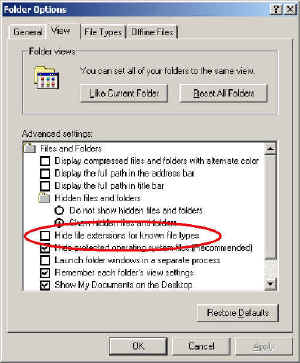
By default, Windows doesn't show filename extensions (such as ".doc"). While this makes the system a tiny bit less intimidating to novice users, it also makes it extremely hard to accurately recognize dangerous file attachments. For this reason, it's important to set Windows to always show file extensions. To do this:
1. Launch Windows Explorer
2. Go to Tools > Folder Options | View
3. Look down the list of options until you see 'Hide File Extensions for Known File Types' and uncheck that option.
3. Disable scripts running from within email messages
If you use Outlook or Outlook Express to read email, you should adjust its default settings so that potentially dangerous scripts cannot run from incoming email messages. There are two steps to take to accomplish this:
1. Change the secure content zone to Restricted Sites: In Outlook, select Tools | Options | Security. On that tab there is a drop down in the center panel labeled Zone. In the drop down menu, selected Restricted Sites. In Outlook Express, you also go to the Tools | Options | Security tab but here it is the top panel and it is a radio button called Restricted Sites.
2. Adjust the Restricted Sites setting to disable Active Scripts: In Outlook, you can access the detailed security settings by clicking the button marked Zone Settings on Outlook's Tools | Options | Security tab. Or with either Outlook or Outlook Express, you can open Internet Explorer, pick Tools | Options | Security (in IE, not Outlook or OE). In this dialog, select Restricted Zones in the top window and click on Custom Level. Scroll down to the fourth item from the end which is Scripting | Active
Scripting. Microsoft's default is Enable. Change that to Disable.
Woody Leonhard's free "Cure for Love
" utility will quickly and easily perform both of the above tasks for you, check your system for evidence of script virus infections, and give you the chance to subscribe to his *excellent* free email newsletters on Microsoft Office topics.
| Avoid Microsoft's " Outlook Email Security Update." Microsoft did release a "security update" patch for Outlook and Outlook Express, but many experts believe the cure is worse than the disease: Microsoft's patch can interfere with Palm Pilot synchronization, mail merge, and other legitimate uses. It's also extremely difficult to uninstall. This patch is also contained in the Office 2000 Service Pack 2 (SP-2) patch, and for that reason, we recommend
that you avoid it as well. We do, however, recommend that you install Office 2000 Service Release 1a
(SR-1a), available for download or on CD from Microsoft. |
Recommendations for larger networks
While offering highly specific recommendations for protecting large networks is beyond the scope of this article, here are a few thoughts that may be helpful if you're dealing with a network with more than a dozen or so machines.
- If you have an NT/2000 server, you can get server-based antivirus programs that can protect your server, and manage the distribution of virus updates to all of your client machines. Norton AntiVirus Corporate Edition is one such product, and there are others from antivirus/security vendors such as McAfee, F-Secure, Trend Micro..
- If you run an email server, consider installing antivirus software that is specifically designed to scan email on the server. This can be extremely effective at preventing the infection and spread of email-borne viruses.
- If you have lots of volunteers coming in working with floppy disks, restrict use of outside floppies to one machine with very tight virus scanning software that scans all floppies.
For more information
- Symantec Anti-Virus Research Center
- http://www.symantec.com/avcenter/
- Symantec's noscript utility
- http://www.symantec.com/avcenter/venc/data/win.script.hosting.html
- McAfee Anti-Virus Center
- http://www.mcafee.com/anti-virus/
- Symantec Product Donation Information
- http://www.onenw.org/toolkit/donation.html
- F-Secure
- http://www.fsecure.com
- The Virus Myths Home Page
- http://www.vmyths.com
- Yahoo's Listing of Virus Resources
- http://www.yahoo.com/Computers_and_Internet/
Security_and_Encryption/Viruses/
- "Cure for Love
" utility to detect and prevent script viruses
- http://www.woodyswatch.com/special/
- Norton AntiVirus tutorials from Learnlots.com
- http://www.learnlots.com/webskins/heading.cfm?
heading_ID=3095&LL_Style=1
- Microsoft Office Service Release 1a
- http://officeupdate.microsoft.com/2000/
downloadDetails/O2kSR1DDL.htm
06/30/01

� U. S. Health Care Reform. All
Rights Reserved.
|


