|
Advocacy Services
- Email - Outlook Express Basics for Windows
This document provides basic tips, as well as some advanced functions for using the email program Outlook Express 4.0 for Windows effectively.
As email becomes an increasingly important way to communicate, many of us are beginning to feel a bit overwhelmed by the sheer volume of email that finds its way into our "In" boxes. How can we make sure that important messages reach us, while avoiding the distraction and wasted time of reading and sorting unimportant messages? And how can we make it easier to find messages in the vast "compost heap" of old mail most of us have stored?
The good news is that the latest generation of email programs have simple and powerful tools that can help you get a handle on the flood of email hitting your desk. This document will provide you with instruction on the basic operation of Outlook Express 4.0, a powerful email program, available as a free download
from the Microsoft Website as a component of Internet Explorer 4.0. We�ll also give you some hints, tips, and tricks to help you make email a powerful tool, rather than a drowning flood.
Online Help
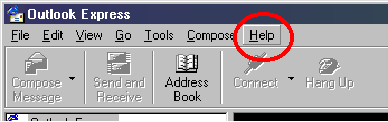
The most important thing to know about Outlook Express is that there is lots of online help available when you get stuck. The built-in help is very good at telling you how to perform common tasks, but not so good at telling you what to do when things malfunction. You can access Outlook Express� built-in help at any time, simply by selecting "Contents and Index" from the Help menu, or by simply pressing the F1 key on your keyboard.
Setup & Configuration
Outlook Express has lots of options and settings that you can customize to help you effectively and efficiently manage your communication needs. Although the program's capabilities can be complex, we recommend you start with these tips, go slow, and don't worry too much about what you're missing. As you become more experienced and comfortable with Outlook Express, you can begin to explore some of its more sophisticated features.
Basic Email account setup
The first time you run Outlook Express, it will walk you through a wizard to configure your email account settings. Before you run Outlook Express, you should have three pieces of information from your Internet Service Provider:
- The name of your emailbox (i.e. yourname)
- The name of your ISP's email server (i.e. mail.onenw.org)
- Your emailbox password
If you ever need to access your account settings, choose "Accounts" from the Tools menu.
Default to sending "Plain Text" mail
The only major change that needs to be made to Outlook Express� default options is to change the default format for outgoing mail from HTML formatting to plain text formatting. To do this, select "Options" from the Tools menu. Click on the "Send" tab and set the radio button for "Mail" to Plain Text.

Basic operations
Understanding the Mail toolbar
The Inbox toolbar provides quick and easy access to most of Outlook Express's main features. Here's a quick tour, left to right:

The Mail toolbar
- Compose message
- Click here to start composing a new email message.
Reply to Author
- Reply will start a new message to the sender of the current message.
Reply to All
- Reply to All will reply to the sender and all other recipients.
Forward
- Forward allows you to forward the message to another user.
Send and receive
- Causes Outlook Express to manually check for new mail and send any outgoing mail.
Delete button
- Deletes the selected item(s). Very useful for managing your mail.
Address Book
- Opens your address book.
Checking your email
To check for messages immediately, click the Send and Receive button on the toolbar. Any messages in your Outbox are sent also. You can also hit the F5 key to send and receive your email.

To set up Outlook Express to check for new messages automatically
- On the Tools menu, click Options.
- On the General tab, select the following check box: Check for new messages every x minutes.
- Specify how often you want Outlook Express to check for new messages
When this check box is selected, Outlook Express also checks for new messages whenever you start the program. By default, Outlook Express automatically checks for mail every 30 minutes.
Understanding the Message toolbar
When you open a new email message window, a special set of tools appears in this window's toolbar:

A Sample Message
Save
- Saves the current message as a mail, plain text or html file.
Print
- Prints the current message
Delete
- Deletes the current message by moving it to the Deleted Items folder.
Reply to Author
- Starts a new message to the author of this message
Reply to All
- Starts a new message to the author and all recipients of this message
Forward
- Forwards the message to another recipient
Previous Message
Opens the previous message.
Next Message
Opens the next message
Address Book
- Opens the address book
Sending email
To begin composing a new email message, click the Compose Message button. A New Message window will open. In the appropriate spaces, type the recipient's email address, any other recipients, a subject, and then the text of your message. When you're finished, click the Send button at the top of your message. As discussed above, you can reply to or forward a mail message from the Inbox window simply by highlighting it and clicking the Reply, Reply to All, or Forward buttons.
The New Message window
The New Message window has a toolbar of its own. The top toolbar allows you to send the message, cut copy and paste from the clipboard, open the address book and attach files (among other things). The New Message menu bar gives you access to additional options.

Printing messages
To print a message, just click on the Print button, which appears in virtually all of Outlook Express's toolbars.
Advanced operations
The Address Book
The Address Book can be a very useful resource for you: it allows you to easily store and retrieve not only your colleagues' email addresses, but also their street addresses, phone numbers, and other pertinent facts. You can also create your own personal "email lists" of folks you regularly communicate with as a group.

To add a contact to the Address Book
- In the Address Book, click the New Contact button on the toolbar.
- Type the first and last names for the contact.
- A display name is required for each contact. If you enter a first, middle, or last name, nickname, or company name, a display name is created for you.
- On each of the tabs, add the information you want.
To add contacts to your address book from messages you�ve received
When you receive e-mail, you can add the sender's name and e-mail address to your address book from within Outlook Express.
- Open the message, right-click the name you want to add, and then click Add to Address Book.
You can also set up Outlook Express so that people whose messages you reply to are automatically added to your address book.
- In Outlook Express, click the Tools menu, and then click Options. On the General tab, click Automatically put people I reply to in my Address Book.
To add names from e-mail messages
You can set up Outlook Express so that when you reply to messages, the people you reply to are automatically added to your address book. Or, any time you send a message in Outlook Express, you can add the recipient's name to your address book.
To add all message recipients (replies only) to your address book
- In Outlook Express, click the Tools menu, and then click Options.
- On the General tab, select the option Automatically put people I reply to in my Address Book.
To add an individual name to your address book from Outlook Express
- In the message you are composing or viewing, right-click the person's name, and then click Add to Address Book.
Creating Simple Distribution Lists (outgoing messages only)
If you have a group of people you regularly send information to or communicate with, you can easily create a mailing group (or "alias") containing their names. Then, you just type the group name in the To box when you send messages. You can create multiple groups, and contacts can belong to more than one group.
- In the Address Book, click the New Group button on the toolbar.
- In the Group Name box, type the name of the group.
- Click Select Members, and then click a name from the Address Book list.
- To find people using directory services, click the Find button on the Select Group Members dialog box, select a directory service to search, and then enter your search criteria. When you find the person, click Add to Address Book.
- To add the selected name(s) to the group, click Select.
- Click OK, and then click OK to close the group properties dialog box.
Notes
- To view a list of your groups separately from the address book listings, click the View menu, and then make sure that Groups List is selected.
- When you add contacts to your address book from a directory service, the properties that are listed in the directory service (such as address and e-mail address) are automatically added to your address book.
To add a contact to an existing group
- In the address book list, double-click the group you want.
- If the contact is already in your address book, click Select Members. Otherwise, click New Contact.
- If you are adding names from your address book, select one or more names from the list, and then click Select.
- If you�re adding new names, fill in the appropriate information.
- Click OK, and then click OK to close the group properties dialog box.
Note: This method of creating your own email list is very different from the email discussion lists hosted by U. S. Health Care Reform. For information on these very powerful tools, send us an email
.
File Attachments
Attaching a file to an outgoing email message

To attach a file to an email message, click on the File Attachment button in the New Message toolbar. A dialog box will open, allowing you to choose a file to attach. Select the file, click on the "OK" button, and the file will appear as an icon in your message.
File attachments can be a source of unreadable email.
.
To view a file attachment
- At the bottom of the message window, double-click the file attachment icon.
or
- In the preview pane, click the file attachment icon in the message header, and then click the file name.
Tip
- To save a file attachment, click the File menu, point to Save Attachments, and then click the file name. To save the attachment from the preview pane, press and hold down the CTRL key while clicking the file name
Managing your email
With ever increasing use of email as an efficient and effective communication tool, activists must watch out for the problem of "information overload." One of the best methods we�ve found for managing this influx is by customizing your email programs by using Folders and Rules. Folders in Outlook Express are almost exactly the same as the folders on your hard drive or in your file cabinet; they�re places to categorize and store messages. Rules allow you to automatically file specified
messages, such as email sent to a particular list or from a certain person, into an appropriate folder.
Folders
Creating folders for your messages allows you to organize your email into an electronic equivalent of file folders in your filing cabinet. Your many email messages are easier to retrieve, less confusing, and much more manageable when placed in their own subject area (folder) than having them all unsorted in your "In" box. You can even create "nested" folders to more fully organize your email library.
The Folder List
The Folder List is a hierarchical list of all of the folders in your Outlook Express mailbox file. Folders that contain subfolders have little symbols next to them. Click on these symbols (not the folders themselves) to show and hide the folder hierarchy.
You can click directly on the folders to show their contents in the right half of the window.
Creating folders
There are two ways to create a new mail folder in your Personal Folder:
- From the "File" menu, choose Folder>New Folder.
- Right-click on "Outlook Express" in the Folder List (or a folder within it) and choose "New Folder" from the context menu that pops up. A new folder will be created within the folder you right-clicked on.
When deciding how to organize your folders, think first in broad terms: are there certain people that send you only "personal" email? Are you subscribed to different email lists? Does your organization's staff and board send you email? These are all excellent subjects for separate folders. For example, if you receive email from members of your family, you can create a folder called "personal," to which you can transfer all emails from your brother. As you determine your folder needs over time, you
can create more specific folders, rename them as topics change, and delete those that are no longer of use to you.
Moving messages and folders
To move folders in the Folder List, simply drag them within the Folder List.
To move messages between folders, open the folder they're in, and drag the messages into the destination folder in the Folder List.
Creating Rules for automatically filtering your email
One of the most powerful features of Outlook Express is its ability to automatically filter your incoming email. Outlook Express can automatically examine the headers of incoming messages and take actions based on what it finds there.
The most common use of Rules is to automatically move messages from particular people or email lists to a designated folder. You may also wish to create folder/rule pairs for particular people, other email lists or what have you.
When deciding how to filter your messages, think about the folders you created, the types of emails you receive, and what keywords and/or parameters the filters should look for when transferring your messages to folders. This may take some tweaking after seeing how Outlook Express interprets your Rules and in what order your messages are filtered. It's easy to fine-tune your Rules by following the instructions that follow.
Outlook Express manages Rules through a feature called the Inbox Assistant. To open the Inbox Assistant, go to the Tools menu and choose "Inbox Assistant�"

To create a new rule, click on the "Add�" button in the Inbox Assistant dialog box. The Properties box for the rule will open,. In which you can define the criteria for the rule, and the actions you want the Rule to take.
Signatures
A signature is a brief message that can be automatically added to the end of outgoing messages. It can include your name, address, telephone number, web address, or whatever you like. We highly recommend you use a signature file in emails to discussion lists or to people with whom you communicate on a professional basis - it gives folks other ways of contacting you. It also gives your emails a sense of authenticity. You should, however, keep your signature file short (not more than 4 or 5 lines), and avoid the clever
"drawings" you sometimes see people using in their emails.
On the Tools menu, click Stationery.
On the Mail tab, click the Signature button.

06/30/01

� U. S. Health Care Reform. All
Rights Reserved.
|


