Advocacy Services
- World Wide Web - Netscape
Netscape Basics
Netscape is software that you use to view information on the World Wide Web. Called a "Web Browser," it translates the coded language of the Web, HTML (Hyper Text Markup Language), into text, pictures, even sound and video (you're using one now!). This document walks you through the features of Netscape, and shows you how to customize it for your own use. The version shown here is Netscape 4.06 for Macintosh, but the program is very similar on other platforms..
A tour of the toolbar
The toolbar consists of clickable buttons that either take you to predefined Web pages, or perform functions for you such as finding text, loading graphics, or printing.
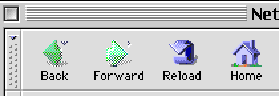
Back:
go back to the previous Web page
Forward: go forward to the next Web page
Reload:reload or refresh the page
Home:your default homepage
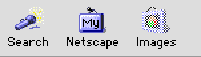
Search:open a page with a list of search engines
My Netscape: open a "personalizable" Web page
Images: load image files
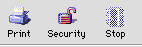
Print:
print the page that is showing now.
Security: information for current page
Stop: stop loading the current page

The "N" in the upper right corner: when comets are flying past the "N," you know Netscape is looking for the page you�ve requested. Also, if you click on the "N," you will be taken to Netscape�s homepage.
Below the Toolbar

The location window:
shows the URL (Universal Resource Locator), or web address, of the page currently showing in your browser window. You can also use the location window to type in any Web page's URL you wish to visit.

The bookmark:
double click on the little bookmark icon and Netscape will add the current page to your bookmark folder.
At the bottom of the browser window
 
Lock in the lower left corner:
tells you if documents have been encrypted for security or not.

To the right of the lock,Netscape shows you the progress of the download of the web page you�ve requested. When you hold your mouse cursor over a link, the location (URL) of that link will be displayed here, as well.

The tool tray:click on any of these icons to access other features of Netscape, available in the full Communicator module. These features are (in order): Open a new browser window, Open your email IN box, Open the Message Center, and Open Composer.
Customizing Netscape
Under Edit>Preferences in the menu bar, you will find several "preferences" options. You can set things like your default home page (the page Netscape opens on startup), the color of your hotlinks, your email address, and so on. Following are some recommended customizations for Netscape:
1. Appearance option:
-
Click the radio button to launch Navigator on start-up
-
Under "Show Toolbars as," click the radio button to show toolbars as "Pictures Only," so there is more room on your screen for the browser window.
2. Appearance>Colors option:
-
Select your own colors for hyperlinks, but keep the "Always use my colors" radio button unchecked. This retains the artistic integrity of sites where designers have thought about the color scheme of their pages.
To select your own link colors, click on the colored box next to "Custom," and find a color that you like in the spectrum provided. When choosing colors for links, select a "warm" color for links not yet followed (reds, red-oranges), and a "cool" color for followed links (blues, etc).
3. Navigator option
-
Unclick the Underline Links box. This will make the text on a web site easier to read.
-
Set your own Home Page Location. (How about www.onenw.org?)
4. Mail & Groups option
Under the Identity option:
Enter your personal email account information here (your real name and your email address).
Under the Mail Server option:
Enter your personal email account information here. If you don�t know what information is needed, your Internet Service Provider will help you. This is important if you want to send email over the Web (very likely).
Under the Messages option:
If you use another email program for most of your electronic correspondence and you want keep copies of emails you send from the web, click the box next to Mail Messages to self.
Shortcuts
Netscape offers several handy quick key shortcuts:
Command - L:
Open Location. Type in a web page URL and hit return.
Command - N:
Open a new browser window.
Command - M:
Open a new mail window.
Command - R:
Reload the current address.
Command - D:
Add Bookmark. Bookmarks save the URLs of web pages you want to keep on file, so you can easily access them again. (See below for more about Bookmarks.)
Bookmarks
Bookmarks are one of the most important features of Netscape. Bookmarks save the URLs of your favorite or most useful sites, and allow you to access them easily under the Bookmarks feature in the menu bar. Bookmarks need to be managed well in order to be effective. Just as you keep information in file folders in your file cabinet, you can organize your bookmarks in nested folders in your Netscape program.
To save a site as a Bookmark,
you can do one of three things:
1) Go to Bookmarks in the Menu Bar, and highlight Add Bookmark. The title of that page will be saved under this pull-down menu.
2) Press Command-D while at a site you want to bookmark.
3) Double-click the little bookmark icon next to the location bar to save the current page.
To create folders for your Bookmarks:
-
Go to the Navigator icon feature
 in the Menu bar (or press command-B) in the Menu bar (or press command-B)
-
Open Bookmarks
-
Go to File>New Folder
-
Give your folder a name and a description, and click OK
You can then drag appropriate bookmarks into your new folder(s). You can also drag folders into folders to create a tighter relational database of bookmark information. Bookmarks no longer needed can also be deleted from this window.
Note:
Netscape does not save or organize your bookmarks alphabetically. When you save a new location as a bookmark, it is simply added to the end of your existing list. This means that you can drag your most frequently used sites to the top of your list (while you�re in the Bookmarks manger � see above), so that you can access them more quickly.
Tip:
Whenever you visit an interesting site, Bookmark it! It is much easier to delete an unused bookmark than it is to recreate a very complex URL from memory.
Take time once a week to organize your bookmarks, weeding out those that are no longer relevant, creating new folders or transferring new bookmarks into existing folders to keep your "reference desk of the Web" well organized and easily accessed. You�ll be glad you did!
Other Features
View Page Source:
A feature under View in the menu bar that allows you to see the web page with its HTML encoding. Useful if you want to use a cool feature in your own site.
The "Go" feature in the menu bar allows you to access recently visited Web sites quickly and directly, without having to back or forward through other Web sites.
For more information
http://www.learnlots.com
has many useful tutorials including one on Netscape 4.7.
06/29/2001

� U. S. Health Care Reform. All
Rights Reserved.
|


