Learn to use the Search Tool Bar

There are two different ways to search: basic and advanced. Many subjects, people, and places can be found this way.
- From the Kids InfoBits homepage type your search words into the white box. Use specific subjects (sharks), people's full names (example: George Washington), places (example: city, state or city, country), and events (example: world cup) when searching.
- As an example, let's say you are doing a project on the World Cup. Type "world cup" into the white box, and you will receive a search list like this:
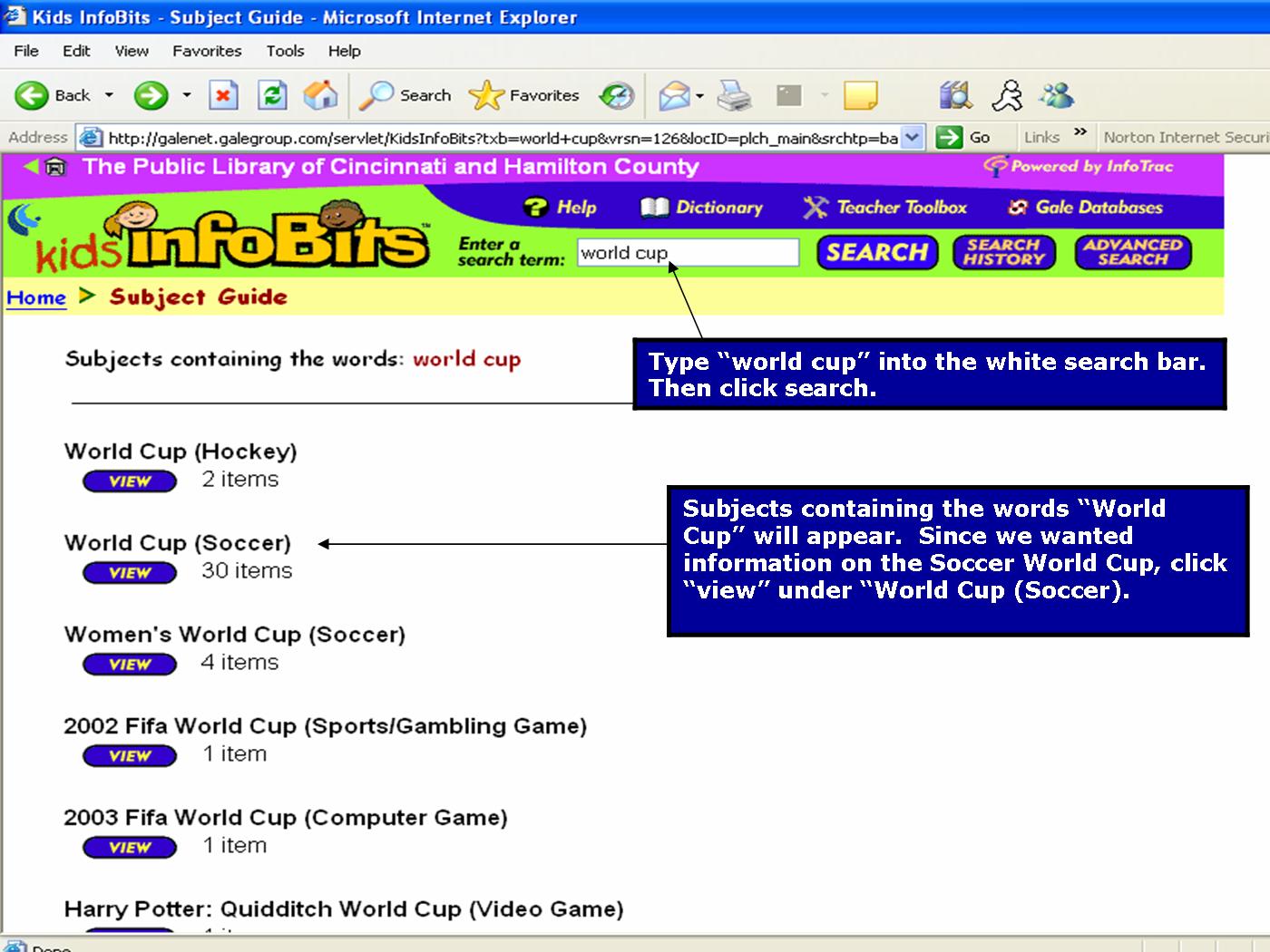
- Subjects containing the words "World Cup" will appear. Since we wanted information on the Soccer World Cup, click "view" under "World Cup (Soccer)."
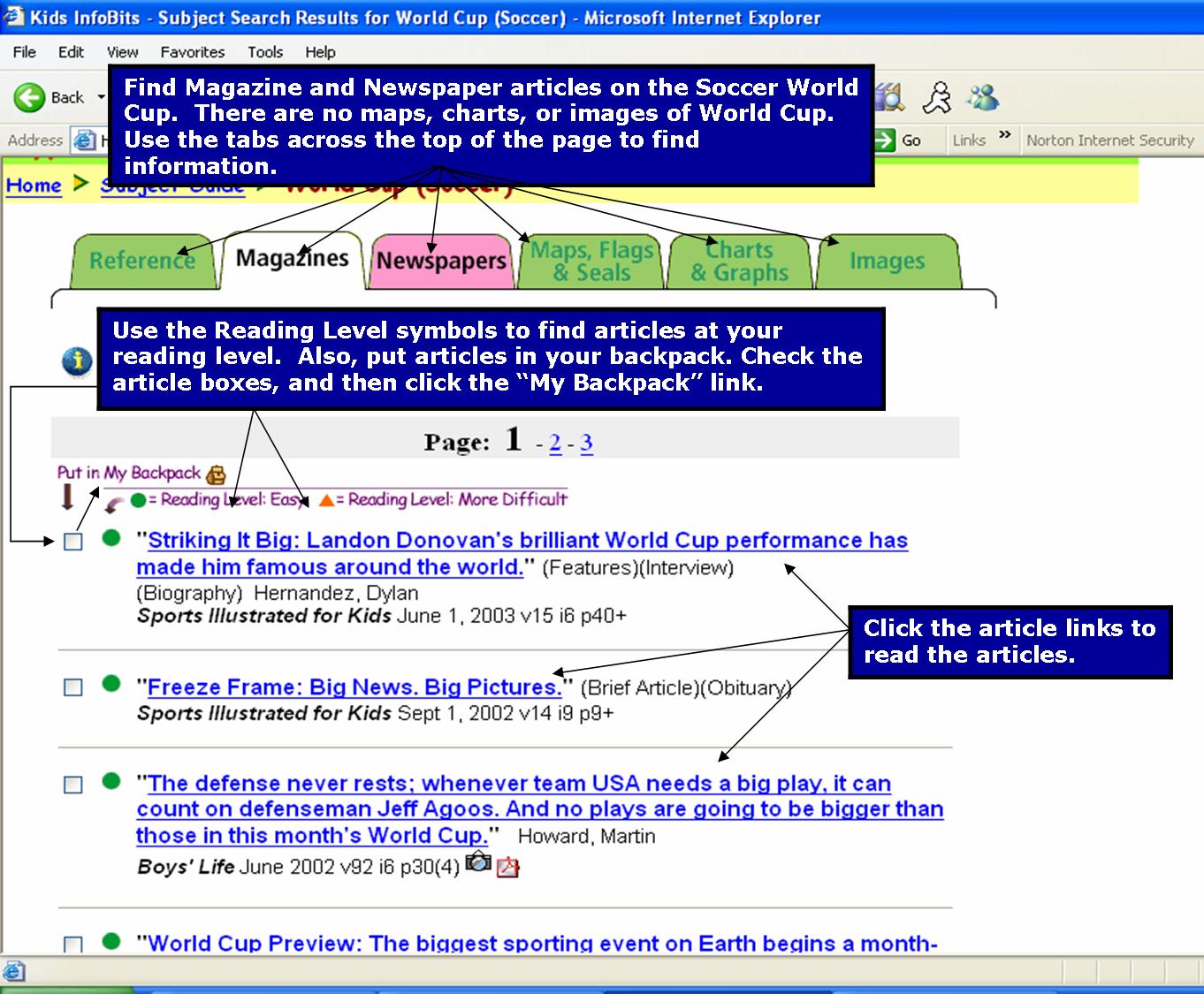
- Use the tabs across the top of the webpage. Find Reference, Magazine, Newspapers, Maps, Flags, Charts, Graphs, and Images about specific topics, places, or people. Kids InfoBits only has magazine and newspapers articles on World Cup Soccer.
- Find articles that have different reading levels. A green circle is an article written at an easy reading level. An orange triangle is an article written at a harder reading level.
- Use the "Put in My Backpack." If you want, check the article boxes and then click the "Put in My Backpack" link. It will save your articles, which you can print a list of or email to yourself.
- Click any of the blue links to read or look at articles.
- Return to the Home Page
- From the Kids InfoBits homepage, click the "Advanced Search" button.
- If you were doing a project on the Soccer World Cup, type "Soccer" into one of the white boxes, and make it a "Subject/Name" search. Use "AND" as the Boolean operator (read more about Boolean operators below in the Tips section). Then type "World Cup" in the second white box.
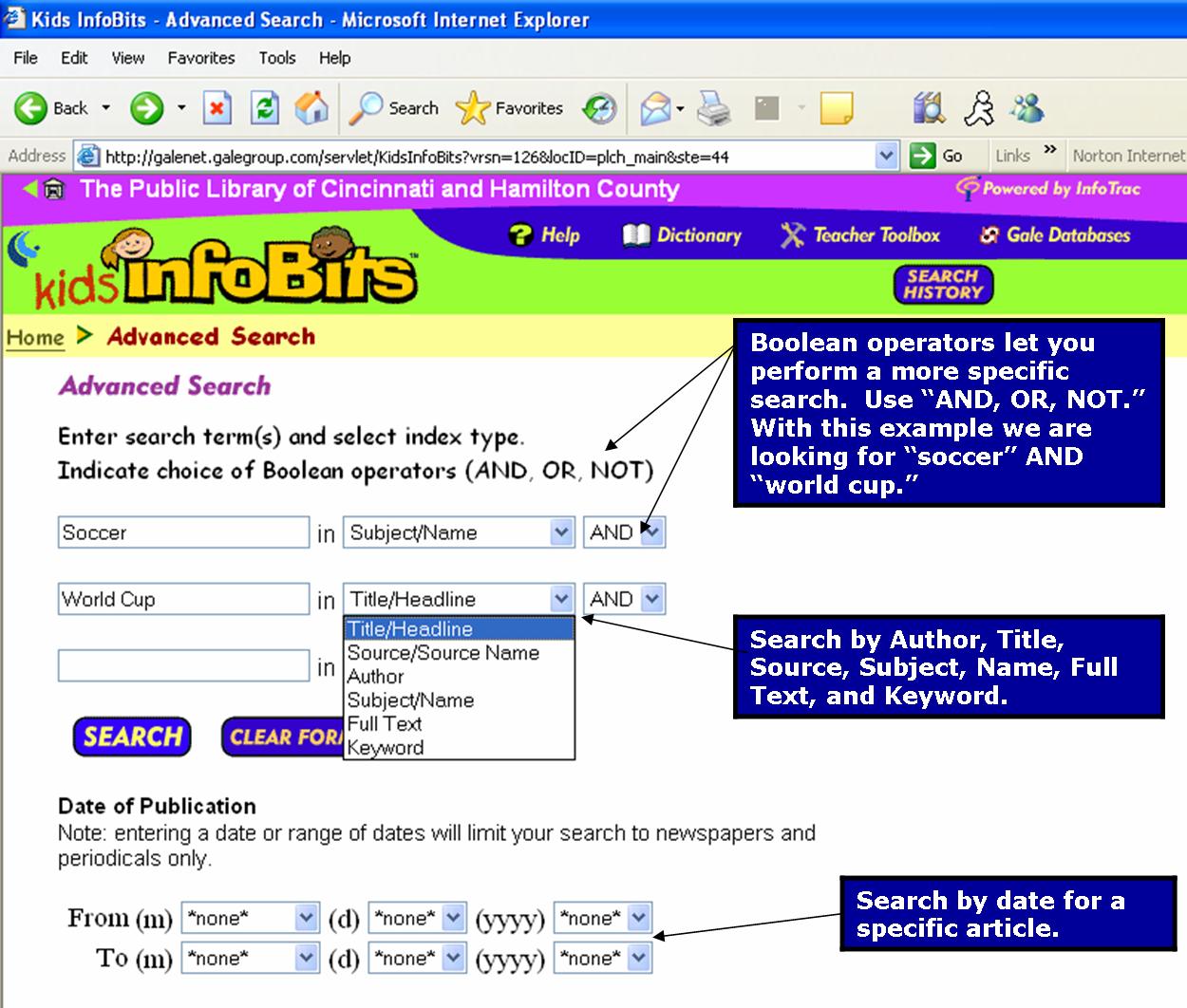
- The results from the advanced search will be similar to that of the basic search, but not the same.
- Use the tabs across the top of the webpage. Find Reference, Magazine, Newspapers, Maps, Flags, Charts, Graphs, and Images about specific topics, places, or people.
- Find articles that have different reading levels. A green circle is an article written at an easy reading level. An orange triangle is an article written at a harder reading level.
- Use the "Put in My Backpack." If you want, check the article boxes and then click the "Put in My Backpack" link. It will save your articles, which you can print a list of or email to yourself.
- Click any of the blue links to read or look at articles.
- Return to the Home Page
- Use more than one search term. Use "Soccer World Cup" instead of "World Cup."
- Capitalization does not matter when searching.
- Apostrophes should not be used when searching.
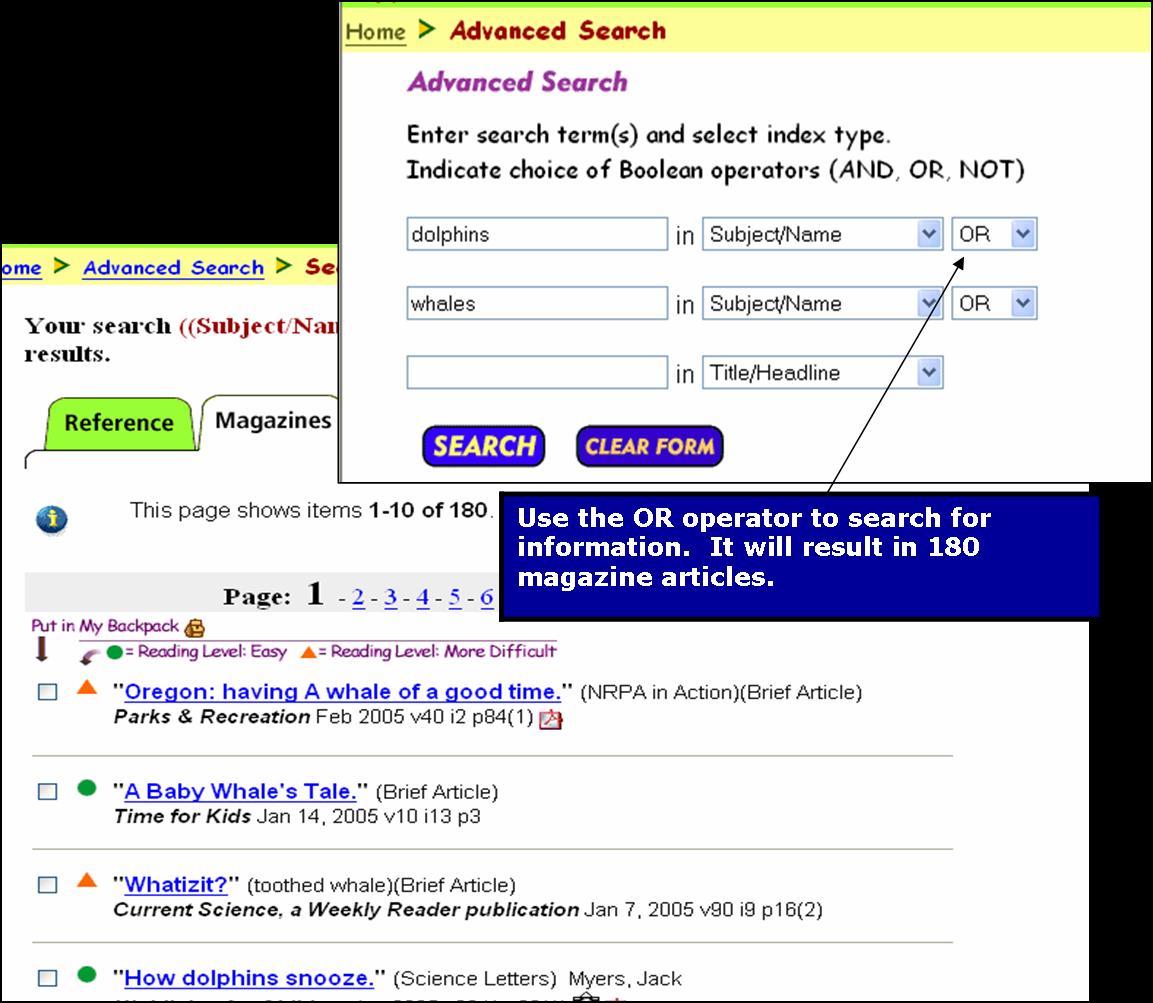
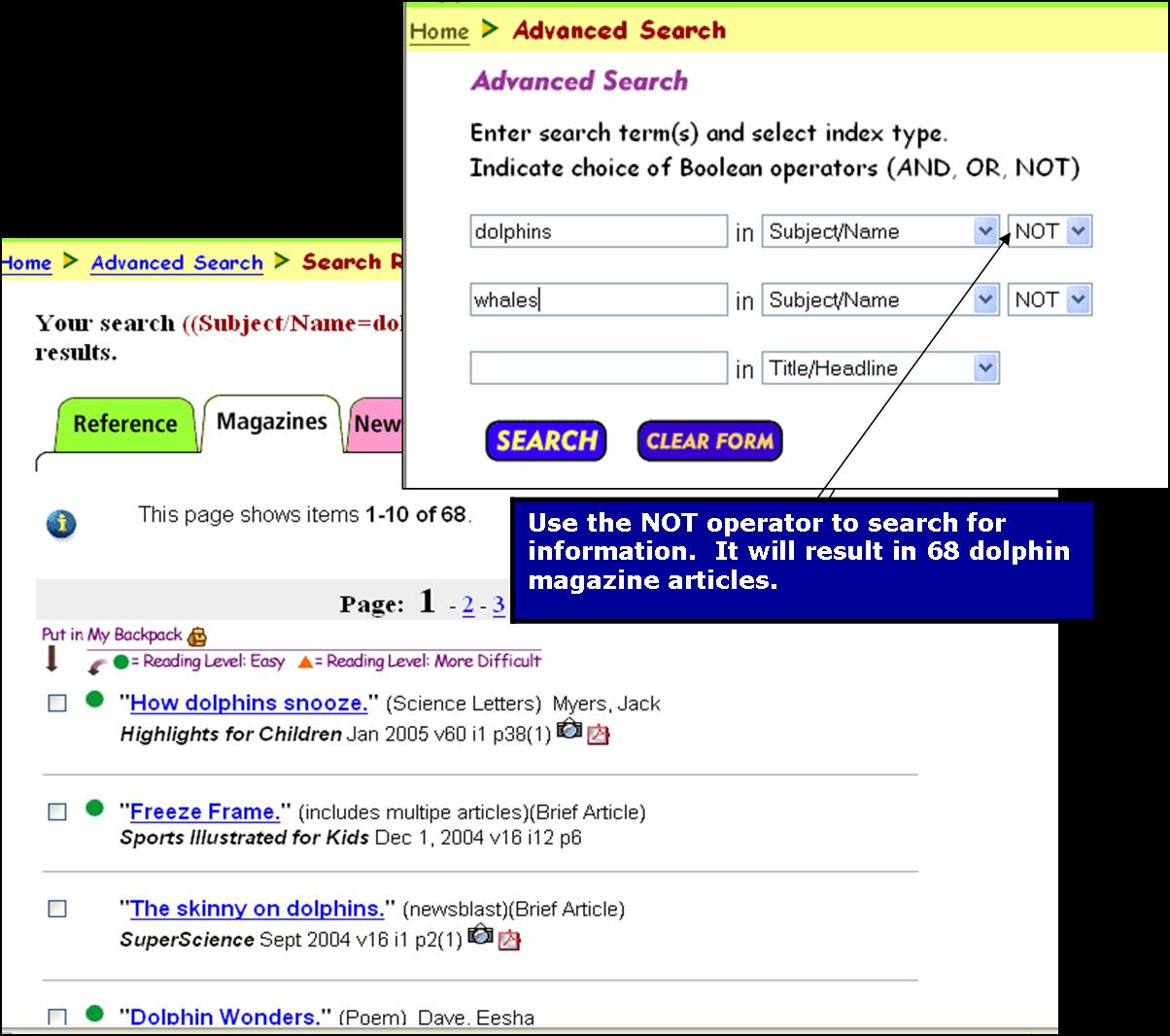
- Boolean Operators - Allow a more specific search (Use the words: AND OR NOT). Try doing a subject search for magazine articles on whales and dolphins. Use the Boolean operators of "AND," "OR," and "NOT" to see the different results.
- AND - Search for two search terms. The database will search for articles and information that have both terms in it. (Example: "dolphins" AND "whales").
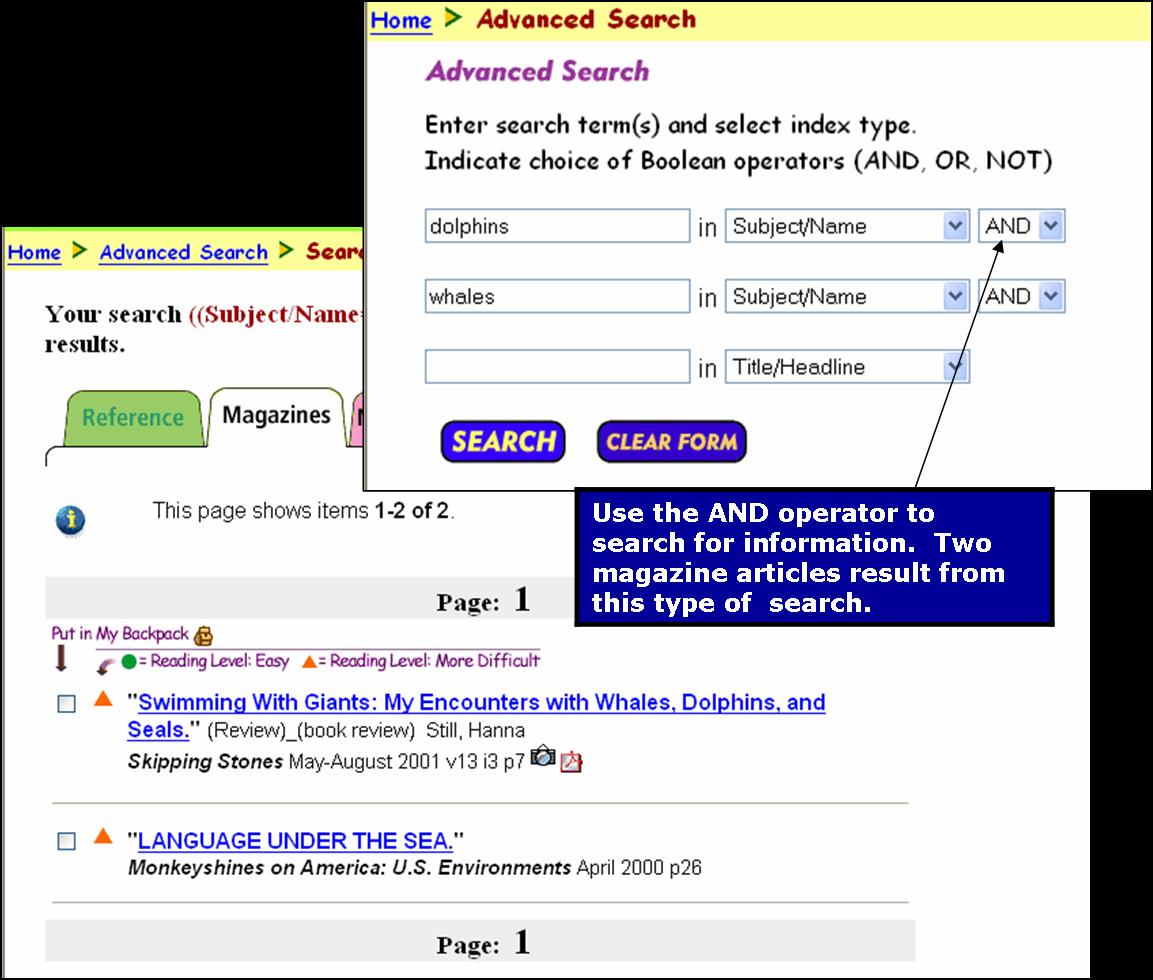
- OR - Search for one or both search terms. (Example: "dolphins" OR "whales").
- NOT - Search for one search term, but not the other. (Example: "dolphins" NOT "whales").
- Return to the Home Page

Created By: Victoria Rowekamp
Last updated: March 28, 2005


