You should have in your timeline at least a few frames and two keyframes like the Image which has a keyframe on 1 and a keyframe on 10, not create the motion tween. Now you should have ten blue colored boxes. |
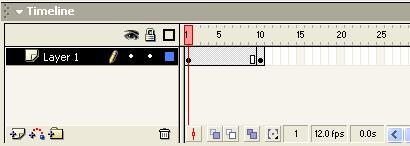 |
Once this is done you are going to need to select the 10th frame, or whatever frame you want the image to fade out to. While in the 10th frame select the image, in Flash MX you should be given this box |
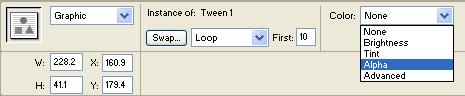 |
If you click the Alpha button and set the setting to 0% then that means that when the movie reaches the 10th frame the image will fade out to be invisible.
If you set another keyframe at 20 and set the alpha property to 100% then the image will fade back in
If you want the image to fade in gradually or really really fast, you can configure that with this window, which will be located at the Properties Box in Flash MX. If you notice there is a setting, right now set to 0 for the Ease Function. This is where you can change the setting for ease in or ease out. |
 |
This is also the same place where you can add sound files to your animations, or change your animation from a simple motion tween to a Shape Tween which I hope to cover soon with a tutorial.