First You have to have a fresh Flash Document by hitting
File -
New
After you have created your flash
document you can either change the parameters (the size of stage) by going to
Modify
- Document
Once
you have everything set you can then create your image, or what ever you
want on the stage by either using the tools on the left hand side, or
by inserting a previously created image.
Now that you have created and
setup your Flash Document, you can start with your animation.
First place your image on the
screen, which is called the stage.
Then your going to want to
select the Timeline. Below
is an image of the Timeline in Flash MX
In the Timeline
you will notice that there are layers. You can add layers by hitting the
button. You can delete layers by hitting the Trashcan in the bottom right.
The boxes with a circle in
them mean there there is an empty frame. Flash works in Frames, just like
if you had a old booklet with a bunch of images in them and if you go
through them really fast it will look like a cartoon animation. When you
put something on stage the white box with a circle turns solid with a
solid black circle, that just means that there is an inanimate object
on the stage.
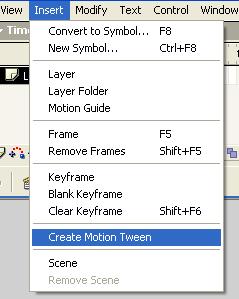
To animate your object, hit
Insert -
Create Motion Tween
What this will do is change the color
to a blue box, but now your going to want more frames in your animation so that
you can see your animation on stage move.
Now your going to need to click on
a frame in your move, I picked Frame 10. If you
are using a PC you can right click here and hit Insert Keyframe, or just hit
F6. Otherwise go to Insert and Keyframe
as seen in the picture above.
Now you have a start location and
finish location. For my animation I have included several keyframes. Keyframes
are the place in the timeline where you can make changes to your image. For
instance, in mine I changed the size of the circle as it hit the line and then
reversed the frames going out.
To resize the image on the stage
you can, in Flash MX, use the resize tool, .
Next put your mouse over the corner and pull outward to resize the image in
your new Keyframe.
Now you have a basic Flash Animation.
Hit Ctrl. Enter (for PC) to view your animation. Or hit Control
- Test Movie


 button. You can delete layers by hitting the Trashcan in the bottom right.
 .
Next put your mouse over the corner and pull outward to resize the image in
your new Keyframe.
.
Next put your mouse over the corner and pull outward to resize the image in
your new Keyframe.