
Excel allows you to create spreadsheets much like paper ledgers that can perform automatic calculations. Each Excel file is a workbook that can hold many worksheets. The worksheet is a grid of columns (designated by letters) and rows (designated by numbers). The letters and numbers of the columns and rows (called labels) are displayed in gray buttons across the top and left side of the worksheet. The intersection of a column and a row is called a cell. Each cell on the spreadsheet has a cell address that is the column letter and the row number. Cells can contain either text, numbers, or mathematical formulas.
Microsoft Excel 2000 Screen Elements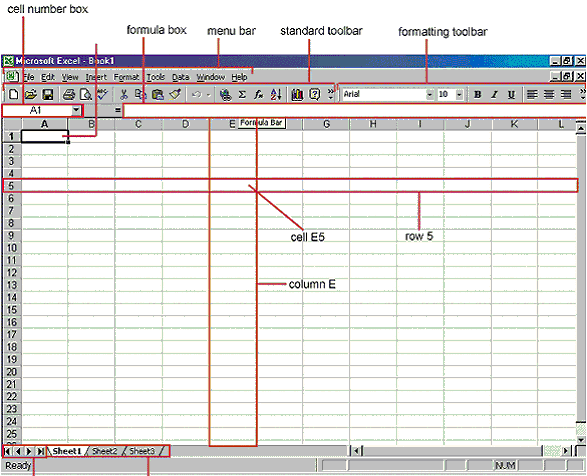
Adding and Renaming
Worksheets
The worksheets in a workbook are accessible by clicking the worksheet tabs just
above the status bar. By default, three worksheets are included in each
workbook. To add a sheet, select Insert|Worksheet from the menu bar. To
rename the worksheet tab, right-click on the tab with the mouse and select
Rename from the shortcut menu. Type the new name and press the ENTER
key.
The Standard Toolbar
This toolbar is located just below the menu bar at the top of the screen and
allows you to quickly access basic Excel commands
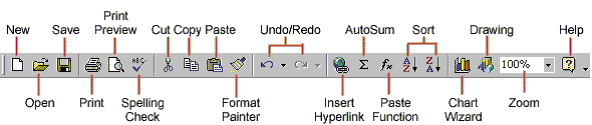
New - Select File|New from the menu barr, press CTRL+N, or click the New button to create a new workbook.
Open - Click File|Open from the menu barr, press CTRL+O, or click the Open folder button to open an existing workbook.
Save - The first time you save a workbook, seleect File|Save As and name the file. After the file is named click File|Save, CTRL+S, or the Save button on the standard toolbar.
Print - Click the Print button to print the workksheet.
Print Preview - This feature will allow you to preview tthe worksheet before it prints.
Spell Check - Use the spell checker to correct spellinng errors on the worksheet
Cut, Copy, Paste: First select the line and then there press Cut. Then you may paste it somewhere or press Paste if you want it to paste somewhere. Copy is use to Paste the data somewhere many time.