
Erase background
Before you can start making a blend you need to find pics and erase the background so you can blend them together.
In this tutorial I will explain how you can erase the background...it's quite easy once you get the hang of it!
+ Open Animation Shop and open this picture in it: 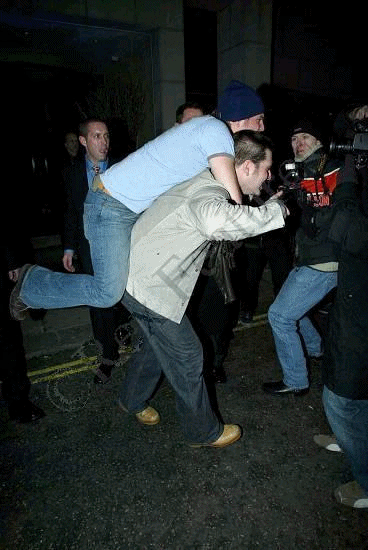
+ Click on the eraser 
and change the width to 5 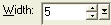
+ Click on the picture and make it 5 times as big. There are 2 ways to do that:
- use the scrollthingy on you mouse
- change the zoom  to
to 
+ Now you can start erasing the background of the picture. Just press on the pic and this will happen: 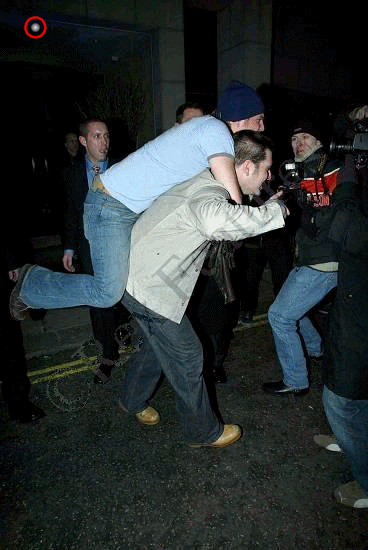 You erased a bit of the picture, now hold the left mouse button and move your mouse over the background of the picture. Then you get this:
 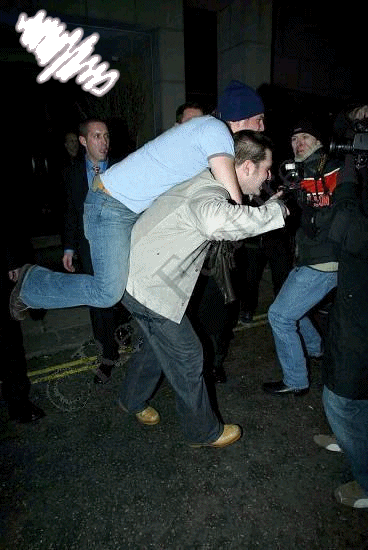 Start erasing the whole background..be careful that you don't erase pieces of the people/things on it. In the end it has to look something like this: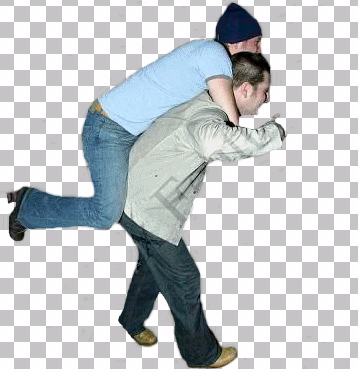
+ You can use the pic with the erased background immediately for in your blend, but if you want to save it do it like this:
- Click on the picture
- Press Shift X
Save the picture as a .png file else it gets all weird. 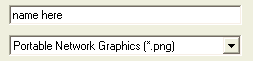
+ Done!!!!
Owner: fricky
Hosted at: dot.tk
Since:15-11-2003
The Owner
[+]Info
[+]Blends
[+]Winnings
The Site
[+]About
[+]Copyright
[+]Rules
Challenges
[+]Blend Challenges
[+]Submit
Blend Tutorials for Paint Shop Pro7+ Animation Shop
[+]About
[+]Erase Background
[+]Crop Images
[+]Resize Images
Listed at:

Joined:
