| Microsoft Excel Car Payment Calculator: "A handy tool..." |  |
1. Open Microsoft Excel. Click on Start > Programs > Microsoft Excel.
2. When the Excel spreadsheet opens, type the following data into the cell grid. This is the setup for the calculations.
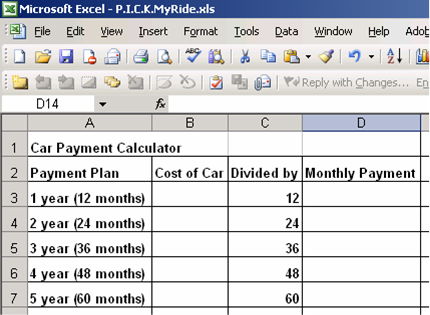
3. You will be setting up a Car Payment Calculator to figure the payment plan for different vehicles. This will be very helpful in completing the tasks assigned to you.
4.
After you have completed entering the data, you will need to insert the
formulas to do the calculations for you.
5.
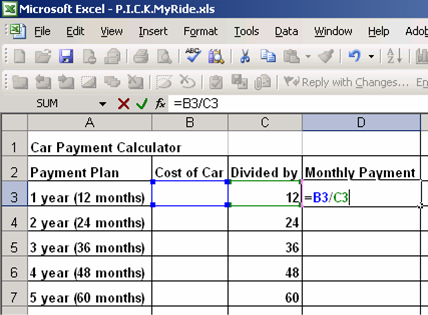
In Cell D3 type the following formula =B3/C3. (See example below.)
6. In Cell D4 type the formula =B4/C4
7. In Cell D5 type the formula =B5/C5.
8. In Cell D6 type the formula =B6/C6.
9. In Cell D7 type the formula =B7/C7.
10. This will complete the formula programming section. Save your Excel spreadsheet using the file name: Car Payment Calculator.
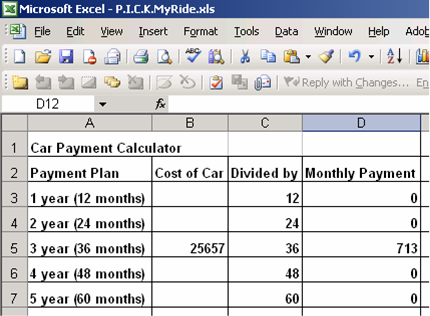
11. Now you can simply type the cost of any car into one of the cells B3, B4, B5, B6, B7 and the Monthly Payment will be calculated and displayed in column D respectively.
12. See the example below: A vehicle that costs $25,657 for a three year (36 month) loan would cost $713 per month.
13. You can reuse the car payment calculator for each person. Just click on the numbers that you typed into column B and delete them. Then you can type new numbers in for the next person.
Home Page | Introduction | Task | Process | Evaluation | Conclusion | Teacher Page | Edmunds Guide | Kelly Blue Book Guide | Excel Calculator