

 |  |  |  |  |  |  |
The Electronic Page
| Introduction |
| Page or Paper Sizes |
| Resolution |
| The Electronic Page Layout |
| The Viewport |
| Colour |
| Colour as a Variable |
| Browser Safe Colours |
| Monitor or Screen Settings |
| Summary |
|
Although, there are many similarities between the design of a Web page and the design of a traditional printed page, there are also some fundamental differences. These differences can be attributed almost entirely to the different publication media ~ the printed page and the computer screen or the so called electronic page of the Web browser.
|
||||||||||||||||||||||||||||||||||||||||
|
If you are designing a printed page, you generally know the size of the paper that will be used to publish the document. Paper or page sizes have been standardised for many years. Australia adopted the ISO 216 paper size standard when it moved to the metric system of measurement in 1966. So what has this to do with Web page design? Nothing directly, other than to emphasise that the desktop publisher or graphic designer is dealing with a fixed size format (usually in a portrait orientation) for his or her publications. Even more valuable is the fact that the aspect ratio of all formats within a single series remains constant ~ A3 is twice A4 which in turn is twice A5 etc. For the Web page designer, the page formats are
not fixed, in some cases do not even retain the same aspect ratio
and the viewing area is almost exclusively oriented as landscape. |
||||||||||||||||||||||||||||||||||||||||
 |
||||||||||||||||||||||||||||||||||||||||
|
|
||||||||||||||||||||||||||||||||||||||||
|
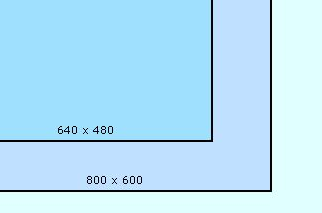
The publication medium for the Web page developer is each individual user's monitor or screen. These may vary not only in physical size, but in resolution and also in their ability to accurately reproduce colour. The resolution of a screen signifies the number of dots or pixels on the entire surface of the screen that can be individually addressed by the video graphics system of the computer. For example, a 640 x 480 pixel screen is capable of displaying 640 distinct dots on each of 480 lines, or 307,200 individual pixels. For the popular screen sizes of 14, 15, 17 and 19-inch, this translates into a different dots per inch (dpi) measurement depending on the size of the screen. For example, a 15-inch VGA monitor (640x480) displays about 50 dots per inch. This means that higher screen resolutions (800 x 600 or 1024 x 768) used on the same size screen, will display identical information in a smaller physical area. For example, consider the three images in Figure 1. I have altered the size of the images to represent the relative difference between the three screen resolutions.
This provides a graphic demonstration of the problems associated with screen resolution. Even though the three commonly used settings (640 x 480, 800 x 600 & 1024 x 768) retain the same aspect ratio (640 / 480 = 1.33), because the image is a constant size, it appears smaller as the resolution increases. The relative sizes of the screen at each of the three resolutions is shown in Figure 2.
Unfortunately, even this does not represent the
real situation as far as the Web page developer is concerned. The
actual area of the screen available to display a page is also dependent
the browser. |
||||||||||||||||||||||||||||||||||||||||
|
||||||||||||||||||||||||||||||||||||||||
|
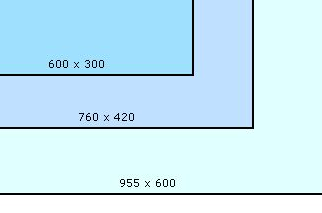
Each browser uses some of the available screen area for the title, menu, tool and status bars, usually at the top and bottom of the screen on a PC and on the side of the screen a Macintosh. Consequently, the browser window, which is the developers' actual publication space, is considerably smaller than the available screen. The term "viewport", although not universally adopted by Web designers, is often used to describe the "safe" viewing area. If you compare Figure 2 and Figure 3, both of which are drawn to the same scale, you can quickly appreciate the problem facing the Web designer. There is an enormous difference in the available screen area between the highest and lowest resolutions.
A page designed to fill the viewport at 640 x 480 will only occupy only 30% of the available viewing area at 1024 x 768, and conversely, only 30% of a page designed to fit a 1024 X 768 screen will be visible at the lower resolution. It is impossible to design a page that will be equally effective at all three resolutions. The 640 x 480 resolution was very popular on 14 inch screens, but these are slowly disappearing in favour of 15 and 17 inch screens. The most popular resolution for these sizes is 800 x 600 and most designers take a pragmatic approach and optimise their design for the safe viewing area of 760 x 420. This does not mean that the other resolutions can be ignored. On the contrary, every effort should be made to make your design as portable as possible from one resolution to another. However, the reality is that no design will be equally effective at every resolution and screen size.
|
||||||||||||||||||||||||||||||||||||||||
|
||||||||||||||||||||||||||||||||||||||||
|
|
||||||||||||||||||||||||||||||||||||||||
|
In order to explain the problems associated with colour display, we need to re-cap on how computers handle colours. As you are probably aware, computers store colours in a format known as RGB or Red, Green, Blue. This means that all colours are represented as a combination of the three base colours. Modern video graphics adaptors store colours with 24-bit precision ~ 1 byte or 8 bits for each colour channel (red, green and blue) which defines a palette of 16.7 million different colours. Each byte can store a value in the range 0-255 (or 00-FF hex). The higher the value the more the channel is "on", and the brighter the colour. For example, Red: 255 Green: 255 Blue: 255 (or FFFFFF hex) produces white ~ the brightest colour. At the other end of the scale Red: 0 Green: 0 Blue: 0 (or 000000 hex) produces black ~ the darkest colour. It follows that the colour 127,127,127 (or 7F7F7F hex) should be half as bright as 255,255,255. Ideally a colour half as bright digitally should look half as bright on your monitor.
|
||||||||||||||||||||||||||||||||||||||||
|
||||||||||||||||||||||||||||||||||||||||
|
Many older colour systems can only display up to 256 colours (8-bit) at a time. The effect of this is often visible as a "speckling" of colors as the browser tries to approximate the true color at any point in an image. This problem will gradually disappear as older computers systems are replaced by later models. In the meantime, in order to accommodate this, most browsers use colours from a fixed "browser safe" palette. This palette(click here for an example of the browser safe palette) is based on the 8-bit colour palette of 256 colours. However, the palette consists of only 216 colours in order to accommodate the differences between Windows and the Macintosh operating systems, both of which reserve some colours, but unfortunately not the same ones. UNIX uses an entirely different group again. The browser safe palette consists of 6 evenly
spaced gradations in red, green and blue and all their combinations.
If a browser is confronted with a colour outside this palette, it
will adopt the nearest colour from within the palette. For example,
if you set the page background to a colour which isn't in the browser
safe palette, you run the risk that the background will have different
colors depending on whether the computer is using indexed or true-color.
This problem is easily solved, simply stick with colours from the
browser safe palette wherever possible. |
||||||||||||||||||||||||||||||||||||||||
|
||||||||||||||||||||||||||||||||||||||||
|
However, not so easily addressed is the way in
which your selected colours will be displayed on the monitor or
screen. To a large extent this will be determined by the screen
settings. The Web page designer has no control over the settings
adopted by individual users.
|
||||||||||||||||||||||||||||||||||||||||
|
||||||||||||||||||||||||||||||||||||||||
If the black boxes at the end of each scale do not all appear as a true black, then the brightness on your monitor is set too high. If the white boxes at the other end of the scale are not all true white, then the brightness is set too low. If neither appears correctly, then your contrast is set too low. Where brightness and contrast determine the colour display at the upper and lower ends of the scale, the gamma setting will determine the brightness across the middle of the range. The 50% grey (6 from the left in row 4) should be visually half way between the white and black and there should be even steps of tone going to white on one side and to black on the other. If not, then your gamma setting probably needs adjusting. For computer screens "gamma" refers to the degree of contrast between the mid-level grey values of an image. The default gamma settings for PC and Macintosh monitors are different. The PC has been designed for non colour critical office work, and as such does not display an even spread of tone across the range ~ the dark colours tend to run together. The Macintosh has built in gamma correction, but this tends to err in the other direction. Colours that look good on a PC will appear pale or washed out on a Macintosh and colours that appear correctly on a Macintosh may be too dark on a PC. The default gamma setting on a Macintosh is 1.8 compared to about 2.5 for a PC. The W3C has recommended a Web standard gamma setting of 2.2, which is the same as the default for free to air television. If you are creating or modifying images for a Web site, then it is important to set the gamma to the recommended standard. In other words, the image should look correct at the intermediate setting of 2.2 if you want the best possible result across the likely range of client settings. Gamma correction is non-linear in nature, and is applied to the Red, Green and Blue components of a colour separately. This not only affects tone, but also colour. Across the gamut of possible RGB values, the relative intensity of each colour will differ as the gamma changes. As a result, the colour that you see on your monitor may look quite different on another screen with a different gamma setting. The Web page developer does not have any control
over the monitor settings people use and there is no remote method
for detecting and correcting them. If you want the best possible
tone and colour fidelity across all computer platforms, you have
to compromise by working with a 2.2 gamma setting for each of the
3 colour components. |
||||||||||||||||||||||||||||||||||||||||
| There are similarities between
the design principles of desk top publishing and Web pages. However,
there are also some important differences, which are due mainly
to the publication medium. The computer screen or browser viewport
is a variable medium in terms of size and display characteristics.
The designer has little or no control over these variables. As a
consequence, an effective Web page design will be a compromise in
order to best accommodate the variable nature of the medium. |
||||||||||||||||||||||||||||||||||||||||
|



|
|
|
|
|
|
|