2) Open a new file, wich has a width of 1024 and the height is as heigh as your image your about insert in this case its 1024 x 215
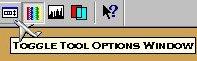
3) Open your Tool options window by klicking on this image in your menu.
4) Choose pattern
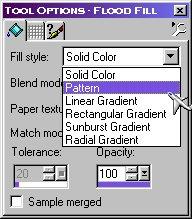
5) Choose that image you did in program 20/20 (that should be opend in psp!)
6) Fill your new file with the pattern

7) Open your layer palett via your menu.
8) Create a new layer

9) Choose a color from your image or an other color you like.
10)Flood fill this layer with you solid color.
(Attention..you must change back from pattern to solid collor in your flood fill menu!!)
11) Choose texturizer under image...plug-in..texturizer...texture.
12) Choose load texture
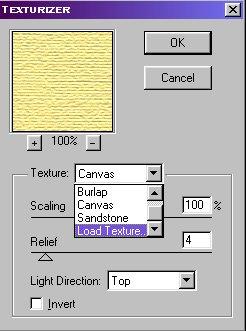
13) Choose the image you just saved as a .psd file.
14) Choose the following settings and push the ok button
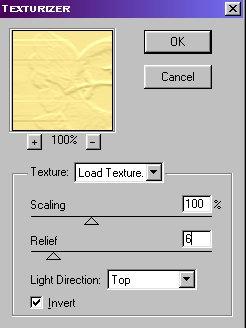
15) Go back to layers....arrange...move down
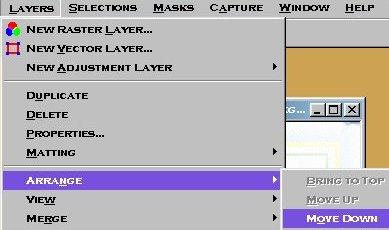
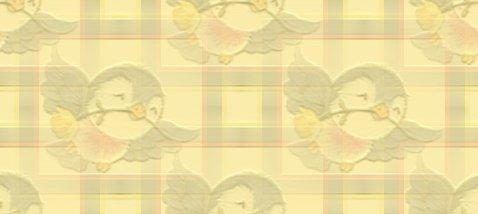
16) Play around with the layer opassity from your bakgrund layer (wich is your topper layer now!) and you will see the texture coming throug your image. This is the result.
17) Open the original image and push Ctrl + C to kopie the image and make the backgrund the aktiv layer.
18) Push Ctrl + E to paste the image into your background.
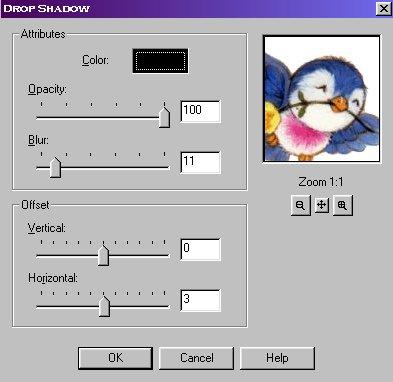
19) If you want you can give your image a little shade by using thes settings.
Do you want to see how it will lokks like when it's ready?? Klick here