
2) If you want you can take a coleur from your image with the pipette.

3) I choose red here

4) Add border by going to ..image..add borders and use these settings:
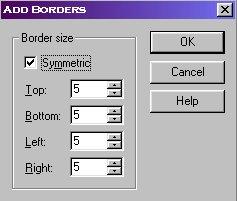
5) Add borders again but now with the bleu color and add border 15. And once again with the yellow color and add borders 5. Just like it looks on the image here.

6) Push Ctrl + C to kopie the image.
7) Open programm 20/20
8) Push Ctrl + V to paste your kopied image into 20/20
9) Choose Tile Effect under Image in the menu.
Your image should look like this.
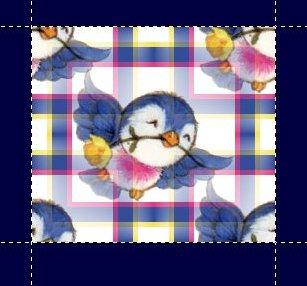
10) Choose Muted Background under Image
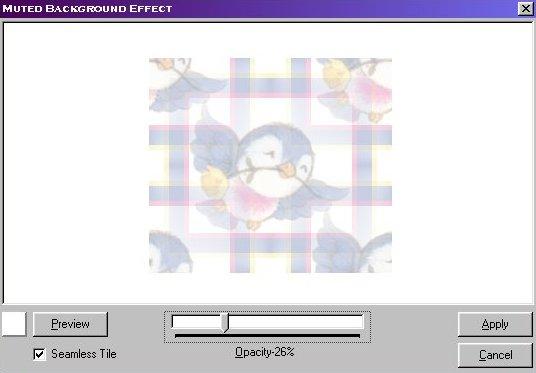
11) Change the opacity button as much as you like but think about that the image may be very white.
12) Push Apply and after that push Ctrl + C
13) Close progarm 20/20 and go back to Psp again.
14) Push Ctrl + V to paste the image into Psp
15) You can use this image as it is or you can do an extra effect by doing a texture on the background.
You can see an example here