 |
 |
 |
 |
| you've Uploaded a picture to your PageBuilder; now insert it into your page. |
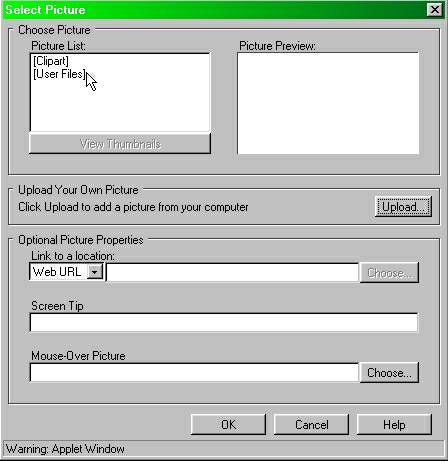
| This appelet will appear in the middle of the page: |
| Double-click on "User Files" to insert stuff you uploaded. |
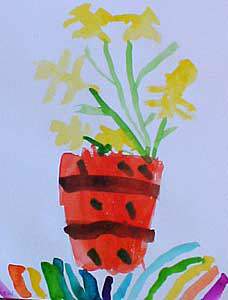
| The applet will be replaced with your picture, as shown: |
| You can also push-pull the sides or corners to alter picture size. |
| Now hit "Next" to go "Save & Publish" your work: |
| PICTURE INSERTION |
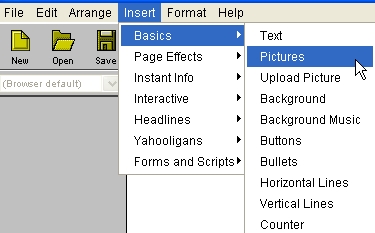
| 1- OPEN THE 'Select Picture" applet: t>GO Insert>Basics>Pictures, like this: |
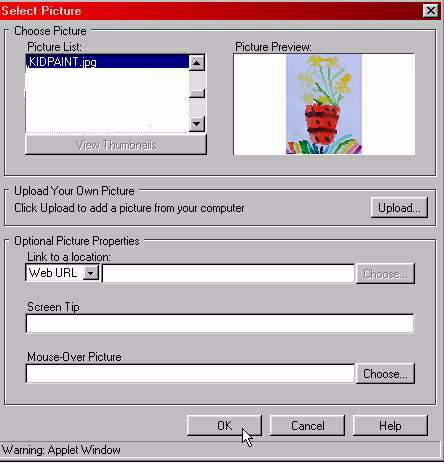
| 2- SCROLL TO FIND THE PICTURE YOU WANT, select, and click "OK." |
| IN 3 STEPS |
| 1- OPEN 'Select Picture' applet 2- SCROLL TO SELECT; hit OK 3- POSITION THE PICTURE |
| 3- POSITION THE PICTURE AS DESIRED. |