
Step-By-Step Pack 655
Yahoo Group Registration Instructions
You may have recognized that Pack 655 has two different web presences. One is the Pack 655 Geocities Website, that you are currently viewing this from, the other is the Yahoo Groups Site. It’s important to sign up for the Pack 655 Yahoo Group in order to send and receive email messages using the group, to access Pack Files, to see the Pack Calendar and the pics, and to review all of the messages ever posted on the group. Basically it’s the Pack bulletin board! There is no cost associated with having a Yahoo ID, being a group member, or using the site. Read these instructions all the way through before starting. Signing up is easy!
A MS Word version of these instructions can be found here (2.4 Mb). An Adobe Acrobat PDF here (3.2 Mb).
Let's get started!
Step 1: Open your web
browser. Go to the Yahoo website at http://www.yahoo.com
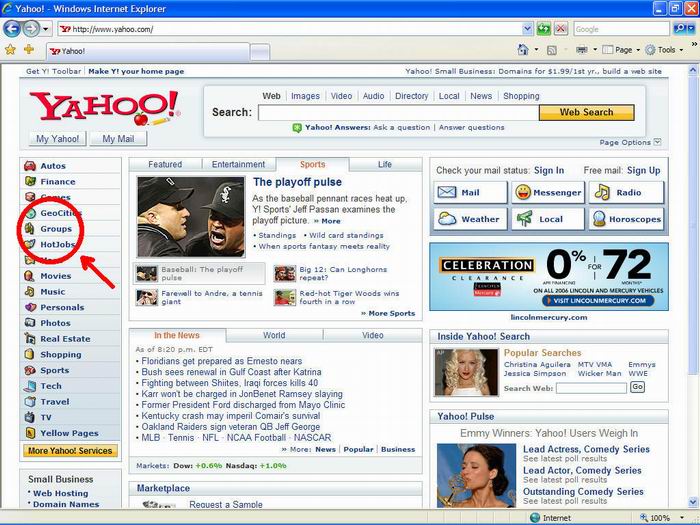
Step 2: Click on the “Groups” link in the left column. This takes you to the Yahoo Groups webpage.
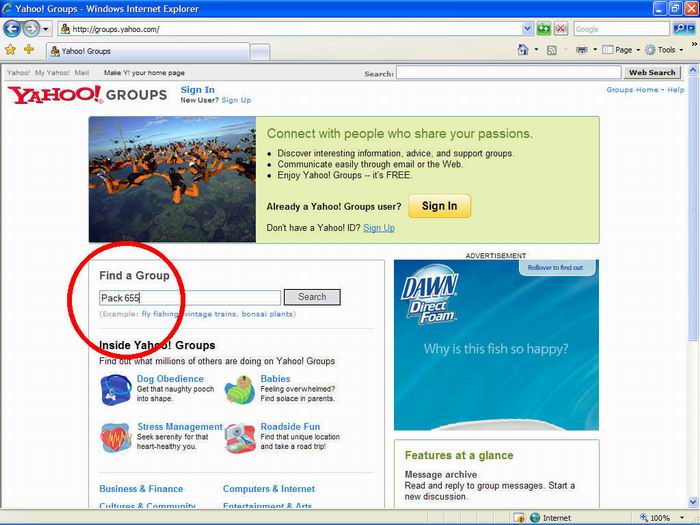
Step 3: On the Yahoo Groups page, type into the search
bar Pack 655. Click “Search”.
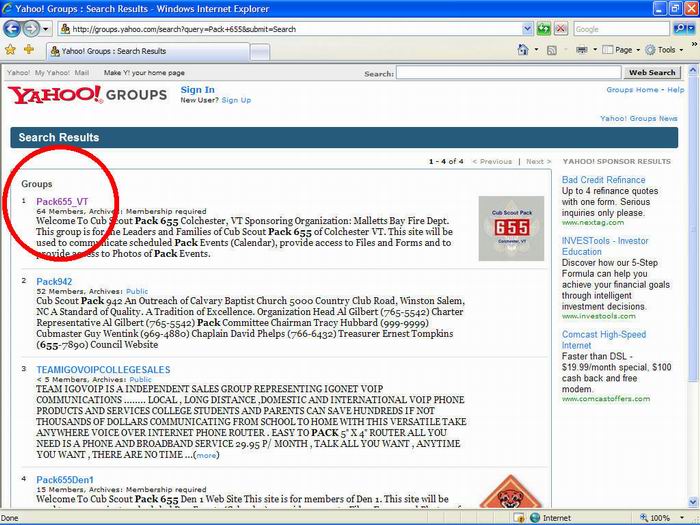
The search results should list groups with Pack and 655 in their names. Locate Pack655_VT (it should be the first one). Read the description of the group to be sure. It should look just like this:
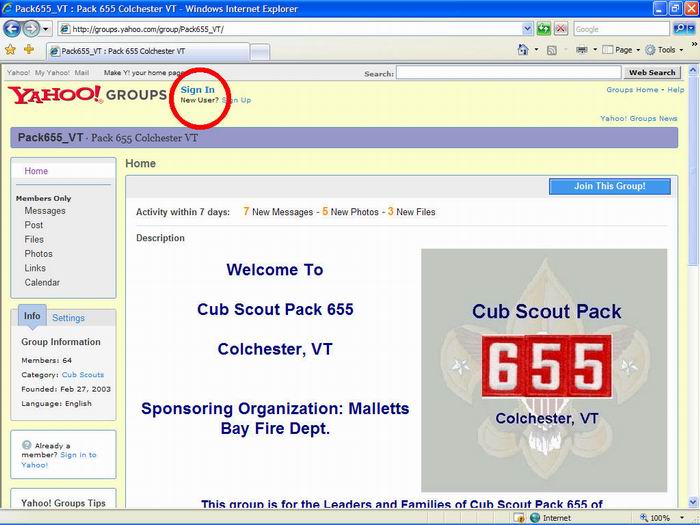
Step 4: Click on the Pack655_VT link. That should take you to this page seen below.
This is the Pack 655 Yahoo Group Home Page: http://groups.yahoo.com/group/Pack655_VT/.
You will want to bookmark this page so you can get back to it easily. (This link is also available on the pack website links page at : http://www.geocities.com/pack655vt/packlinks.htm).
Step 5: Click on “Join
This Group”.
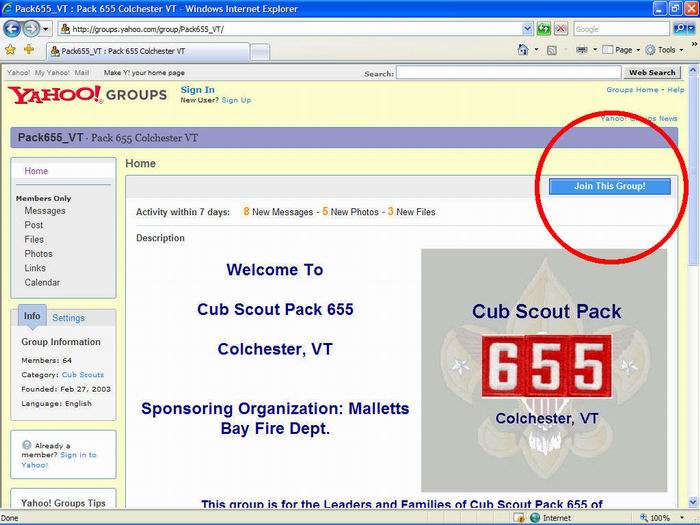
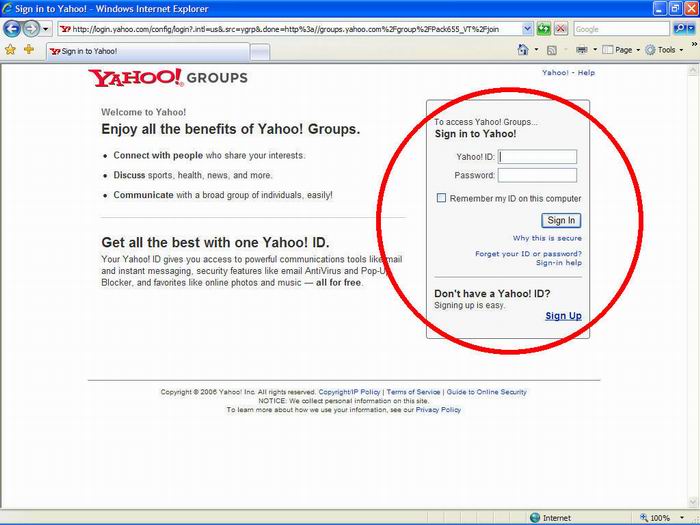
Clicking on “Join This Group” will open the page seen in Step 6 below:
Step 6: “Sign In” or “Sign Up”. How you proceed next depends on whether or not you have a Yahoo ID:
- If you do have a Yahoo ID, simply “Sign In” using it. Then, skip to Step 7 of these instructions.
- If you do not have a Yahoo ID, a small side trip to create one is required. In the bottom of the red circle, see the “Don’t Have a Yahoo ID?” with the “Sign Up” button? Click on the “Sign Up” link.
Step 6a: Register. That “Sign Up” link takes you to a registration form. This picture below is only of the top half of that form. Fill it in completely, and remember your Yahoo ID and password. This is where you tell Yahoo who you are and where to send your email from the group.
- Note that at the bottom of the “Create Your Yahoo! ID” box, there is a check off box to “Create my free Yahoo! email address”. If you want one, great, check it off. Otherwise, leave it unchecked, and you simply get the ID. You don’t need a Yahoo email address to receive the Pack 655 group emails. If you don’t have an email address, Yahoo is just as good as any other.
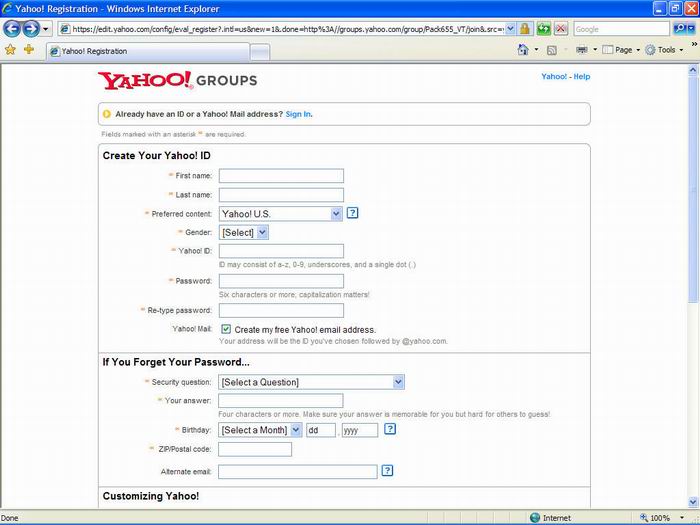
After completing the form, click on “I Agree” at the bottom, and the next page pops up.
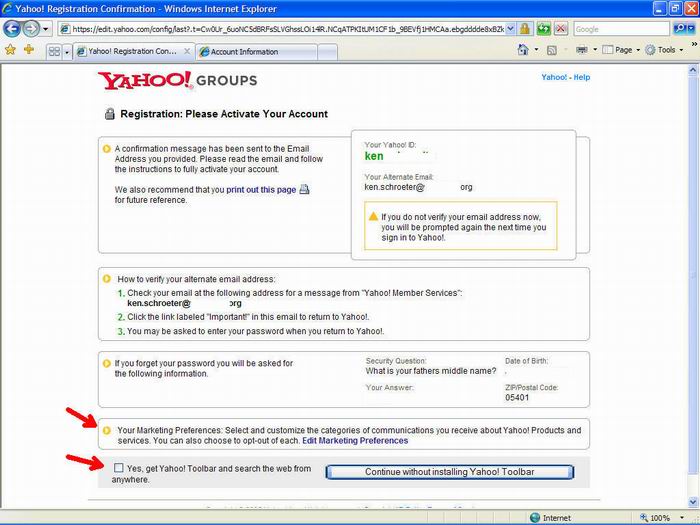
Step 6b: Activate the email address. This activates Yahoo to send group email to the email address you told it to send it to. Follow the step-by-step directions on this page.
- Look out!: Look at the last two areas on the page. Click on “Edit Marketing Preferences” and clear all the selections on the page that opens, unless you want them to send you junk email. After clearing all the selections and saving the changes (there’s a link at the bottom of the page “Save Changes”), click the back arrow on you browser to go back a page, returning to this activation page.
- Next, watch out for that darn Yahoo Toolbar check-box at the bottom of the activation page. You really don’t want that… so uncheck it!
- When ready, click “Continue without installing Yahoo Toolbar”.
Step 6c: Verify email address. This is the first of several verification pages. They are a small pain, but they protect the group from unauthorized access. Follow the instructions on each page.
- Click
on “Verify” next to your email
address. Don’t worry about adding other email addresses.
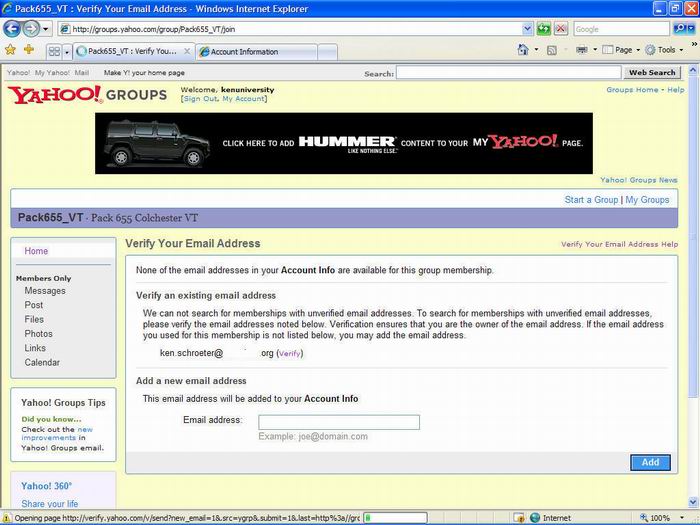
Clicking on “Verify” opens a new page seen in Step 6d below:
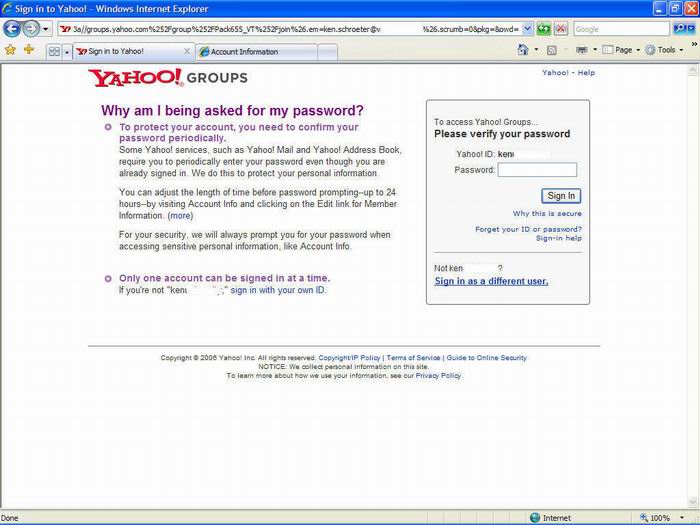
Step 6d: Verify Password. Fill in your password, the one you created earlier on the registration page, and click “Sign In”.
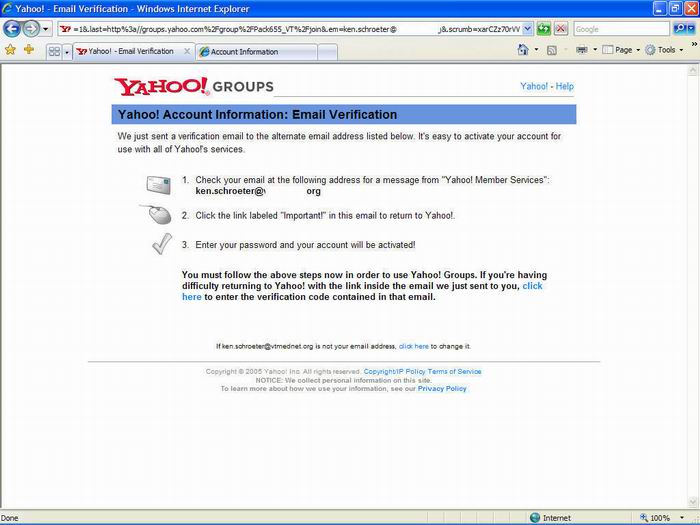
Step 6e: Check your email. When you click “Sign In” on the password verification page in Step 6d, this Email Verification page comes up telling you to check your email at the address you told Yahoo to send group email to. Check your email. You will find a Yahoo email (the next picture, Step 6f) asking you to click a link in the email to verify that you received the email at the email address you specified.
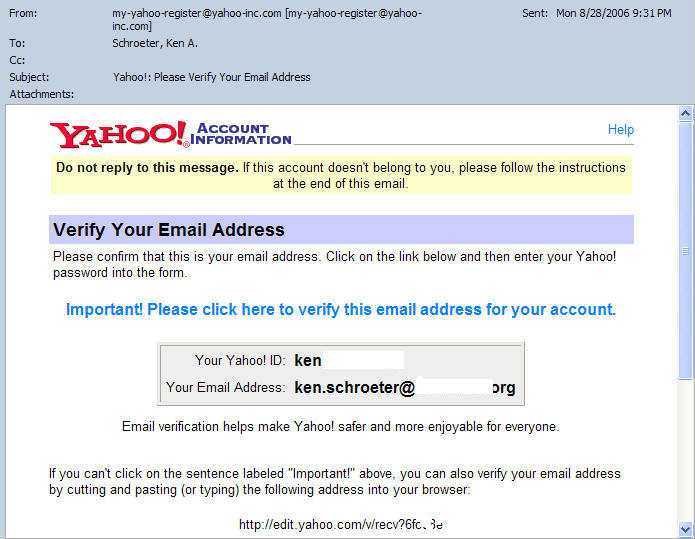
Step 6f: The Verification email. Click on “Important! Please click here to verify this email address for your account” and it will automatically open the next page (seen in Step 6g). If this doesn’t work, follow the instructions at the bottom of the email to enter the verification code manually.
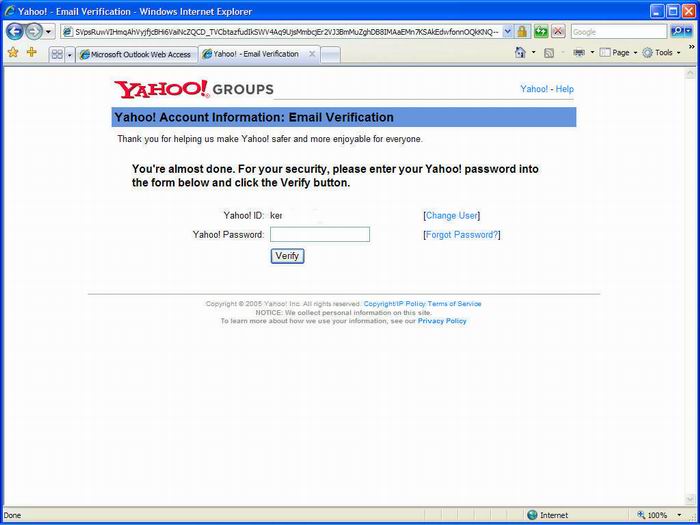
Step 6g: Email/Password Verification. When you click on the “Important!” verification link in that Yahoo verification email, this page should appear, again asking you to enter your password. Hang in there, almost done!
Step 7: Voila! You are in! Well, sort of. The group moderator (Ken Bell) has to approve your access, so until then, the links to Messages, Files, Photos, Links and Calendar will not function. You should receive an email that you are approved within a few days. This is all necessary to protect the information, and our Scouts. Log off this web page by clicking “Sign Out”.
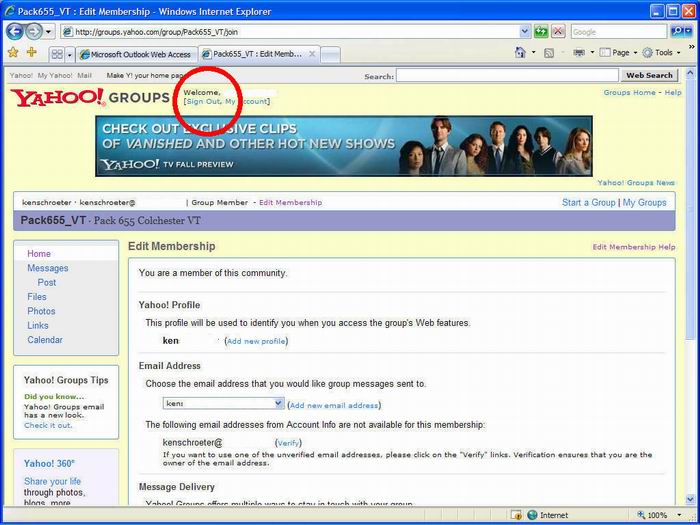
For “Message Delivery”, leave the settings as is, don’t use Digest. Digest is best for groups that may have 5 or more messages a day; it groups them together and sends them out as one longer email so your email box doesn’t fill up. It holds messages for a day or so to see how many it can group together, so may delay your getting important information.
One last step…
Step 8: Test your Sign In. Enter the group link URL (web address): http://groups.yahoo.com/group/Pack655_VT/ and sign back in, making sure it lets you in. Notice the links in the left hand column are black and don’t work. They will when the moderator lets you in. This should happen in a day or so.