Last Updated: Nov-4-2003
Icelandic is fully supported in any application in MacOS X that is built using the Unicode standard. The problem is that several key applications still use the older MacRoman standard to handle languages. To use these applications you either have to buy a localized version of MacOS X from the Icelandic Apple IMC dealer or localize it yourself.
This page contains information on the issue of Icelandic localization on the Macintosh platform. Please do not use the information for illegal purposes.
In order to use Icelandic in non-Unicode applications as well as the Unicode ones in MacOS 10.3 (slightly different in older versions), you have to do the following:
Each step will now be explained in details.
Note: Most people prefer to work with duplicates, rather than the original files. Also, active system files cannot be changed, while the system is running. They can be replaced afterwards by booting up in MacOS 9 or by accessing the files from another computer through target mode.Apple provides information on how to create your own keyboard layout on it's website.
If you are upgrading from a localized version of MacOS 10.2 you may find it useful to know that MacOS 10.3 uses the same keyboard layouts.
Keyboard layouts are stored in:
Library/Keyboard Layouts
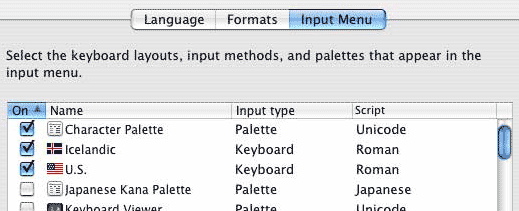
To activate a keyboard layout you check in the checkbox in front of it in the Input Menu in System Preferences/International:
If you want to avoid having to choose the Icelandic keyboard layout each time you open an application, you should remove the Unicode.bundle file from the System/Library/Keyboard Layouts folder and store it elsewhere
Note: This folder is not to be confused with Library/Keyboard Layouts, where you store your own layouts.Not every font is configured properly for Icelandic. This includes all fonts, installed by Microsoft Office. It is not a bad idea to keep a backup of fonts, that you know are configured properly, to replace ones that aren't. The following is a list of fonts that usually need to be configured properly:
/Library/Fonts/Arial
/Library/Fonts/Arial Black
/Library/Fonts/Arial Narrow
/Library/Fonts/Arial Rounded Bold
/Library/Fonts/Baskerville.dfont
/Library/Fonts/BigCaslon.dfont
/Library/Fonts/Comic Sans MS
/Library/Fonts/Copperplate.dfont
/Library/Fonts/Courier New
/Library/Fonts/Didot.dfont
/Library/Fonts/Futura.dfont
/Library/Fonts/Georgia
/Library/Fonts/GillSans.dfont
/Library/Fonts/HelveticaNeue.dfont
/Library/Fonts/Herculanum.dfont
/Library/Fonts/Optima.dfont
/Library/Fonts/Times New Roman
/Library/Fonts/Trebuchet MS
/Library/Fonts/Verdana
/Library/Fonts/Zapfino.dfont
It can be done, using an application such as TransType:
This is what is needed to fix several fonts for compability with MS Office and other software:
1. Open the TransType application.
2. Drag the misconfigured fonts into the "Source fonts" window.
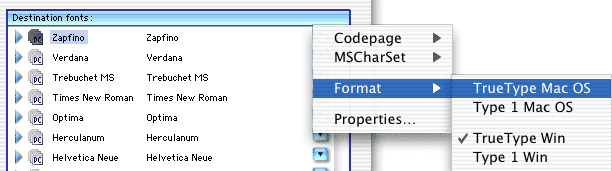
3. From the pop-up menu to the right of each font select "Format -> TrueType MacOS" like this:
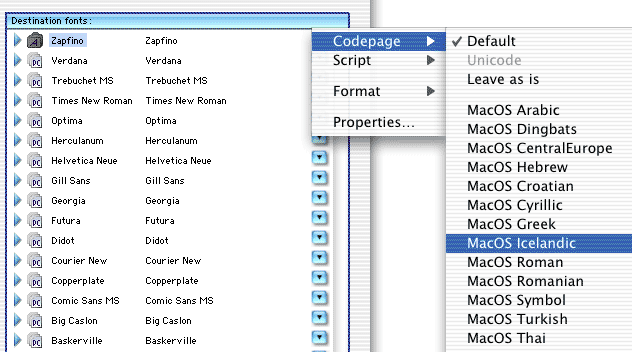
4. Then select from the same pop-up menu "Codepage -> MacOS Icelandic" like this:
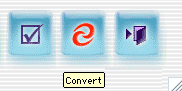
5. After you have selected the TrueType format and Icelandic codepage for each font you simply press the convert button and it will process all the fonts for you:
This step requires the use of a resource editor, such as Resorcerer (see separate instructions here). You can also use ResEdit, to modify resources in MacOS X, with the help of ToggleFork, which is freely available, as will be explained here.
1. Drag the file unto ToggleFork:
/System/Library/Frameworks/Carbon.framework/Versions/A/Frameworks/HIToolbox.framework/Versions/A/Resources/English.lproj/Localized.rsrc
2. Double click the resulting "Out.rsrcfork" file, which will open it in ResEdit.
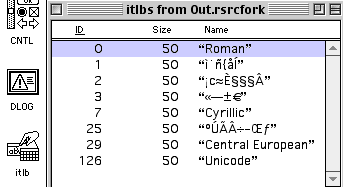
3. Double click the itlb resource and then double click the "Roman" resource that appears in the resulting window.
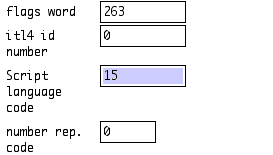
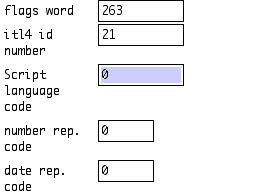
4. In the window that appears, change "Script language code" to "15":
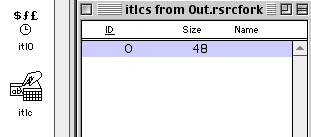
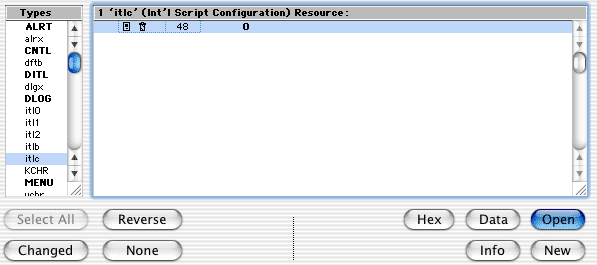
5. Double click the itlc resource and then double click the only resource that appears in the resulting window.:
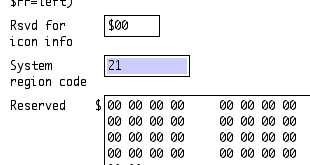
6. In the window that appears change "System region code" to "21":
7. Then close and save.
8. After saving your Out.rsrc file, drag it unto the ToggleFork application.
9. Rename the resulting "Out.datafork" file to "Localized.rsrc".
Again this requires the use of a resource editor, such as Resorcerer (see separate instructions here). You can also use ResEdit, to modify resources in MacOS X, with the help of ToggleFork, which is freely available, as will be explained here.
1. Drag the file unto ToggleFork:
/System/Library/Frameworks/Carbon.framework/Versions/A/Frameworks/HIToolbox.framework/Versions/A/Resources/English.lproj/Localized.rsrc
2. Double click the resulting "Out.rsrcfork" file, which will open it in ResEdit.
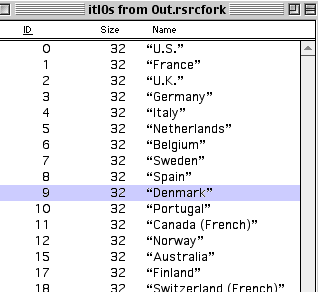
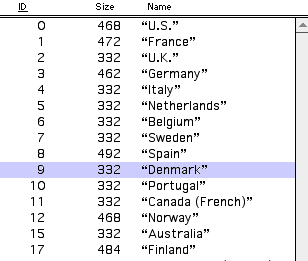
3. Double click the "itl0" resource.
4. Select the "Denmark" resource in the resulting window (do not double click)
5. From the "Edit" menu select "Duplicate".
6. Now highlight your newly created ID 128 "Denmark" resource and select "Get Resource Info" from the "Resource" menu.
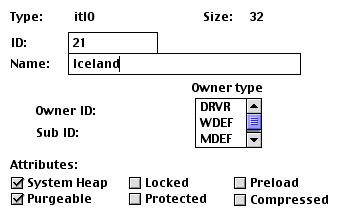
7. Change the ID from "128" to "21" and the name from "Denmark" to "Iceland" - it should look like this:
8. Close the info window.
9. Double-click your newly created ID 21 "Iceland" resource.
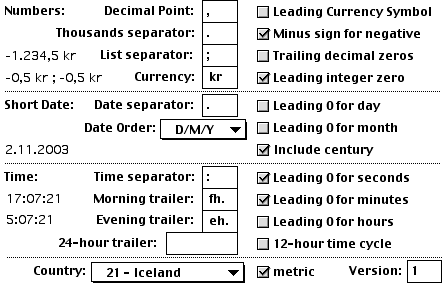
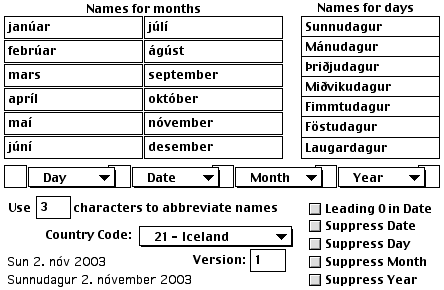
10. Edit the items so that they end up like this:
11. Close the itl0 21 "Iceland" window and save changes.
12. Double click the "itl1" resource.
13. Select the "Denmark" resource in the resulting window (do not double click).
14. From the "Edit" menu select "Duplicate".
15. Now highlight your newly created ID 128 "Denmark" resource and select "Get Resource Info" from the "Resource" menu.
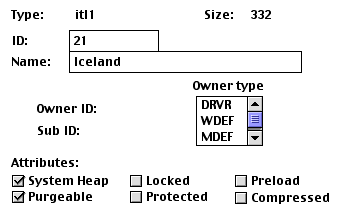
16. Change the ID from "128" to "21" and the name from "Denmark" to "Iceland" - it should look like this:
17. Double-click your newly created ID 21 "Iceland" resource.
18. Edit the items so that they end up like this:
19. Then close and save.
20. After saving your Out.rsrc file, drag it unto the ToggleFork application.
21. Rename the resulting "Out.datafork" file to "Localized.rsrc".
Again this requires the use of a resource editor, such as Resorcerer (see separate instructions here). You can also use ResEdit, which is freely available.
Note: In this case, you don't need ToggleFork, since you are dealing with a MacOS 9 file.1. Open the following file in ResEdit:
System Folder/System
2. Double click the itlb resource and then double click the "Roman" resource that appears in the resulting window..
3. In the window that appears change "Script language code" to "0"
4. Then close and save.