INSERTING IMAGES

Web optimised Giffs and Jpegs are the most common image files found on the Web as they have the lowest file sizes and download quickly.

The HTML tag for inserting images is <img src="imagename.jpg"> if it's a Jpeg or <img src="imagename.gif"> if it's a gif.

Instructions can be given to the tag, defining the size, adding a border or aligning the image. Aligning the image is very useful as it allows the text to run round it. The image we're using is called frog3.gif so the code is <img src="frog3.gif">
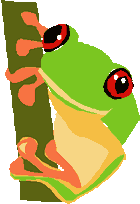
To work on this image right click(Windows) or control click(Mac) and save to the same folder as the HTML file that you've written. Then insert the code for the image at the start of the first paragraph.

Click on the link to view.


FORMATTING IMAGES


We're now adding formatting which will resize the image, give it a 2pixel border and align it to the left, letting the text run round the right hand side. You can do this by adding instructions to the image tag so:
<img src="frog3.gif" width="70" height="70" align="left" border="2"> .

Notice how I've not only resized the image but I've changed the shape from a rectangle to a square.

Click the link to see what the new page should look like, and it's source code, in separate frames.

Save and view, and hopefully your page should look like mine. If not go through your source code with a fine tooth comb.


ALT TAGS


treefrogAn alt tag is an alternative bit of text, which describes the image. It only appears on the screen if the browser fails to find your image, so you could say that if your page is working properly you don't need it.

However it does read out in voice enabled computers used by many blind and partially sighted people, so it does help bring you into compliance with the latest disability legislation. All you do is type alt="description of picture" into the image tag, so with our frog picture the code might now read:

<img src="frog3.gif" width="70" height="70" align="left" border="2" alt="treefrog" > .

It might be a good idea if you go through my source code looking for missing alt tags as I'm notorious at forgetting them.


ADDING LINKS


Now we can add a link to the image so that when you click on it you will return to the homepage. To do this open the link with <a href="http://www.google.co.uk"> in front of the image and closed it with </a> after the image (<a> is the tag, href=... is the instruction.

Also remove the border and return the image to it's original size. Do this by changing the instructions in the image source tag so it reads:
<img src="frog3.gif" align="right" alt="treefrog" border="0">
.

This makes the complete code:
<a href="http://www.google.co.uk"><img src="frog3.gif" align="right" alt="treefrog" border="0"></a>


n.b. When you apply a link to an image if you don't want a border you have to define the border size as nought. Otherwise the browser may give it a default border to highlight the link.


Now save and view, being sure to check that the link takes you through to the Google home page.

Click this link to see what the new page should look like, and it's source code, in separate frames.


ON LINE JONES

home         back         CONTINUE TO LISTS AND LINKS

Hosted by www.Geocities.ws

1