|
Make a simple SplashPage. SplashPage is your own
Introduction Page and you must save the SplashPage URL for
promoting. SplashPage looks someting like
this. It takes about
10mins to setup, very simple. Don't freak out!
You just need to copy/paste. This is very easy. |
|
|
1) Sign Up
SplashPage Account
Just
click here or you can
click here too. Or if you don't
have the mood to click "click here" today, you can
"click there" . Just click any
that you like, its the same thing! hehe! :-)
So, register and don't forget to change your new password. |
|
2) Adding Source Code |
|
View Source
Download Source
 |
Instruction
--> Login to
www.tetoolbox.com
--> Click SplashPages
--> Make a new Splashpage
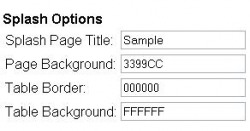
--> Key in exactly
"Splash Option" info as shown.
-->
Delete the word "Enter your custom text
here!"
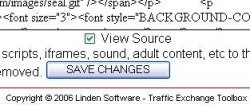
--> Check the "View Source" box as
shown.
--> Download
source_code.doc
--> Copy source code
--> Paste source code at your
Splash page
--> Click "SAVE CHANGES"
--> You can Preview it now. Should
be like
this.
|
3) Insert Hyperlink
Now, notice
the word
SIGN UP!
from your splashpage.
1. Copy this:
http://www.marketingpond.com/ref.cgi/xxxxx/ <--xxxxx
is MPond ID, so change it to yours!
VERY IMPORTANT!
Or just to go to MPond's member area, click
REFER & PROMOTE, you will see your MPond
referrals ID.
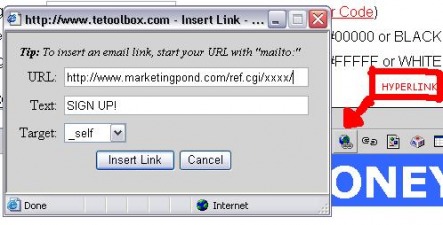
2. Select the word SIGN UP!
and click hyperlink.
Paste it there. Below is where the hyperlink located.
3. Click "SAVE CHANGES". Then Preview. Try
to click on your new link. Make sure it appears MPond's page with your
MPond's ID number!
 |
|
|
|
|
|
|
|
4) Editing your SplashPage (Optional)
Now, you can edit that Splashpage if you want to. Write anything that you
like, make a Great design! (you can just edit it anytime later). Tips:
Make it looks catchy, short & simple.
To insert picture
using http:// , search a picture on
Yahoo Image, right-click the image, select
Properties, copy AddressURL,
paste AddressURL.
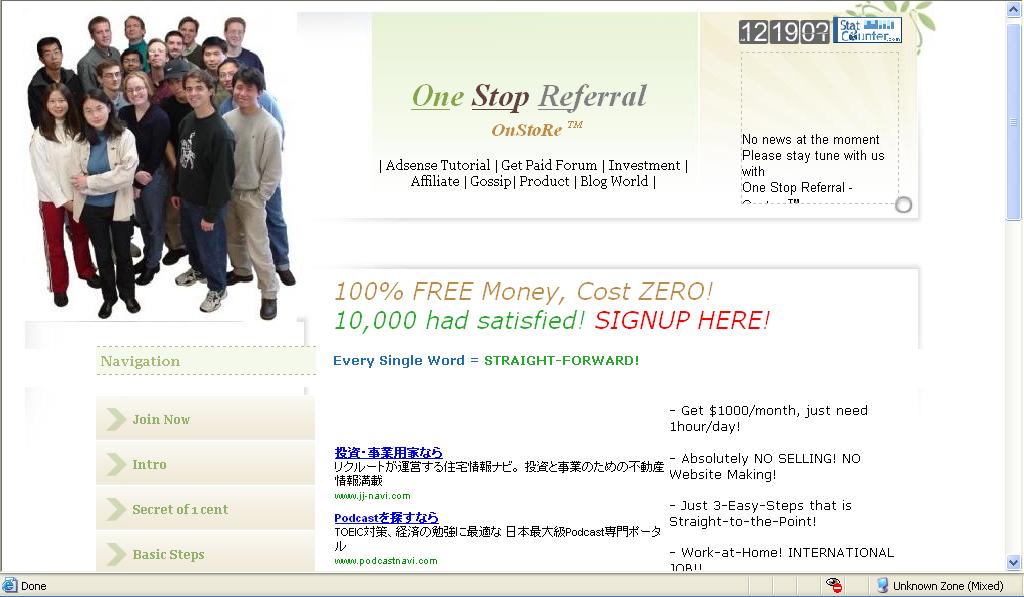
Whatever you do, please don't delete:

|
5) Your Splashpage URL
 |
After you had satisfied, click
SAVE CHANGES. Then you can
preview or edit anytime.
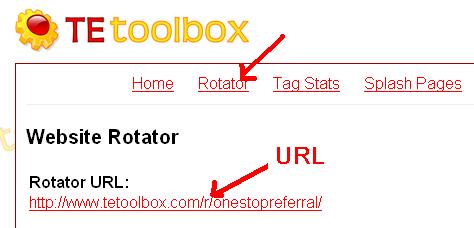
Next, click
ADD ROTATOR, you will
see this:
Rotator
URL:
http://www.tetoolbox.com/r/username/ |
|
Please make sure that your splashpage
setting is "HIGH". That ROTATOR URL
is very important. Use only that URL to
promote! Please save that URL in your PC.

2nd STEP completed!!
Let move to THIRD STEP>>>
|
|