OnChat Member Pages & Chat Applet (Java-Enabled)
WalkThroughs
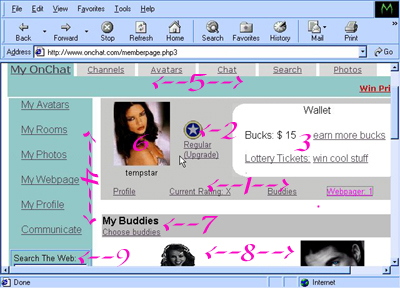
Walk Throughs Of The Onchat Member Pages & The Actual OnChat Chat Screen Member Page Part 1: Note Screen Capture 1: Member Quick Navigation Links: Profile: Allows you to create your personal profile for the chat (Other Chatters can see this Profile so use wise judgement in what you type in!) Current Rating: This is an AGE SPECIFIC Rating: It determines what features you have access to (there are some areas that are prohibitted to minors). If you're an adult an X rating assures full access to any room in OnChat (But 99% of the rooms are R-Rated (and we personally have never seen any X-Rated but there are rumored to be a few). Buddies: Activates the BuddyList applet that allows you to manage your buddylist ((add or subtract buddies or a quick look at who's on, among your buddies!)). WebPager: Similiar to an Expanded BuddyList (You cannot manage your buddylist from this feature, only see who is on and wether or not you have messages waiting from someone). 2: Member Status: This is the badge that tells which membership you have chosen, either regular ((FREE!!)) or With the Booster Pack ($19.00 U.S. a year) Activated. this is also where you can buy at a later date the booster pack upgrade to change your regular membership to the upgraded membership. You can get more info on that feature by clicking the badge icon. We will also adress that on this site. 3:This section tells how many OnChat "Bucks" ((useable only in OnChat to date)) you have, ways to earn more, allows you to purchase lottery tickets ((With Your OnChat Bucks)), and how to win some cool prizes. Onchat will occasionally have contests and ways to earn prizes or Onchat Bucks so check this section out to keep informed. 4: Member navigation Links: My Avatars: Opens your archive of Avatars. from this area you can access the various avatar features such as uploading, painting,creating, or even deleting. My Rooms: Opens your chat Room Manager. Regular Members can have up to 3 "Free" rooms to start. You can use Onchat Bucks to buy more rooms if you choose. Upgrade members can have up to 18 "Free" ChatRooms and can use their Onchat Bucks to purchase more if they choose to. If you do not have any rooms than this section will be empty. This is also the section where you can choose and empower moderators for your room. (Regular members can have up to 5 moderators, Upgrade Members up to 25). Onchat has provided some Pre-Made Room Templates and you can request that they build you one from this area. If you want moveable objects in your room they can also be uploaded and ,amaged from this section. You can also PROMOTE your rooms by having a special event or tour, ect. My Photos: You have Onchat Photo albums where you can place various pictures that you can choose to make viewable by the public or private. This is also where you would upload pictures to use in making custom Chat Room BackGrounds. That will be covered in the F.A.Q's section. My WebPage: When you become a Member OnChat Provides you with a member's Webpage that other chatters can view to get more infor about you. this is the section where you can tailor the webpage to suit you with the features YOU choose and YOU decide what you want or do NOT want people to know. We strongly caution you NOT to reveal too much personal information, such as first AND last name or other pertinent inofrmation on you. these are viewable by ANYONE so please be prudent!! My Profile: Same as the aforementioned, just another way to make changes to it. Please Note provided Screen Capture for an Example of what these look like. Communication: Another way to open your webpager capabilites and access your Onchat email, ect... 5: Onchat Quick Navigation Links: My OnChat: Calls up your Member Page (what this walk through is). Channels: OnChat has kindly provided you some very useful links to various rooms and other features on this page. Occasionally contests, polls, ect. are also accessible form this link. Avatars: Opens Onchat's Avatar Exchange. Members can upload avatars they've made to the exchange for other members and/or Guests to select from. Onchat has many talented individuals who make avatars but may not have a site and instead thoughtfully upload their avatars to the Exchange for people to use. Chat: Onchat has kindly provided you links to some of the most popular areas for chatters. Search: An Onchat Specific Search Engine: If you know the name of a member or room and would like to go to them, you can do a search in this area. This link does NOT do outside OnChat Searches but there is a net search capability provided by Onchat ((Tip:You even get Onchat Bucks for using it!!)) that will be covered in the next section. Photos: Allows you to browse through the PUBLIC photo albums of members. Members can choose to make their Albums Private which means you will not be able to browse through those. 6: This shows which default (the avatar that you will enter the chat with) you've chosen and displays the member name currently active. **SPECIAL NOTE**: The name of your account CAN differ from your chat nickname. Example: In this Screen Capture the member name is tempstar but her chat nickname is Tempest. ((This account is InActive and Password protected!!)). You can change both your chat nickname and default avatar through the profile link. You can also change your default avatar through the My Avatars Link but the chat nickname cannot be changed from that location. 7: Once you've begun to add people to your buddylist ((It's polite to ask first)), you can choose to have this feature on your member page. It displays up to 5 of your favorite friends and you can manage who is showing in this area via the Choose Buddies Link provided. 8: These are the Default Avatars of the Buddies You've Chosen. This section also tells you if they are OnLine In Onchat Or Offline. If they are OnLine, Clicking their avatar picture will allow you to "buddyslide" (Sort of like teleporting) to wherever they are in OnChat. Sometimes they may be in a place where you can't enter ((It may be a private room or full for instance)) and you may have to choose someone else to "buddy" to or enter the ChatGrid ((The Rooms where you can chat)) via one of the other provided means. 9: Search Engine: This is a very handy WEB SEARCH ENGINE, that OnChat has provided for your convienience. It is usually followed by a list of the most popular searches for that particular day and time you logged in. This is a VERY handy feature ((Try typing in avatars)) and you even get Onchat Bucks for utilizing thus search engine!! Member page part 2:Please Note next Screen Capture
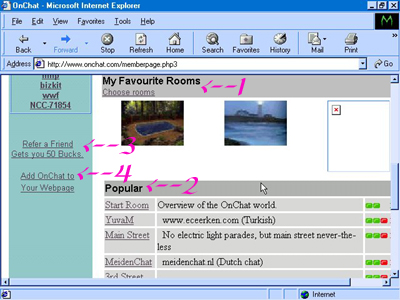
1: My Favorite Rooms: Once you have bookmarked your favorite rooms you can choose to put "short-cut" links to them in this area. to go to that room just click on the pictures. 2: Popular Rooms: Onchat has provided you a list of their most popular rooms that you can enter directly from your member page. Just click on the underlined name of the room to go to it. 3: If you have any friends you'd like to introduce OnChat to, send them an invitation via this link. You'll receive $50.00 OnChat Bucks for every friend thatthat signs up with OnChat. 4: This link will tell you how to add an Onchat presence to your webpages. It even provides the codes for you!!
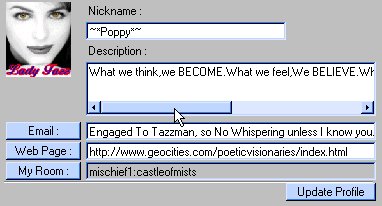
The Onchat Java Graphical applet WalkThrough Please note Screen Capture provided: 1: Tool Bar functions:Allows you to access handy features right from your chat applet rather than having to leave the chat. HotSpots: This will tell you what areas are currently the hotspots in Onchat at the time you logged in and check this feature. Text Bar: This is where you can modify your text bar display Search: This will allow you to locate rooms by member name ((You'll need to have the member name to find their rooms. We recommend keeping paper and pen handy.)) More: This will rotate the tool bar options to the next set of choices. ?: Help/questions Guide Feature **These features appear when you click More to rotate the options** Who's Here: This will tell you who is present in a ChatRoom you are in by listing the member names of everyone in the room. Bookmarks: This is the area where you can add and/or manage your favorite rooms bookmarks. HIGHLY RCOMMENDED!! If you find a room or community you really like we suggest bookamrk it to make it easy to return. Buddylist: This is an OnScreen version of the same feature accessible from your member page when you click the buddies link. Buddies can be added or deleted from this page and you can see which of them is currently online. More: Same as above, it mearely rotates the list back to the first options that were showing when you started. ?: Same as Noted above. 2: Text Bar: This is where you type tospeak in the chat. Just hit the enter key on your keyboard or see next section below. 3 & 4: These are special keys that will help you express your individuality better in the chat. Type a sentence into the text bar as normal but don't hit enter on your keyboard. You can instead hit one of these special symbol Keys. The ! symbol key will cause your words to appear on screen in a pointy, explodingly puslsate bubble, indicating yelling or excitement or other strong emotion. The {} symbol key will cause your words to appear on screen in a soft, cloud like bubble indicating thoughts or quiet, soft emotions or visible whispers. 5: Quick Navigation Links: This will allow you to quickly access the various rooms you've visited recently. CAUTION: This list occasionally resets so remember your bookmark feature or write down the names of rooms you liked. Onchat room names are displayed as in this following example main:3rd_Street The name breakdown is as such. main:membername/section of OnChat . 3rd_Street: name of a specific room within that section. If you are writing down the names of favorite rooms be sure to get the COMPLETE address including both parts. The "address" MUST be exactly copied including underscores and capitols or the room will fail to load. For instance this example. main:3rd_Street <--- Correct. Main:3rd_Street <--- Incorrect and this room will not load because that capitolized M throws tha address off. ADDRESSES MUST BE CORRECT IN ALL ASPECTS IN ORDER TO GET YOU WHERE YOU WANT TO GO. The name highlighted in red is the room you are currently in ((usually displays at the bottom of the listing but not always)). The << and >> keys allow you to scroll through this list or you can manually click a specific room name with your mouse to go there. 6: Chatter Link functions Log: This displays a log of the conversation that has taken place in the room and provides a way for you to refer to something that was said earlier, even some time after it has left the screen visably. for newer chatters this resource is invaluable as it can sometimes be a little hard to keep up with conversations. If you lose track of a conversation merely open the log and catch up with what was said. Also helpful when you've come back from being away to get you back up to speed on conversations in the room while you were away. Change Avatar: This will open a list of your avatars and allow you to select and change which avatar you are wearing in the chat. Note: OnChat has provided some "default" avatars and those are always displayed on the change avatar screen. ((No you cannot delete these avatars)). If you have saved your own avatars, either custom or from Onchat's Avatar Exchange ((usually the easiest means for a new chatter to get some nice avatars or "avs" to start out with.)) than these avatars will also be displayed on this change avatars list. **SPECIAL NOTICE** After uploading new avatars either from the exchange or custom avatars you will need to reboot Onchat ((leave Onchat closing everything for several moments then returning and relogging in)) for the avatars you added to show on this Change Avatar list. Sometimes Onchat traffic is so high that even after a reboot of Onchat the new avatars may not yet be showing in the list. Have no fear they will show on the list within a day or 2. The new avatars WILL however be viewable in your My Avatars, avatar archives on your member page. You can opt to make one of the new avatars your default avatar. Then when you reload an Onchat room you'll be in that avatar ((But it will still not be showing on the list if you should change in the chat, you'd have to reboot the room to be in that avatar again until it is showing in your change avatar List)).** My Info: This is where you can alter your chatter's viewable Profile while in the chat. BE SURE TO CLICK UPDATE PROFILE AFTER ANY CHANGES OR THEY WILL NOT BE SAVED AND YOUR PROFILE WILL NOT BE ALTERED WHEN YOU LOOK AGAIN. Please refer to the screen capture below for an example of what these screens look like. Paint: Some rooms can be painted in and this is where you access that feature. Painting is considered rude except in special designated areas of OnChat and can even get you Booted ((removed for 5 minutes from the chat)) if you do it in some areas!! Please use prudence when using this feature. This feature has been diabled in some areas. also be aware you will be unable to move with this feature activated!! to turn it on or off just click on the paint button. ((The "paint" will eventually disappear, it's not permanent.)). 7: These are special icons you can select and they will appear with your avatar on the screen. Hearts: Sort of Self-Explainatory but indicates romantic or affectionate feelings for someone or something. Cloud: ((Also referred to as the SAD CLOUD)): This icon is used when you are unhappy,blue, or upset. Pointing Arrow: It well....points at things....bet ya got that one huh? 8: This blue glowing area indicates a LINK. But clicking these glowing areas you can pass between linked rooms by clicking on them. In this instance that link leads from the Hallway the screen capture was taken in to the lobby of the hotel. As you can see the link is labelled with the word Lobby, telling you where this link will take you. Many communities have many rooms that are interlinked that you can freely travel in and through as you please. 9: Banner Ads: This is why Onchat is Free. The ads support the chat and a lot of these ads are very helpful ((We've clicked on quite a few)). members with the Upgrade Booster memberships we've spoken about before have the option of turning these ads off. If you by any chance have any advertising banners you'd like to display, I'm sure Onchat would love to hear from you. 10: These 2 buttons are pretty self-explainatory again: The Onchat button will call up the Onchat Page or your member page ((if you are one)). And when you find rooms you really like VOTE for them by click Room vote. This increases that room's ranking on the popularity list Onchat generates. ((You cannot vote for your own rooms and you can only vote once per account for any one room.)). 11: Lists the particular room you are currently chatting in. Please note that this is NOT a complete Onchat address, it's just telling you what room you are in. In order to return to this particular room again, you would need to know or remember what section of Onchat it's located in. For Example: adlt:Hotel_Hallway <-- This is the complete "address" for this room. You may be wondering why we keep noting these addresses. It is because chatters have the ability to "toss" ((cause to appear)) their own independant links from any room to any room in Onchat if they know the correct addy and formula to do it. We cover this feature later. 12: This is a partial view of an avatar that was in this room at the time the screen capture was taken.