|
|
|
|
|
|


|
|
|
|
***NOTE - There's a good amount of graphics on this page, so if you have a slower connection speed, please give it some time to load***
On this page you will learn the ropes of how to sign up and start making money on GPT sites. I am going to use TreasureTrooper for my tutorial so that you get the idea on how almost all GPT sites work. Registering:
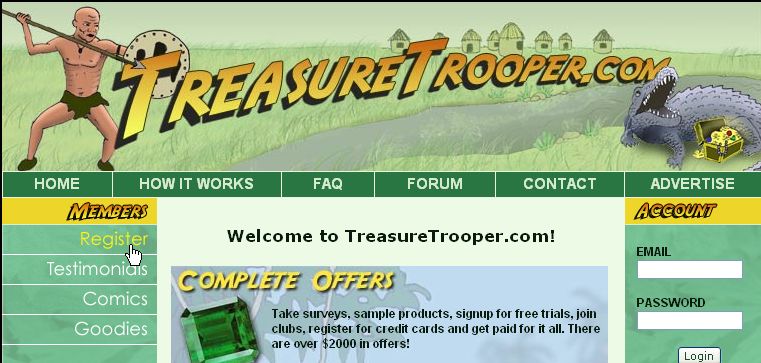
Here we are on TreasureTrooper's home page. Just click on Register and we'll start the registering process...
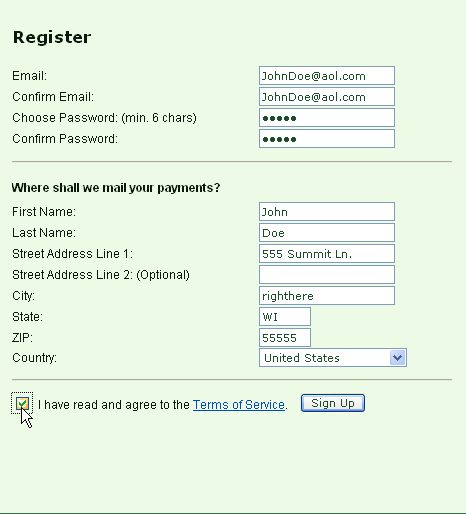
Fill in your information in accurately and make sure you click on the "I have read and agree to the terms of service and then click on "sign up" For TreasureTrooper, you will need to verify your email address you used to sign up, so go to your email and open the email that TreasureTrooper sent you and click on the link to verify your account. Some GPT sites you not only have to click on a link in your email, you'll also have to do a telephone verification. For that all you have to do is put in your phone information and if you'd liked to be text or called to get the pin to continue with your registration. Once that's all done, YOU'RE IN! Let's move on.... Now that you have registered on your GPT website, you'll want to make sure you have all the right tools and settings to get started. You will have to type a lot, especially when filling in surveys... UNLESS you have Roboform. This program is great if you hate to type a lot! Just click on the link and click on download. The setup will guide you through the rest. It stores website's logins and passwords, address, phone, email and any other important information you want to fill in. A HUGE time saver! This program will run on it's own small toolbar underneath your web address bar. Ok, who here likes spam? You not a fan of it either? Well then, I have a great solution for that! It's called GMail and it'll be your best friend when you do surveys online. Why will it be my best friend you ask? Well, let's use my Gmail for an example. This is my Gmail address: Notice the (.) in between my first and last name? The beauty of this is that you can move that (.) anywhere in your Gmail address (before the @ sign) and no matter where that (.) is, you will still get your email delivered to the original address you signed up with. Say I want to use [email protected] for a survey I'm filling out. When I get my loads and loads of spam from that survey site, it will come to my [email protected] account. So I could use... so on and so forth, you get the picture? OH! And when you run out of places to put your one (.) you can add another (.) and.... another! So now I could make my email address like this: and so on.... Pretty cool, huh? Now you don't have to make 20+ new email addresses just for surveys. I will suggest using your most used email address when you do credit card offers so that you can keep track of those! Remember, the longer you can make your email address, the more you can move around that period. :-)
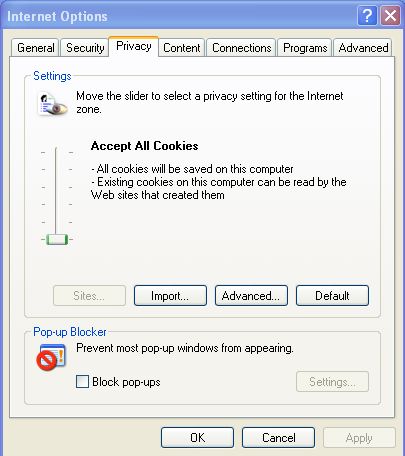
What's just as bad as spam? By George, you got it! Tons of telephone calls from people that you did offers for. Who wants to talk to these people? Not me, that's for sure! So the best advice I can give you, is to use this FREE service by Privatephone. Privatephone will provide you with a free voicemail service so that when you're asked to put in your phone number for a survey, just use the phone number that Privatephone has provided you with and you can check your voicemail anytime without being bothered by your home phone ringing off the hook! If you do use your Privatephone number and a certain website won't accept it, PLEASE use a REAL phone number of yours, whether it be a cell phone, because I discourage anyone to use false information! I will just tell you to download CCleaner instead of clearing out your own cookies, because this is so quick and easy to use and it doesn't take long to download. Of course, if you want to clear your own cookies, you go right ahead, I would never tell anyone what to do! ;) (except maybe my husband) Of course, you'll need to make sure you accept all cookies, so in Internet Explorer, go to 'Tools' then 'Internet Options' and then click on the "Privacy Tab', it will look something like this:
These are my current settings so that any offers I do, will have a better chance of approving. AOL users: DO NOT TRY TO DO OFFERS ON THE AOL BROWSER! It will NOT work. I recommend using Internet Explorer 6.0, since 7.0 has trouble with offers approving. Firefox works well also. Now, take a sigh of relief, because after you sign up for this next service, you will be ready to begin... AHHHH! Paypal. You'll need to sign up to Paypal and more than likely verify your account down the road (adding your checking account or credit card to your account). Paypal is great! I've had a Paypal account for almost 6 years and NEVER had a problem with it. Those of you that are still with me and reading this tutorial, give yourself a big pat on the back! Or better yet, go get yourself a cookie, go on.... I'll wait. Back yet? GOOD! Now let's continue. After you download everything you need, or sign up to the services I mentioned, I can safely say that you are ready grasshopper! With all your cookies being accepted and cleared and with your eyes burning from reading this, let's go back to our TreasureTrooper page and sign in.
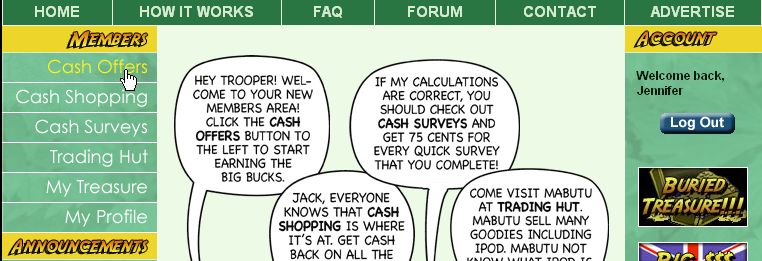
When you're on this page, just click on "Cash Offers" on the upper left side of the page to see the list of current offers.
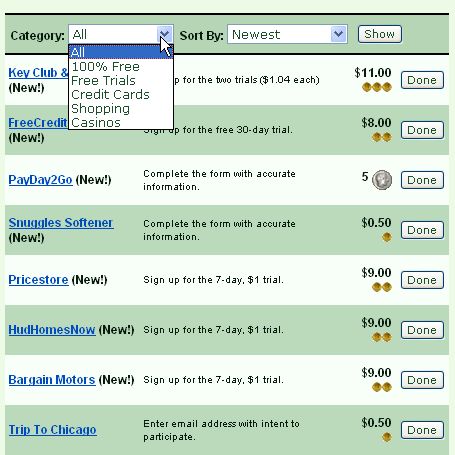
Here you can select if you want to see all the offers, the 100% Free, Free Trials, Credit Cards, Shopping, or Casino offers. I normally just leave the category selected on All. You will see the offer name on the left in Blue, the instructions in the middle and what the offer pays on the right. Let's look at the 'Trip To Chicago' offer for $0.50. All you need to do to make that $0.50 is click on the 'Trip To Chicago' link, enter your email address and continue with the survey. "Intent to Participate" usually means that you have to continue the survey to get paid for this offer. Some people just fill in the first couple of pages of the survey and some continue on until they get to the "Thank You" page. I myself wait until I get to the "Thank You" page. Let me show you what this page looks like so that you don't go any further than you have to... I'm going to click on this offer now, here we go, wish me luck! :) This is what part of the page looks like when I click on the link....
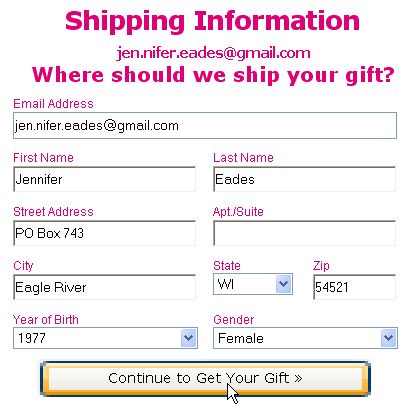
As you see, I put in my GMail email account, click the 'certify' box and now I want to click on SUBMIT. Here I am at the Next Page where I can put in my information either by hand, or by a simple click using Roboform....
As I continue.... I get other offers that want my information, well THEY CAN'T HAVE IT! So I just go down to the bottom of the page and hit "Click to Continue or Skip" *Remember, you do NOT have to sign up for anything else, just keep going until you get to the "Thank You" page! When you don't have the option to skip to the next page, just click on ONE offer and click on Submit. On the next page you'll probably have a chance to hit the skip button again... so go ahead, SKIP! Just keep repeating this process until you get to a page that says something along the lines... "Thank you (your name here!) To continue to receive your free (gift card/gift) please sign up to an offer below" (or if it's a survey, it'll ask you to do another survey to enter into another sweepstakes) This is where YOU'RE DONE! Don't sign up or do anything else! Now that you've gotten to the last page, LEAVE THAT PAGE OPEN! Leave that page open for at least 3 - 5 minutes before you close it! This is to be sure that the offer is tracked and approved (if you already closed it, don't panic, it may still credit) Now while you're waiting, go back to the TreasureTrooper page you were on where you clicked the offer link. You'll see a "Done" button across from the offer name, so go ahead and click on that.
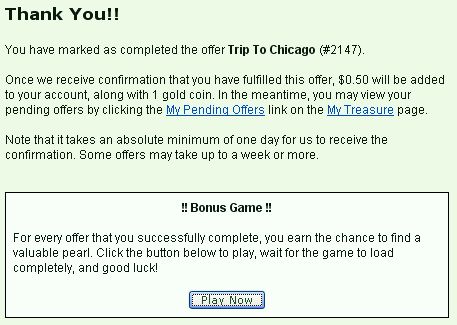
Here we have the next page where you can play the Pearl game! Just click on "!!bonus game!!" and "Play Now".
Now pick an oyster... and just hope it has a pearl in it! Let's see if I can get one...
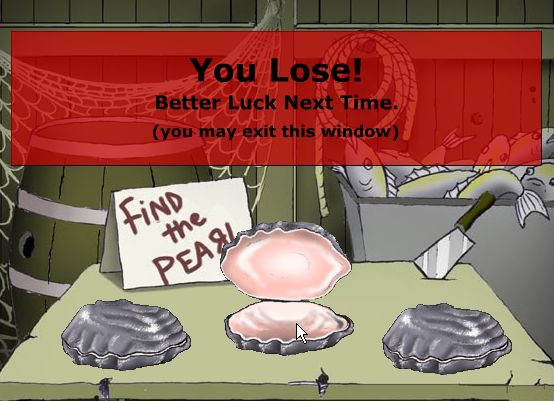
No pearl for me! I have about as much luck playing this game as I do playing at the casino. Oh well, moving on..... Now, use CCleaner to clear all your cookies before clicking on another offer! Because clearing your cookies usually logs you off the GPT site that you're on, you can go into CCleaner and go to Options, Cookies, and select the GPT site that you want to be on the "accepted cookies" list. There are a couple of ways to see if your offer has been approved. Either check the email that you used to sign up to TreasureTrooper or just go to your member page and click on "My Treasure" in there you will see if it credited or not. Most GPT sites have the option where you can be notified via your email address if your offer has credited or not. **Don't forget to check out Mabuto's Hut when you have tokens to spend!** I want to take a minute to also remind you that if you decide to sign up for a trial offer and you have to use your credit card, remember to WRITE EVERYTHING DOWN! Not only write everything down, but also print out your order confirmation page. Things to write down and keep track of are: 1. Name of GPT site you are on 2. Name of the offer 3. Name of the email address you used to sign up for the offer 4. Username for the offer (if it asks for you to make one) 5. The password you used (if it asks for you to make one) 6. The date and sometimes the time that you signed up for the offer 7. How long the trial is for 8. The credit card/ gift card you used for the offer 9. The cancellation phone number/ email address for the offer so that you may cancel later if you want Keep neat and organized notes. You'll be glad you did! If you choose to cancel a trial offer, make sure you do it the day before the trial is up! **IMPORTANT** Always take the time and read the TOS of EVERY offer you do! ESPECIALLY ringtone and credit card offers. Make sure they don't try to charge you a hidden fee! If you do an offer with a credit card and it says that your card is invalid or it didn't go through, WAIT until you try it again. Check your card statement to make sure you weren't charged for it! Some GPT sites are set up the same, so you'll get used to navigating and using them. Some are different, but will pretty much have all the same elements. An offers page, a status page, a page where you can get referral links and so on and so forth. Make use of the forums! There are a lot of helpful people willing to assist you if you get stuck. Or if you need help, I'll be happy to help. Just email me at [email protected] with the subject "help with GPT site". If you think this is a lot to do just to do offers, you'll get the hang of it fast and will soon be doing tons of offers a day! Remember - use truthful information or you won't get credited.... besides, NO ONE LIKES A SCAMMER! |
|
HOME GPT TUTORIAL GETTING REFERRALS PAYMENT PROOF REFERRAL SITES
Jennifer Eades |