Configuring the Gateway On the Client Computer
If your client computer has an IP address specified to it, its gateway configuration should be as follows :-
From below select the operating system that represents your client computer:
 Windows
95 Windows
95 |
Windows
98 |
Windows
NT 4.0 (workstation/server) |
1. Click on Control Panel -> Network. Under the Configuration tab, click on "TCP/IP for the LAN Adapter" -> Properties.
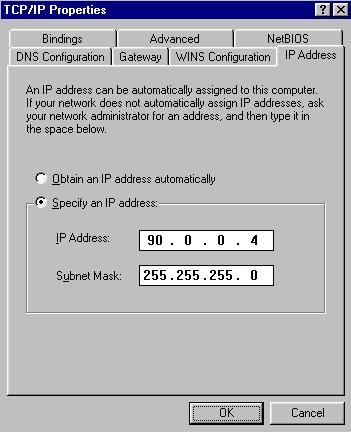
- Under the IP Address tab, you will have "Specify an IP address" selected. Below is a screenshot example.
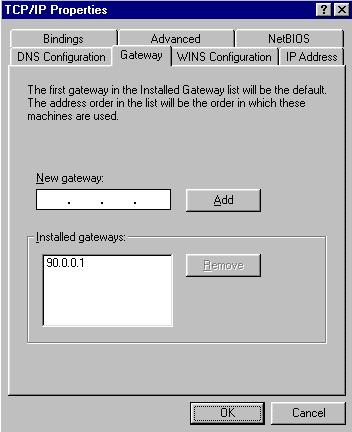
- Under the Gateway tab, enter in the internal IP address of the Internet connected computer.
2. Click OK
-> OK, then reboot/restart your operating system.
1. Click on Control Panel -> Network. Under the Configuration tab, click on "TCP/IP for the LAN Adapter" -> Properties.
- Under the IP Address tab, you will have "Specify an IP address" selected. Below is a screenshot example.
- Under the Gateway tab, enter in the internal IP address of the Internet connected computer.
2. Click OK
-> OK, then reboot/restart your operating system.
1. Click on Control Panel -> Network -> Protocols. Under the Protocols tab, hi-lite TCP/IP Protocol and click on Properties.
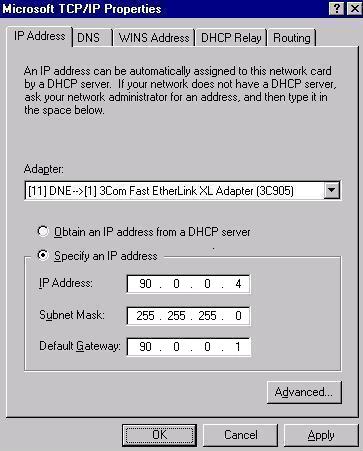
- Under the IP Address tab, you will have "Specify an IP address" selected.
- Next to Default Gateway, you should enter in the internal IP address of the Internet connected computer.
2. Click OK
-> OK, then reboot/restart your operating system.