Configuring DNS on the Client Computer
If the client computer has an IP
address specified to it your DNS configuration should be as
follows:-
From below select the operating system that represents your client computer:
 Windows
95 Windows
95 |
Windows
98 |
Windows
NT 4.0 (workstation/server) |
1.� Click on Control Panel -> Network.� Under the Configuration tab, click on "TCP/IP for the LAN Adapter" -> Properties.
- Under the IP Address tab,you will have "Specify an IP address" selected.� Below is a screenshot example.
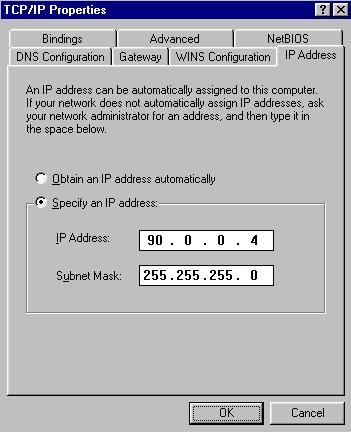
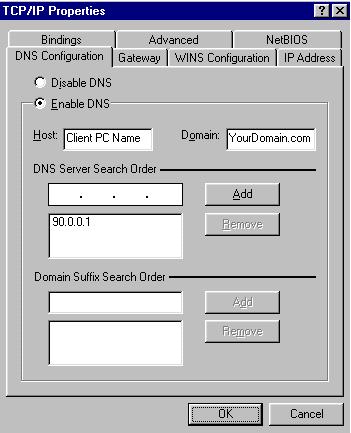
- Under the DNS tab, select "Enable DNS".
| Host:� Enter in the name assigned to the client computer.� The name is available from Control Panel -> Network -> Identification.� Avoid punctuation marks. |
| Domain:� Enter your local domain name.� The domain name can be your ISP's domain name, but it is better to use our own.� Feel free to make one up (e.g.fred.com, suzie.org).� The name does not need to be officially listed with any Internet bodies- since it is on your local, private network. It is invisible to the rest of the world.� All of your computers should have the same domain name, and because of the way DNS lookups are made it is best if you have a .com or other standard domain name on the end. |
| DNS Server Search Order: Enter in the internal IP address of the Internet connected computer only. |
2.�� Click OK
-> OK, then reboot/restart your operating system.
�
�
1.� Click on Control Panel -> Network.� Under the Configuration tab, click on "TCP/IP for the LAN Adapter" -> Properties.
- Under the IP Address tab, you will have "Specify an IP address" selected.� Below is a screenshot example.
- Under the DNS tab, select"Enable DNS".
| Host:� Enter in the name assigned to the client computer.� The name is available from Control Panel -> Network -> Identification.� Avoid punctuation marks. |
| Domain:� Enter your local domain name.� The domain name can be your ISP's domain name, but it is better to use our own.� Feel free to make one up (e.g.fred.com, suzie.org).� The name does not need to be officially listed with any Internet bodies- since it is on your local, private network. It is invisible to the rest of the world.� All of your computers should have the same domain name, and because of the way DNS lookups are made it is best if you have a .com or other standard domain name on the end. |
| DNS Server Search Order: Enter in the internal IP address of Internet connected computer only. |
2.�� Click OK
-> OK, then reboot/restart your operating system.
�
�
1.� Click on Control Panel -> Network -> Protocols.� Under the Protocols tab, click on Properties .
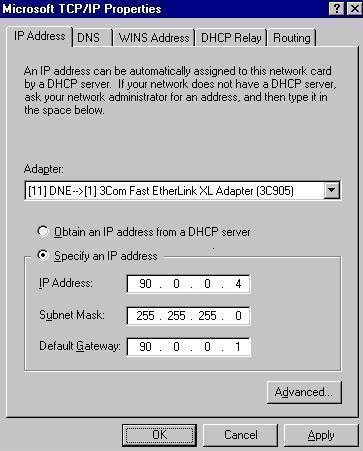
- Under the IP Address tab, you will have "Specify an IP address" selected.
- Next to Default Gateway, you should enter in the internal IP address of the Internet connected computer.
- Under the DNS tab,
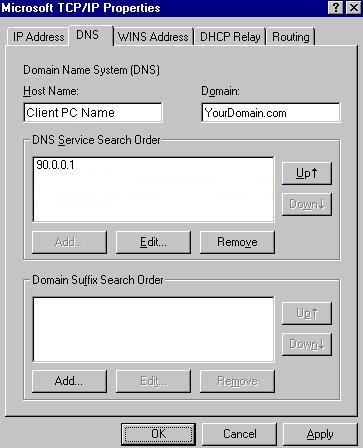
| Host Name: Enter in the name assigned to the client computer.� The name is available from Control Panel -> Network -> Identification.� Avoid punctuation marks. |
| Domain:� Enter your local domain name.� The domain name can be your ISP's domain name, but it is better to use our own.� Feel free to make one up (e.g.fred.com, suzie.org).� The name does not need to be officially listed with any Internet bodies- since it is on your local, private network. It is invisible to the rest of the world.� All of your computers should have the same domain name, and because of the way DNS lookups are made it is best if you have a .com or other standard domain name on the end. |
| DNS Server Search Order: Enter in the internal IP address of the Internet connected computer only. |
2.�� Click OK
-> OK, then reboot/restart your operating system.
�
�