
|
|
|
|
Tech Zone
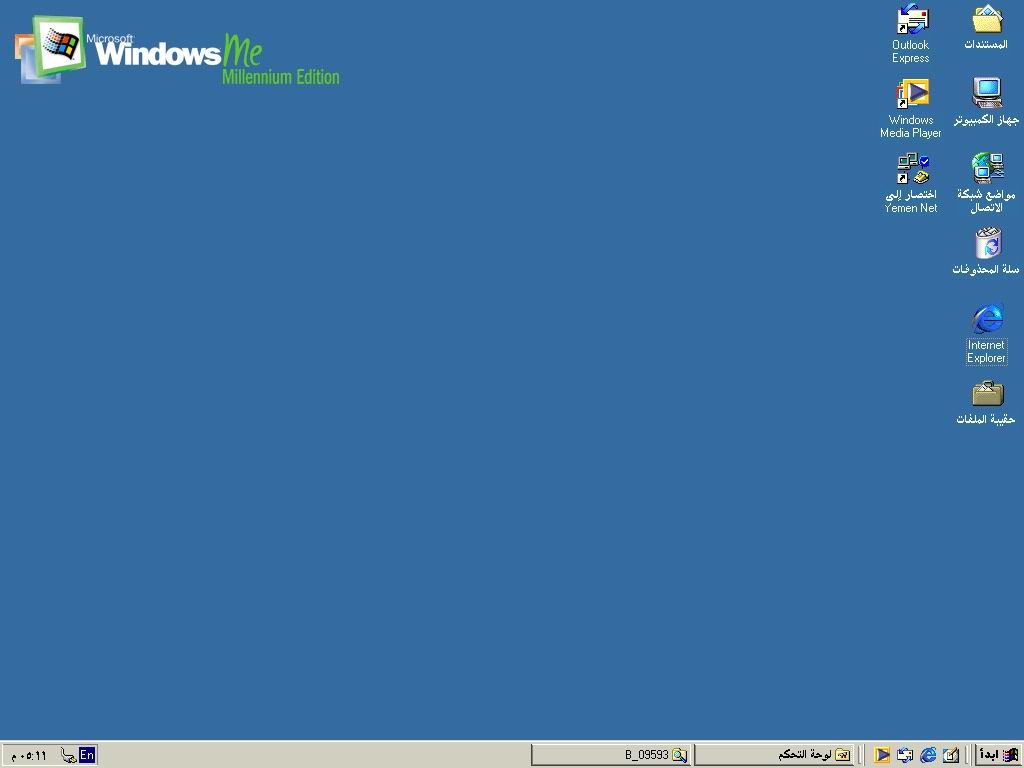
Compaq Presario 900 Running Windows ME Not Sure if it would work with other 900 Series, TRY it VGA: ATI Mobility Radeon (Mobility U1) * If you are like me, got frustrated looking for a Video Graphic Driver that is compatible with Windows ME, then you are in the right place .I spent so much time searching the net. If you think Compaq web site will help you, YOU ARE WRONG. If you go to ATI web site and search for Mobility U1, they redirect you to Notebook Manufactory which is Compaq. The good news is, I will walk you through step-by-step FREE of charge. Here is a Screen Shot of the Windows ME Desktop when you are done. Steps: Files needed: -Microsoft DirectX 8.1 (11.8 MB) -Radeon device driver package wme-radeon-7-90-030605m-009437c-efg (7.2 MB) Note: I would suggest you either save or print this page cuz you will need it
1. You should have at least DirectX 8.0 installed in your system. 2. Download ATI Radeon device driver package using the link above. The file is 7.2 MB so if you are using dial-up, it will take a while to download. 3. I am assuming you now have downloaded the files listed above, if not..........STOP HERE and go back to step 1. Also, make sure you also Add this link to your Favorites or Save it to your Desktop for reference. 4. Now, run the setup for DirectX and follow the installation instructions. You might be asked to Reboot your system. Note: Always Reboot / Restart your system when asked to do so. 5. After you have installed DirectX 8.0, run the executable file (Device Driver Package), the file you downloaded from ATI web site. You will be asked to where you want to extract the files, leave the default name and click NEXT. 6. Did you get an ERROR message about the INF file and another one about wrong Video Adaptor? ? If your answers is YES, Great. do not worry though, that happened to me too.
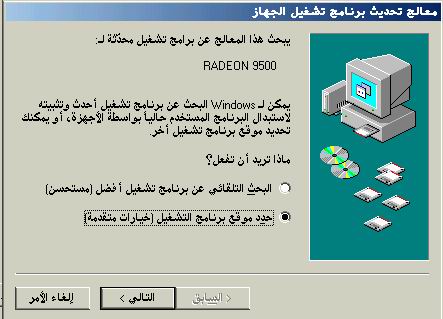
Here is the Solution 7. Open the control panel, How? Go to Start -> Setting -> Control Panel . In the Control Panel, you should find System double click it. Now, open the Device Manager "You should now see all the Hardware devices installed into your system". Locate the Display Adapters and click the Plus sign (+) to see the installed adapters. You should have Standard PCI Graphic Adaptor (VGA) already installed as a default. If not, you will need to install it first. Now, highlight it and click Properties . You should now see a small dialog box with three tabs on the top, click the driver tab. Look for bottom named Driver Update and click it. 8. A dialog box will appear, make sure you select the second option and click NEXT. Note: I used Windows ME, Arabic Version. Anyways, dialog boxes are similar, just make sure you make your selection as it shown on Dialog Boxes
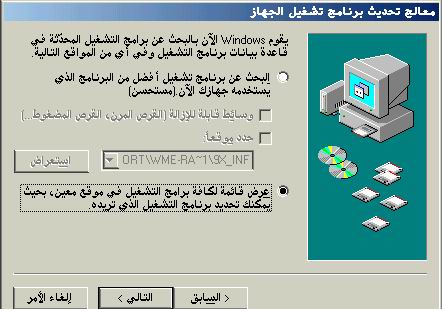
9. On the second dialog box, choose second option and click NEXT
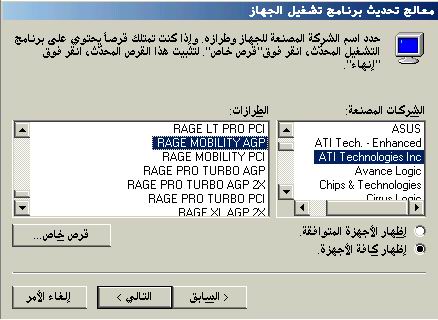
10. On the third dialog box, make your selection exactly as it's shown on the dialog box below. If you can not see all the listing, make sure you select Show All option.
Click NEXT, you should see a dialog box asking you if you are sure. Just click YES and your system should start installing the software. Also, you will be asked to Restart your System, click yes. 10. After Restarting your system, go to Start -> Setting -> Control Panel and open the System again. Basically you will repeat some of the steps above. 11. Are you ready now? After you open System, open the Hardware device manager like you did early. Locate Display Adapters and click the Plus sign to see the listing. You should see something like Rage Mobility AGP and a Question Mark next to it. It means, the Adaptor is not functioning right. Now get ready to fix it by following the steps. 12. Highlight the Adaptor (Rage Mobility AGP), click Properties and then click the Driver tab. When you see Driver Update button, click it and make your Dialog selection as they are shown on the dialogs below. 13. On first dialog, choose second option and click NEXT.
14. On Second dialog, choose second option and click NEXT
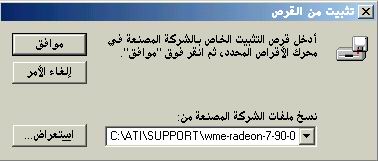
15. On Third dialog, Click Have Disk and you should this dialog box.
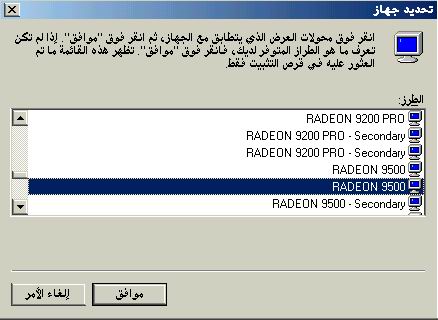
16. Click Browse and locate the file you extracted the ATI package to. If you used the default name at the time of extraction, you can just copy and paste this command into the box above. C:\ATI\SUPPORT\wme-radeon-7-90-030605m-009437c-efg\9X_INF and click OK. If you followed all the steps correctly, another Dialog box will appear like the one below.
17. If you got this far, You are DONE. All you have to do is choose a driver from the list above. I chose Radeon 9500 and it worked GREAT. I suggest you choose RADEON 9500 and click OK. 18. Your system will start the software installation, and you will be asked to Restart your system. 19. Restart your system and you will see the difference. I am sure you will be excited.
If you find the information helpful, please drop me a line on my E-mail or sign my guest book.
|
|
||||||||||||||||
|
Copyright 2002-2005 Alwasely.com |
|