|
|
3
|
Preparing Polygons for Rendering
|
|
In This Section:
|
Display Tgls >
Polygon Control
|
Changing Polygon Display Styles
|
|
|
|
|
Polygon Control changes the display style of polygons in the view windows.
|
|
The Polygon Control
window gives you many
helpful options for
organizing and visualizing
polygons.
For example, to:
Show a running polygon count:
turn Show Statistics on
Simulate a color-restricted
environment: use the Color
Depth per Channel option to
restrict the number of colors
used for displaying
polygons.
|
How to Use
-
1
-
Select Display Tgls > Polygon Control -
 . .
-
2
-
Adjust the settings in the Polygon Display Options box, then click Go to change the display.
Polygon Display Options

|
|
For example, to:
Visualize seams in polysets:
turn Show Topology on.
View polygons shaded with
their pre-lit colors: after giving
polygons lighting
information with Polyset
Prelight, turn Colored
Display on, set Display Style
to Filled, and set Color Style
to Geometry Color.
Visualize the UV
parameterization of polygons:
Turn Colored Display on, set
Display Style to Filled, and
set Color Style to UV Color.
|
Poly Statistics Options
Show statistics
-
- Displays statistics (polygon count) in the top left corner of the modeling window. This is very useful when designing for restrictive environments (such as games platforms) that impose a maximum number of polygons or vertices.
-
- Normally only polygons that are visible and pickable are counted. You can choose whether to count instances and templated polygons.
-
- The display uses the following format:
-
Poly Counts: V[vertex count] P[polygon
count] AV[active (picked) vertex count]
Count instances
-
- Includes instances in the polygon count.
Count templated
-
- Includes templated polysets in the polygon count.
Vertex Count Warning
-
- Enters the maximum total number of vertices you want. If the vertex count exceeds this number, the polygon statistics will turn yellow.
Polygon Count Warning
-
- Enters a maximum total number of polygons you want. If the polygon count exceeds this number, the polygon statistics will turn yellow.
Object Style Options
>
|
Note:
|
These options control how normals are drawn for polygons.
To see the normals, turn on the Normals option in
ObjectDisplay > Control - or use the Poly Shading > Flip
tool.
|
|
|

|
Normal Style
- Polygon - shows polygon normals only.
- Vertex - shows vertex normals only.
- Polygon + Vertex - shows both polygon and vertex normals.
Normal Scale
-
- Gives the length of the normal indicator, in model space units. Enter a number from 0.1
to 5
. The default is 0.5
.
|
|

|
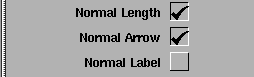
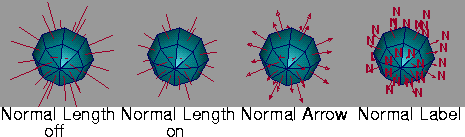
Normal Length
-
- Lets you change the length of the normals by choosing whether they are normalized or not. Toggled on by default.
|
|
|
Normal Arrow
-
- Creates an arrow along the normal to show its direction. Toggled off by default.
Normal Label
-
- Places the letter "N" at the end of the normal. Only appears when Normal Arrow is toggled on.
Color Depth per Channel
-
- Enters the number of colors available for display in each channel.
-
- This option restricts the number of colors available in each channel (red, green, blue, alpha) to simulate a lower-resolution environment (such as a games console).
>
|
Note:
|
This option affects the display only. The colors stored in the
vertices are not affected. Use the Poly Shading > Color
reduce
tool to actually reduce the number of stored colors.
|
Enable Transparency
-
- Uses the transparency channel on vertices to show a rough approximation of transparency. You can set the transparency of a vertex using the Polygons > Info > Edit vertex info tool.
-
- To see transparent polygons, you must also set the following options:
- Set Display Style to Filled.
- Set Color Style to Geometry Color.
- Turn Depth Buffered off and pick nothing for better results.
>
|
Note:
|
Polygon display options, including transparency, are not
visible when you turn on DisplayTgls > Shade.
|
-
- The transparency display has the following problems:
- Polygons are not necessarily displayed in the correct order (from back to front).
- Interpenetrating and coplanar polygons are not handled.
- Polysets are not blended.
- Picked polygons are drawn closer to the camera.
Window Display Options
Toggle Type
- All Windows - applies the options in this option box to all modeling windows.
- Current Window - applies the options in this option box to the current window.
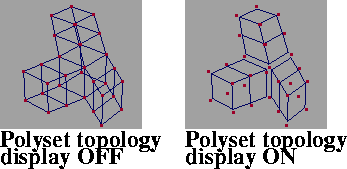
Show topology
-
- Shows the topology of polysets by drawing them slightly separated. Seams within or between polysets will be clearly visible.
>
|
Note:
|
This option only affects the display of polygons. The actual
geometry is not changed, and you can continue to work on
the polygons.
|
Selected polygons
-
- Highlights selected polygons (polygons whose vertices are all picked) using a special striped fill pattern.
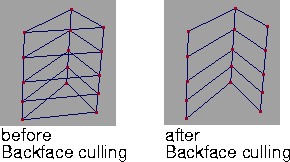
Backface culling
-
- Does not draw polygons facing away from the camera. Use this option to check the direction of polygons.
Cull Style
-
- (This option is available when Colored Display
is on).
- Faces - does not draw polygons facing away from the camera, but draw their vertices.
- Faces and Vertices - does not draw polygons or vertices facing away from the camera.
>
|
Note:
|
This option has no effect in shaded mode. Set the backface
culling for a shaded polygon in the Render Stats
window
(Windows > Information > Render stats...).
|
Colored Display
-
- Draws polygons in the scene using special styles defined below.
Display Style
-
- (This option is available when Colored Display
is on).
- Wire Frame - draws a wireframe using the vertex colors.
- Filled - draws filled polygons using the vertex colors.
-
- The display
will be flat or smooth shaded depending on each polyset's smoothness setting. You can set smoothness for each polyset in the Render Stats window (Windows > Information > Render stats...).
Depth Buffered
-
- (This option is available when Display Style is set to Filled).
- On - uses depth buffering to calculate visible polygons.
- Off - does not use depth buffering. When depth buffering is off, colors will not be dithered.
Color Style
-
- (This option is available when Colored Display
is on).
- Geometry Color - uses the pre-lit colors stored in the vertices. If a vertex has not been pre-lit, it is drawn using the picked/unpicked interface colors.
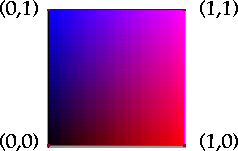
- UV Color - uses color to show the UV coordinates of the vertices. U values are shown in red, V values are shown in blue. (0,0) is black (no red, no blue), (1,0) is red, (0,1) is blue, and (1,1) is magenta (red and blue). This is extremely useful in visualizing the parameterization of polygons.
UV color map:
|


