JJ Robinson's Torque Tutorial 1!
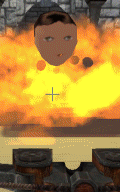
I'm an experienced C/C++ game programmer with Lead/Sr. credits on a couple of published games, but I just got started with the Garage Games Torque Engine SDK (TGE). Like many "community oriented" game engine projects, the documentation for Torque is rather fragmentary and disorganized. It took far too many hours of digging through scattered files, tutorials and forum posts to find the information needed to add a simple animated 3D model to the Torque Demo. In an effort to streamline this process for others who are new to the Torque environment, I have put together the following tutorial. I have tried to include all the links to the relevant sources in this text or at the end. If I left anyone out who deserves credit, please post to the Torque resource page for this tutorial, or email me at this address. You will need to build or obtain the ms2dtsExporter.dll from your Torque demo or SDK distribution and place it in the MS3D installation directory. See the Torque Documentation entry on the MilkShape to DTS exporter at: http://www.garagegames.com/docs/torque.sdk/tools/milkshape.html I'm using a very old model of a human face I made in Hash Animation Master '99 (AM99) years ago (this tutorial is about exporting and scripting, not modelling or texturing---Don't hold me responsible for the artistic technique in this one!). This model was exported from AM99 as an *.obj file, re-textured in MS3D, and saved as Baker_test1.ms3d. I then added a single bone for the "jaw", and made an animation 30 frames long with three keyframes: mouth closed, mouth open, mouth closed. (I'm not going to cover the specifics for making models, adding skeletons, or animating in MilkShape (MS3D)in this tutorial. See the modeler and its help documentation at http://www.swissquake.ch/chumbalum-soft/ . Also see http://www.psionic3d.co.uk/lowtuts.html, for example. ) Step 1: Export the model from MS3D: Here is the completed, skeletonized, and animated face in the modeler:We need to include information about the animation sequence in the model data for the DTS exporter. This is done by storing the sequence name and other data in a dummy "sequence material". I have decided to name my animation "talk" (even though it looks more like chewing gum). Look at the "Materials" tab of the tool window in MS3D.
The first material in the list is the real one, the texture for the face. The second material contains only exporter information---name, position of first and last keyframes, and so on. My keyframes are 1, 15, and 30. This is shown by "seq:talk=1-30". Next, select "File>Export>Torque Game Engine DTS" to bring up the exporter window:
We have selected the boxes to export animation and materials. Check the Animation Sequences pane for the sequence information. We see that "talk" has been properly read by the exporter. Select "OK", and save the *.dts to the proper Torque folder. In this example, I placed my exported model, "Baker_test1.dts" and its texture file, "Baker Head Skin 2.png", in torque\example\starter.fps\server\scripts\Baker_test1. Next: Part II: Loading a Model into the Torque Demo with Animation >
Note: All copyrighted material referred to here is the property of the holders of the respective copyrights. All other artwork, computer program code, and material on these pages is copyright, JJ Robinson II, 1998-2006
