Fotoze ScreenSaver 1.0.202
|
|
Display your photographs for everyone
to see! Just leave your computer running with the screen saver active so
family and guests can see your pictures one by one as they appear!
|
|
|||||
|
Contents:
|
Updated 11/27/00 NEWS: New discussion list. To subscribe or unsubscribe
to the Fotoze ScreenSaver email discussion list, see the section: Email Discussion List
Fotoze ScreenSaver is a free, Windows® screen
saver that cycles through images, pictures, photographs, and icons from a
designated folder and displays them one at a time on the screen. It displays
the following image types: .bmp .gif .jpg .jpeg .wmf .emf .ico You can use Fotoze ScreenSaver to display:
|
||||||



|
|
Fotoze
ScreenSaver © Copyright 2000 Michael
Neice. All rights reserved |


About Fotoze ScreenSaver
Description
Fotoze ScreenSaver is a
free, Windows® screen saver developed by Michael Neice that cycles through
images, pictures, photographs, and icons from a designated folder and displays them
one at a time on the screen. It displays the following image types: .bmp
.gif .jpg .jpeg .wmf .emf .ico
Intel or Intel-compatible Personal Computer (PC) running a Microsoft Windows® operating system such as Windows 95, Windows 98, Windows NT 4.0, or Windows 2000. A minimum of 10 megabytes (MB) of free hard drive space is recommended for download and installation.
Where to Obtain Fotoze ScreenSaver
The current version is 1.0.203
released November 27, 2000
|
|
Download Fotoze
ScreenSaver 4.61 MB (4,839 KB or 4,839,822 bytes) |
The
latest version of Fotoze ScreenSaver is always available from http://www.geocities.com/michaelneice/fotozescreensaver/fotozess.zip
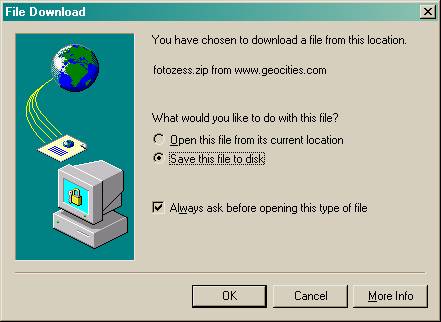
To download the application, click the zip icon, select “Save this file to disk” when prompted and click OK and save it to the Windows Desktop or a folder on the hard drive such as My Documents or Download.
IMPORTANT: If you have a previous version of Fotoze ScreenSaver installed, uninstall the current version before installing a new version.
Distributing and Redistributing Fotoze ScreenSaver
Fotoze ScreenSaver is FreeWare.
The developer does not charge money for the development, creation, or
distribution of Fotoze ScreenSaver. Anyone may download it, forward it,
package it, and distribute it as long as the application is not altered and
remains in the original zip archive. The contents of the zip archive may not be
altered. No one may charge money for Fotoze ScreenSaver. It may be
distributed on any media. It may be distributed as part of other applications,
products, and packages as long as there is no charge for Fotoze ScreenSaver
and the application and the contents of the original zip archive are not
altered. Distributors may only charge for the distribution media, labor, and
associated costs, but not for the application itself. Full credit for
development of the product must be given to Michael Neice. No other individual,
company, or entity may claim authorship, development, ownership, sponsorship,
or licensure.
How to Contact the Developer of Fotoze ScreenSaver
Suggestions, requests, bugs,
problem reports, thank you notes, and money donations (☻ just kidding! ) should be sent
via e-mail to [email protected].
Please include the version number listed on the About tab of the Fotoze
ScreenSaver Options window. Even if you have nothing to say, please send me
a note and let me know what you think. To satisfy my curiosity, tell me where
in the world you are located. To satisfy your curiosity, I am located in Chapel
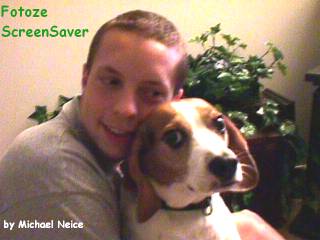
Hill, North Carolina (NC) in the United States of America (USA). The dog in the
photo is my beagle, Indy, named after Indiana Jones. He will be 6 years old in
May 2000.
Installing Fotoze ScreenSaver
Downloading Fotoze ScreenSaver
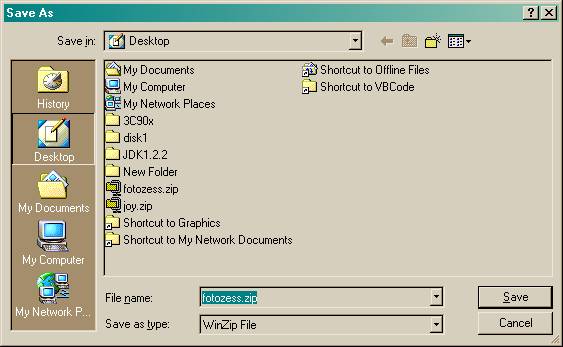
Select “Save this file to disk”
when prompted and click OK and save it to the Windows Desktop or
a folder on the hard drive such as My Documents or Download.
Launching Setup from the Zip File
IMPORTANT: If you have a previous version of Fotoze ScreenSaver installed, uninstall the current version before installing a new version.
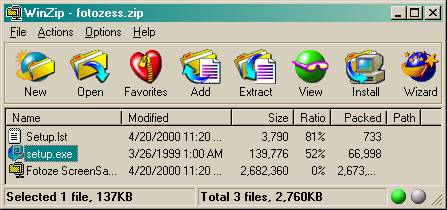
After downloading the zip file, launch the fotozess.zip file (usually by double clicking it) on your Windows Desktop or from the folder you downloaded it to, such as My Documents or Download.

WinZip should
launch and display the following window. If you do not have WinZip or
some other unzipping application installed, then you can download and install WinZip
from http://www.winzip.com
Launch setup.exe in the zip file (usually by double clicking it).
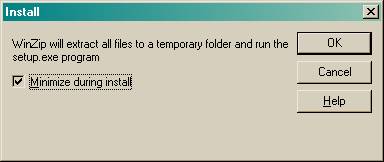
Click OK to minimize the zip window during install.
Stepping Through the Setup Screens
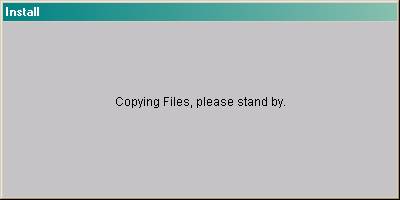
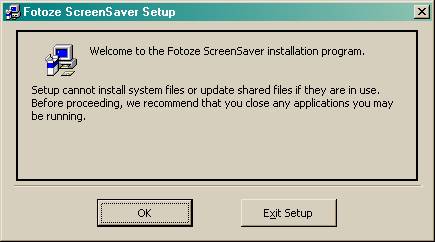
The setup application will begin copying files to other parts of your hard drive. You may have to restart the computer after this step. Just follow the prompts presented on the screen.
If you receive a message that files need to be updated and Windows restarted, click OK or Yes and let Setup restart your computer. After the computer restarts, launch setup again and continue the installation.
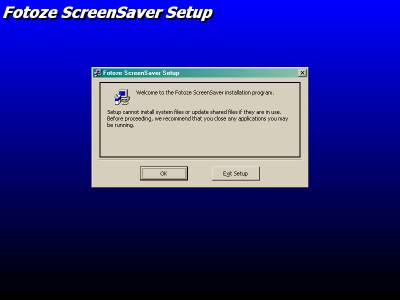
Click OK.
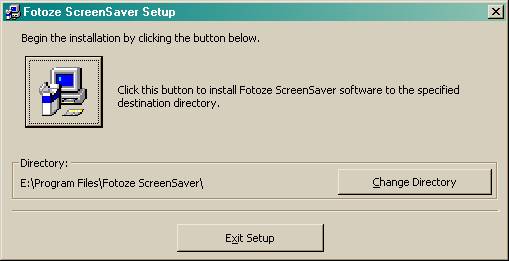
Click the big computer button to start installation.
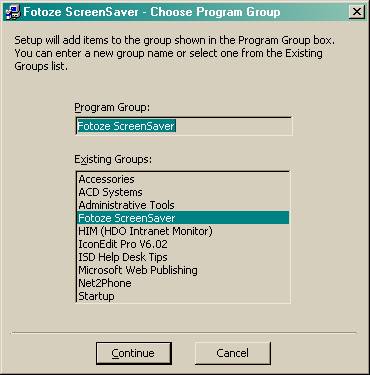
Click OK.
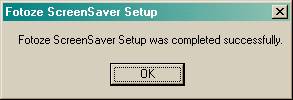
Click OK.
Configuring and Using Fotoze ScreenSaver
Activating Fotoze ScreenSaver
To activate Fotoze ScreenSaver
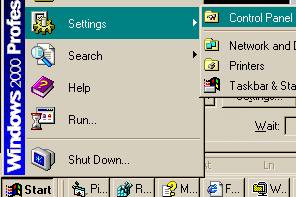
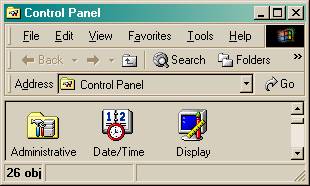
as your Windows screen saver, click Start, Settings, Control Panel, then
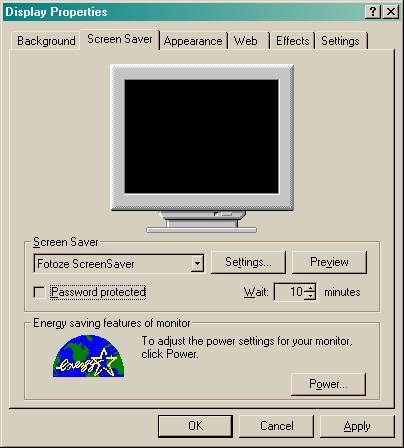
double click the Display icon. Select the Screen Saver tab.
Select Fotoze ScreenSaver from the Screen Saver list.
Click OK or Apply to save your selection (clicking OK will
also close the Display Properties window).
Example of clicking the Start
button, then Settings, Control Panel:
Example of Display icon in Control
Panel:
Example of Screen Saver tab on
Display Properties window:
Launching Fotoze ScreenSaver Options
To configure Fotoze ScreenSaver,
just click the Settings button to launch Fotoze ScreenSaver Options.
You can also launch Fotoze ScreenSaver Options by clicking Start,
Programs, Fotoze ScreenSaver, Fotoze ScreenSaver. If you have never
configured Fotoze ScreenSaver, the Options window will appear
automatically when you select Fotoze ScreenSaver from the Screen
Saver list on the Screen Saver tab.
Location of Images Tab
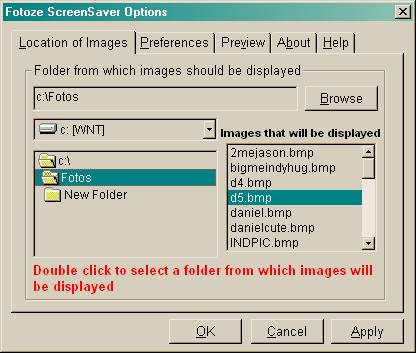
The Location of Images tab
is the where you tell Fotoze ScreenSaver to find the images you wish for
it to display. You can type in a path to a folder on your local hard drive or
to a network location. To eliminate any possible input errors, you should click
the Browse button and navigate to a folder containing images. Images
that Fotoze ScreenSaver recognizes will appear in the box on the right.
All images listed will be displayed. If you do not wish for an image to be
displayed, remove it from the folder using Windows Explorer (under Start,
Programs, Windows Explorer). Click the Apply or OK button to
save your selection (clicking OK will save your selection and also
closes the Options window).
Example of Location of Images tab:
Preferences Tab
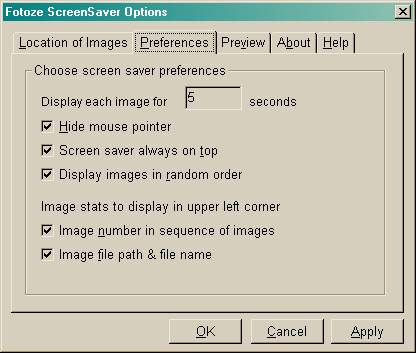
The Preferences tab is
where you set most of the screen saver options. By default, all options are
selected (turned on) when the screen saver is first installed.
Display each image for # seconds: displays
each image for a selected amount of time. Accepts only seconds. If you need
minutes, multiply each minute by 60 to get the total number of seconds. For
example, 2 minutes would be 2x60 seconds for a total of 120 seconds. The
default display time is 5 seconds.
Hide mouse pointer: mouse
pointer disappears when the screen saver appears. Most screen savers hide the
mouse pointer. Deselect (uncheck) this option if you wish to see the mouse
pointer while the screen saver is running.
Screen saver always on top: screen
saver hides all other windows on the screen while displaying images. Most
screen savers hide all other windows. Deselect this option if you wish for
other windows to be able to appear while the screen saver is running.
Display images in random order: displays
images in random order. Deselect this option if you wish for images to be displayed
sequentially and in the same order each time the screen saver cycles through
the list of images in the designated folder.
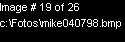
Image number in sequence of
images: displays in the upper left corner of the screen each
image’s sequence number in the list of images and the total number of images to
be displayed.
Image file path & file name: displays
in the upper left corner an image’s file path and file name.
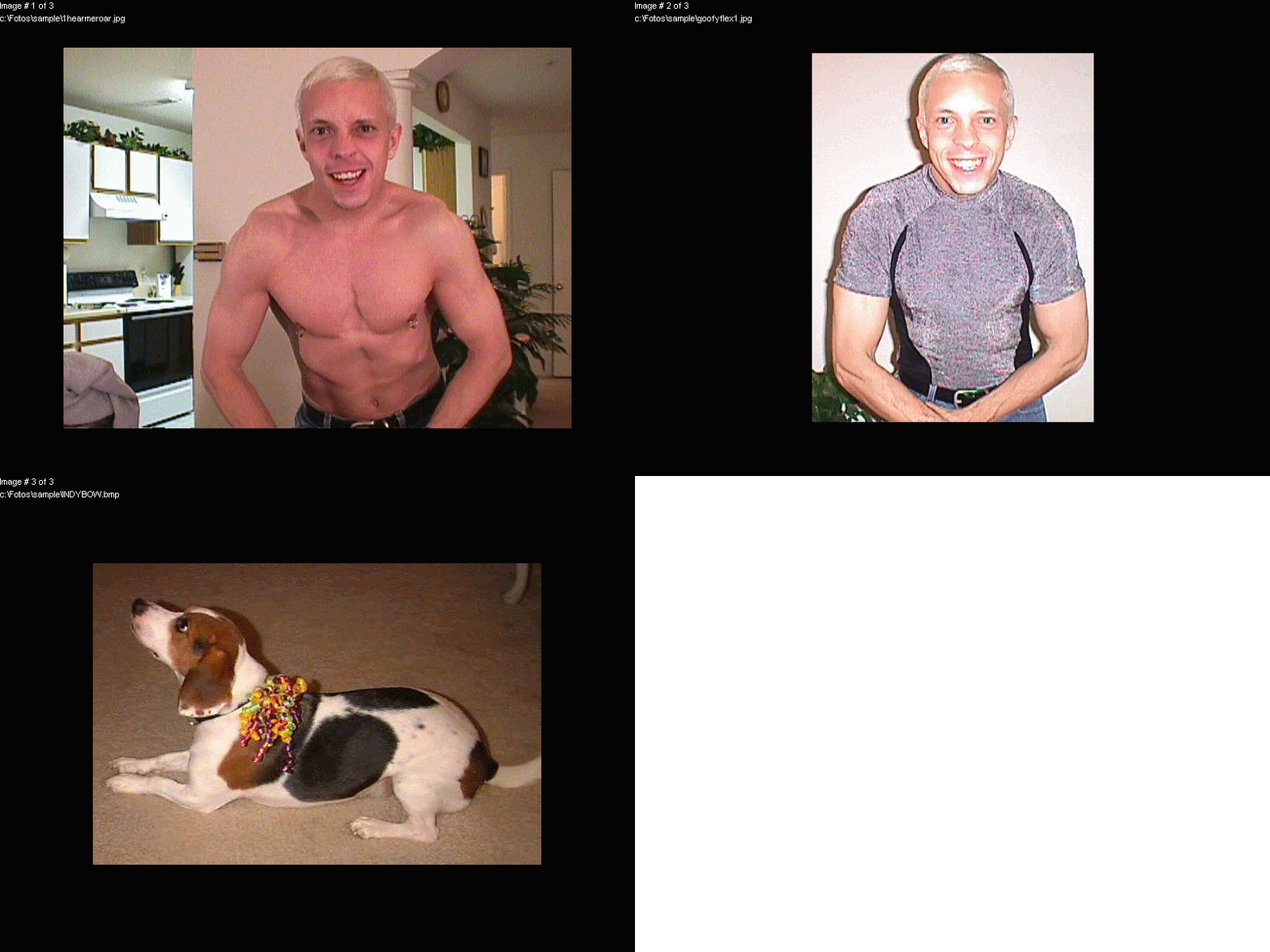
Example of Image number and Image
file path & file name:
Example of Preferences tab:
Preview
Tab
Click the Preview button on
the Preview tab to save your selections and launch the screen saver.
Clicking the Preview button will also close the Options window.
You can also preview the screen saver by clicking the Preview button on
the Screen Saver tab of the Display Properties window. Previewing
the screen saver allows you to verify that it displays the images from the
folder you designated and displays them according to the preferences you
selected.
About
Tab
Click the About tab for a
brief description of Fotoze ScreenSaver and to find out the version
number of the version installed on your computer. The current version available
from the Internet is listed in the section above in Where to Obtain Fotoze ScreenSaver. When
contacting the developer, please include the version number listed on the About
tab.
Help
Tab
Click the Help tab and then
click the Help icon or link to access this document. You can also access
this document by clicking the Start button, then Programs, Fotoze
ScreenSaver, Help for Fotoze ScreenSaver. The most current version of this
document is located on the Internet at http://www.geocities.com/michaelneice/fotozescreensaver/fotozescreensaver.htm
Uninstalling Fotoze ScreenSaver
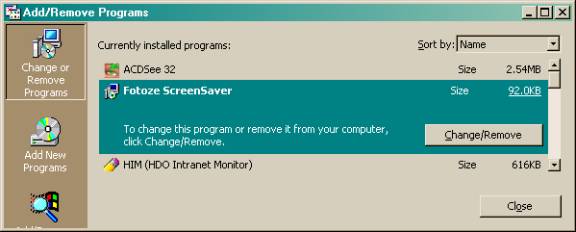
To uninstall (remove) Fotoze
ScreenSaver from your computer system, click the Start button, then
click Settings, Control Panel, Add/Remove Programs. Select Fotoze
ScreenSaver from the list, then click the Add/Remove button. Follow
the prompts on the screen. (Note: these instructions may vary slightly for
different versions of Windows, but the steps are generally the same). The
uninstall process as it appears on Windows 2000 is pictured below.
Example of clicking Add/Remove Programs, selecting Fotoze ScreenSaver, then clicking Change/Remove
Example of what the uninstall application looks like
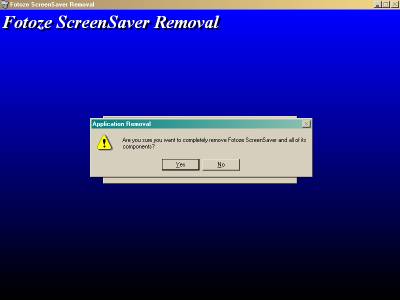
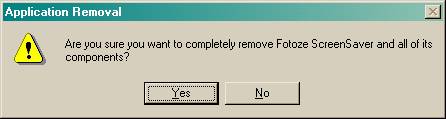
Example of Application Removal prompt. Click Yes.
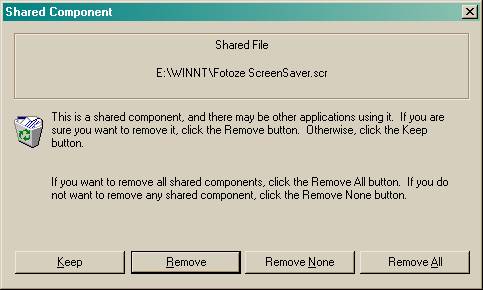
Example of Shared Component removal prompt. Click
Remove.
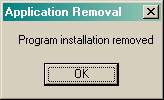
Example of Application Removal prompt, uninstall
completed. Click OK.
Frequently Asked Questions (FAQ)
To which folders are the Fotoze
ScreenSaver supporting files installed?
The executable file, Fotoze ScreenSaver.scr, is installed in the Windows root folder (usually Windows or WINNT). The help files are installed in the help folder in the Windows root folder (usually Windows\Help or WINNT\Help). Visual Basic supporting files are installed to various Windows folders, such as the Windows root folder, system folder, and system32 folder, etc.
Is there a limit to the number of
images that can be displayed?
No limit has yet been established. However, it is recommended that you have 500 or fewer images in a folder from which the screen saver pulls images. I have used the screen saver successfully with folders containing over 2000 images. With such a high number of images in one folder, it will take a minute or two for the screen saver to cycle through the folder counting the number of images and loading the file names into memory, so you may notice a delay when the screen saver activates or when you access the Fotoze ScreenSaver Options window.
What image types can the screen saver display?
The screen saver recognizes and displays images with the following file extensions:
.bmp .gif .jpg .jpeg .wmf .emf .ico
Can I launch the screen saver as a stand alone
application that doesn’t consume the entire screen and use it as a slide show?
No, not at this time. Look for this feature in future versions.Deselecting the options, Hide mouse pointer and Screen saver always on top will give you some flexibility in using the screen saver as a slide show presenter, but it was not designed to be used in that manner.
Is there a version available for Apple computers
or Linux?
No. The screen saver only runs on 32 bit Windows operating systems on Intel compatible computers.
Can the screen saver display images from
subfolders of the folder I have chosen?
No, not at this time. Look for this feature in future versions.
Will the splash screen image of you and your dog
always display each time the screen saver starts?
No, it no longer appears after the fifth time the screen saver activates.
Will the screen saver resize images too large
for my monitor or screen?
Yes, it resizes images too large to fit the screen in proportion to the original size.
Can I set the screen saver to display images
using a network path?
Yes. The preferred method is to map the network
path as a mapped drive, then choose the drive from the list of available
drives. You can also type in a network path starting with the double slashes
and click the Apply button. For example: \\computerb\pictures
Why do I see only a black screen or a picture of
you and your dog?
The screen saver options are pointing at a non-existent folder, can no longer reach the images in the folder, or there are no images in the folder. Verify that the folder or images were not deleted. If you are using Windows NT, verify that the permissions on the folder are not restricting the application from reading images from the folder.
Why do I see a black screen with the text Image
# 0 of –1?
If you see Image # 0 of –1 then screen saver options are pointing at a non-existent folder, can no longer reach the images in the folder, or there are no images in the folder. Verify that the folder or images were not deleted. If you are using Windows NT, verify that the permissions on the folder are not restricting the application from reading images from the folder.
Why does the Options window pause when appearing
on the screen?
You probably have more than several hundred images in your designated folder. It is recommended that you have 500 or fewer images in a folder from which the screen saver pulls images. I have used the screen saver successfully with folders containing over 2000 images. With such a high number of images in one folder, it will take a minute or two for the screen saver to cycle through the folder counting the number of images and loading the file names into memory, so you may notice a delay when the screen saver activates or when you access the Fotoze ScreenSaver Options window.
Why does the screen saver take so long to
display the first image?
You probably have more than several hundred images in your designated folder. It is recommended that you have 500 or fewer images in a folder from which the screen saver pulls images. I have used the screen saver successfully with folders containing over 2000 images. With such a high number of images in one folder, it will take a minute or two for the screen saver to cycle through the folder counting the number of images and loading the file names into memory, so you may notice a delay when the screen saver activates or when you access the Fotoze ScreenSaver Options window.
How can I download pictures from newsgroups on
the Internet?
There is an excellent shareware application that I highly recommend buying that will allow you to download all the nudie pictures you ever wanted. Visit http://www.news-grabber.com. NewsGrabber is only one of three shareware applications that I ever thought were worth buying. I bought a copy for myself. You can then use Fotoze ScreenSaver to display all your pictures.
How can I view all of my pictures in thumbnail
format or view them quickly?
There is an excellent shareware application that I highly recommend buying that will allow you to quickly view pictures of any format, view them as thumbnail images, and even view them as a slide show. Visit http://www.acdsystems.com. ACDSee is only one of three shareware applications that I ever thought were worth buying. I bought a copy for myself.
Can Fotoze ScreenSaver play a wave or midi music
file while it is running?
No, not at this time. Look for this feature in future versions.
How can I learn more about photos, screen
savers, and Fotoze ScreenSaver?
Join the email discussion list! Use this forum to submit your own questions and suggestions for others to see, or answer questions already submitted. See the section labeled Email Discussion List
Is there a forum available for discussing Fotoze
ScreenSaver with others using the application?
Yes. Join the email discussion list! Use this forum to submit your own questions and suggestions for others to see, or answer questions already submitted. See the section labeled Email Discussion List
Are there other screen savers that display
images?
Yes. I have not found any free ones that display your own pictures, but there may be some out there. Search the following web sites for more information: http://www.download.com, http://www.screensaver.com, and more. Search www.yahoo.com for the word “screen savers” and you will get lots of results.
How can I use Fotoze ScreenSaver to display
pictures from a webcam or digital camera?
Some cameras, such as QuickCam, include software that allows the camera to snap automated snap shots at predetermined intervals and save them to a designated folder. Just point Fotoze ScreenSaver to that folder. At the current time, Fotoze ScreenSaver does not refresh the list of images to display until it is restarted, therefore pictures taken while the screen saver is running will not be displayed until the screen saver stops and restarts at some point. Other software capable of taking automated snap shots is WebCam32. WebCam32 is only one of three shareware applications that I ever thought were worth buying. I bought a copy for myself.
How can I make Fotoze ScreenSaver the default
screen saver on Windows NT 4 or 2000 when nobody is logged in?
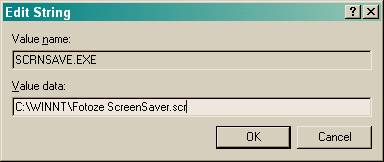
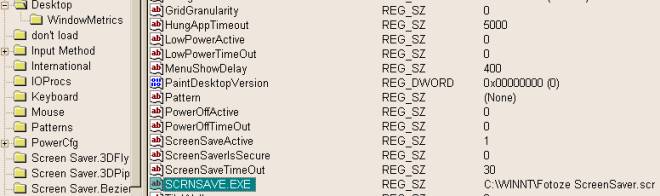
Add the path to the Fotoze ScreenSaver executable, Fotoze ScreenSaver.scr, to the following registry key in the Windows registry: HKEY_USERS/.DEFAULT/Control Panel/Desktop/SCRNSAVE.EXE
Change the key’s value from logon.scr to fotoze screensaver.scr. To change the time allotted before the screen saver activates, change the key, ScreenSaveTimeOut to a different number of seconds. The default is 900 seconds. To access the registry editor, click Start, Run and type: regedit

Email Discussion List
If you wish to discuss Fotoze
ScreenSaver with other users of the screen saver or the developer and share
your questions, answers, thoughts, suggestions, and feedback, subscribe to the
email discussion list at http://www.egroups.com/group/fotoze
Feel free
to discuss related items as well, such as digital photos, screen savers,
webcams, etc.
To start
sending messages to members of this list, simply send email to [email protected]
If you do
not wish to belong to the Fotoze ScreenSaver discussion list, you may
unsubscribe by sending an email to [email protected]
You may
also visit the eGroups Fotoze ScreenSaver web site to modify your
subscription:
http://www.egroups.com/group/fotoze
Developer’s Notes
Fotoze ScreenSaver was
developed and written using Microsoft Visual Basic 6.0, Service Pack 3
(SP3) under the Windows 2000 Professional operating system and tested on
Windows 95, Windows 98, Windows NT 4, and Windows 2000. More
details on how the screen saver was developed will be documented soon. The
source code may also be released at a future date.