
Temel donanım bilgileri
© Copyright Brian Brown, 1992-2001. All rights reserved.
Buradaki notlar yazarın haberi olmadan kullanılabilir.


Disk Yönetimi
The objective of this section is to
At the end of this section, you should be able to
 Disketler
 |
Disketler taşınabilir kayıt ortamlarıdır. Disketler plastikten yapılırlar. Daire şeklindeki bir disk kare şekle sahip bir plastik içinde korunur. Disk üzerine küçük magnetik parçacıklar yapıştırılmıştır. Bu magnetik parçacıklar bilgi saklarlar. Disketlerle ilgili daha fazla bilgiyi buradan öğrenebilirsiniz. |
| Disketler disket sürücüsüne yerleştirilir. Sürücü diskin dakikada 360 kere dönmesini ve bir okuma yazma kafasının bu disk üzerinde olmasını sağlar. Değişik tiplerde ve saklama kapasitesine sahiptirler. Çizelgede değişik kapasitede ve boyutlarda yaygın olarak kullanılan disketler verilmektedir. | 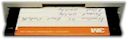 |
| Boyut | Kapasite | İzler | Sektöler |
| 5¼ | 360KB | 40 | 9 |
| 5¼ | 1.2MB | 80 | 15 |
| 3½ | 720KB | 40 | 18 |
| 3½ | 1.44MB | 80 | 18 |
Disket kullanımı
Disketteki bilgilerin zarar görmemesi için bunların dikkatli bir şekilde kulanılması
gerekmektedir. Böylelikle, tekrar oluşturulması zaman ve masraf
gerektiren veriler sağlıklı bir şekilde kullanılabilir.
Disketleri kullanırken dikkat edilmesi gerekenler
Disketlerin biçimlendirilmesi
MSDOS ta disketler format komutu kullanarak biçimlendirilir.
Böylelikle, klasör yapısı ve dosya yerleşim
planı oluşturulur.
The actual process of formatting diskettes has been covered in previous modules (OS100, SF100). In Windows95 or WindowsNT, disks can be formatted in an MSDOS command prompt window by using the Format command, or by rightclicking the Floppy drive A icon in my computer and selecting the Format option from the popup menu.
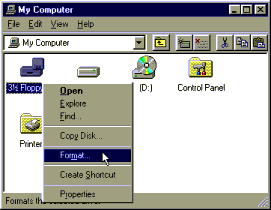
Fig 3a: Format menu in Windows95
When this option is selected, the following dialog box appears, which allows the user to create a system diskette [which can be used to boot the computer system with Windows95], and a quick format, which only erases existing files and data which is stored on the diskette.
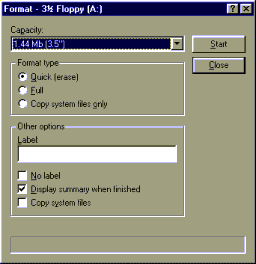
Fig 3b: Format dialog box in Windows95
Write
Permit/Protect Notch
Diskettes are provided with a write protect notch. In 5¼"
diskettes, the write protect notch is covered with a sticker.
This prevents writing to the diskette.
In 3½" diskettes, the write protect tab is slid towards the front of the diskette. In the diagram below, the write protect tab is shown in the write enable position.
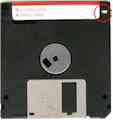
Fig 3c: Write Protect Notch on floppy diskette
Hard
Disk Management
Hard disk drives are normally referred to as drive C:, drive D:.
These drives are fixed (non-removable) and have a large storage
capacity. Hard disks are generally supplied from the manufacturer
as blank, though many new computers now have the operating system
pre-installed on the hard disk drive.
 |
The disks are low-level formatted first using a special program, which writes timing and other information to the disk, as well as performing a surface analysis. The disks are made of thin ceramic or metal, and coated with magnetic particles. The disks rotate at speeds of 3600RPM or higher. They are normally air sealed to prevent dust particles and other debris damaging the surface of the disk. More information about hard disk drives is found here. |
Low
Level Format
A low level format erases all information on the disk. One
purpose of a low level format is to build a bad block table
on the disk which holds any defective tracks and sectors. Another
purpose of a low level format is to determine an interleave
factor for writing sector information.
Partitioning
Disks
Partitioning a disk is dividing the disk into areas, specifying
which areas are to be used for MSDOS or some other operating
system. After partitioning the disk, the partition is made active
then formatted using the operating systems format utility. This
may also include adding special boot files to the partition which
allows the partition to boot the operating system from that
partition on the hard disk.
The MSDOS fdisk utility allows the hard disk to be split up into a number of parts (called partitions). Each partition may be a different size, and can contain different operating systems (MSDOS on one partition, UNIX on another, OS/2 on another, etc). Only one partition may be the active partition. This is the partition which the machine will boot from. The active partition may be switched from one partition to another partition by running the fdisk program.
FDISK provides a menu interface for creating partitions, specifying their sizes, changing the active partition, and deleting partitions.
MSDOS
Partition Types
MSDOS provides support for THREE different partition types.
Partition
Sizes
MSDOS v3.x supported partition sizes up to 32MB in size. MSDOS 5.0
supports partition sizes up to 2GB.
More
than one Hard Disk in your system
The first hard disk which has the primary partition is used to
load MSDOS. The second drive can only contain extended MSDOS
partitions.
The
MSDOS FDISK Utility
This utility is used to create, modify, display and delete
partitions under MSDOS. When run, it displays the main option
screen, which looks like,
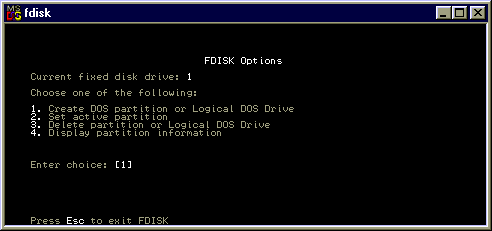
Fig 3d: Fdisk program
If there is more than one hard drive fitted to the computer system, a fifth option will be displayed (change current drive).
Displaying
partition information using FDISK
Selecting option 4 (Display partition information) displays the
current partitions on the selected drive. If the drive has not
been previously partitioned, there will be no defined partitions.
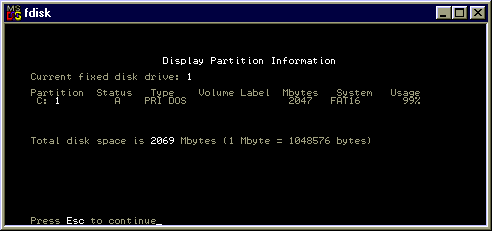
Fig 3e: Fdisk: Display partitions
The following screen shows a single drive system which has been previously partitioned with a single MSDOS primary partition (type=PRI DOS) of 2047MB. Note that the status of the partition has been made active (A).
Creating
an MSDOS partition or logical MSDOS drive using FDISK
If there are no partitions defined, or there is free space on the
disk, partitions can be created. Selecting option 1 (create
partition) from the main menu of FDISK displays the following
screen.
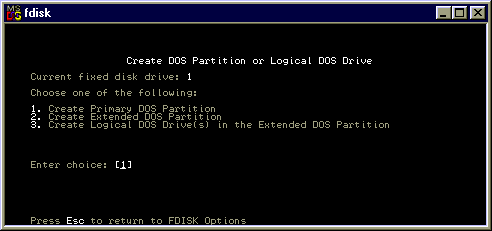
Fig 3f: Fdisk: Create partitions
To create a primary MSDOS partition choose option 1.
To create an extended MSDOS partition (only if a primary partition already exists), choose option 2.
To assign logical drive letters to parts of the extended partition (if it exists), choose option 3.
Each selection will ask how much disk space is to be allocated. This can be typed in as a number of megabytes (eg, 40 would allocate 40MB), or as a percentage (eg, 50% would use half the space).
Deleting
and MSDOS partition or logical MSDOS drive using FDISK
If you delete a partition, all information present in the
partition is lost. To delete a partition or logical drive, choose
option 3 (delete partition) from the main FDISK menu. The
following screen is displayed.
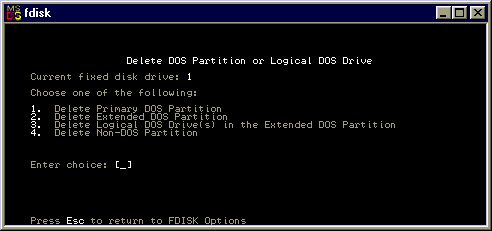
Fig 3g: Fdisk: Deleting partitions
Logical drives must be deleted in any extended partition before that extended partition can be deleted. Primary partitions can only be deleted if all extended partitions have been deleted first.
Deleting
a Primary MSDOS partition using FDISK
The computer system will restart if any changes are made to the
partition tables using FDISK. After using FDISK, you must format
the partitions created to prepare them for use by MSDOS.
High
Level Formatting
Before hard disks can be used by an operating system, they must
be prepared for use. Once a partition has been created and made
active, it is formatted using the FORMAT command.
FORMAT C:/S/V
This makes the current active partition on the hard disk a BOOTABLE (/S) copy of DOS, and requests a volume name (/V). Once this is completed, the computer is re-booted WITHOUT a system diskette in drive A: and DOS is loaded from drive C:
High level formatting writes directory information and hidden tables onto the disk, which permits the later storage of files. These tables keep track of file locations, sizes, modification dates and other information. In MSDOS and Windows95, they are known as File Allocation Tables [FAT tables].
Summary
Data is expensive to recreate, so good handling and storage
methods are essential.
Before diskettes can be used, they must be formatted for use. This is done using the Format command. It writes directory information onto the diskette which allows it to store files.
Hard disk drives must be partitioned before use. The active partition is that partition that the computers looks for the operating system files when it is started. In MSDOS and Windows, the primary partition is known as Drive C.
Home | Other Courses | Notes | Tests | Videos
© Copyright Brian Brown, 1992-2001. All rights reserved.