| 4:
Configuring BIOS
In the
previous list, you saw that the BIOS checks the CMOS
Setup for custom settings. Here's what you do to change
those settings.
To enter the CMOS Setup, you must press a certain key
or combination of keys during the initial startup
sequence. Most systems use "Esc," "Del," "F1," "F2,"
"Ctrl-Esc" or "Ctrl-Alt-Esc" to enter setup. There is
usually a line of text at the bottom of the display that
tells you "Press ___ to Enter Setup."
Once you have entered setup, you will see a set of
text screens with a number of options. Some of these are
standard, while others vary according to the BIOS
manufacturer. Common options include:
- System Time/Date - Set the system time and
date
- Boot Sequence - The order that BIOS will
try to load the operating system
- Plug and Play - A standard for
auto-detecting connected devices; should be set to
"Yes" if your computer and operating system both
support it
- Mouse/Keyboard - "Enable Num Lock," "Enable
the Keyboard," "Auto-Detect Mouse"...
- Drive Configuration - Configure hard
drives, CD-ROM and floppy drives
- Memory - Direct the BIOS to shadow to a
specific memory address
- Security - Set a password for accessing the
computer
- Power Management - Select whether to use
power management, as well as set the amount of time
for standby and suspend
- Exit - Save your changes, discard your
changes or restore default settings
|
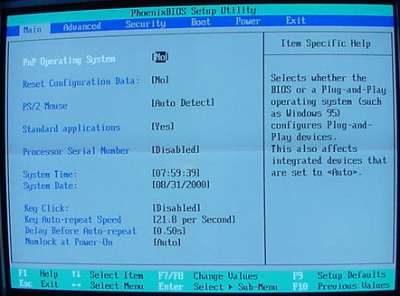
CMOS
Setup
|
Be very careful when making changes to setup.
Incorrect settings may keep your computer from booting.
When you are finished with your changes, you should
choose "Save Changes" and exit. The BIOS will then
restart your computer so that the new settings take
effect.
The BIOS uses CMOS technology to save any
changes made to the computer's settings. With this
technology, a small lithium or Ni-Cad
battery can supply enough power to keep the data
for years. In fact, some of the newer chips have a
10-year, tiny lithium battery built right into the CMOS
chip!
|



