MPEG Blaster's Features

MPEG Blaster�� ���Features��� ���Skins��� ���Support��� ���Credits��� ���Free MP3's��� ���Downloads��� ���Mail Me���


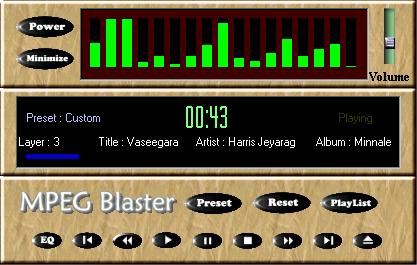
��������MPEG Blaster is a Media Player Capable of Playing MPEG Files (Layer I, II & III). It has the Following Cool features....
  • 10 Band Graphic Equalizer
  • 18 Band Spectrum Analyzer
  • 18 Preset Effects
  • Drag and Drop Play List
  • Completely Skinnable
  • Global Volume Controller
  • Tray-Icon Spectrum Analyzer
  • On-Screen ID3 Scrolling Info
  • Online Help
MPEG Blaster

10 Band Graphic Equalizer
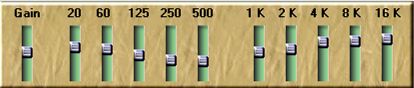
��������The 10 Band Graphic Equalizers can be used to Synchronize the Effects of Music as Required. There is also a Gain Control which can be used to Raise or Decrease the Pitch of the Music as Required. Don't know how to Use Equalizers. No Problem! There are 18 Preset Effects from which you can Select how your Favourite Music Should be. Equalizers in MPEG Blaster

18 Band Spectrum Analyzer *������Model of Tray Icon Visualization

������This 18 Band Spectrum Analyzer is a Cool Effect of MPEG Blaster which Maps the Sound that Passes through the Sound Card and dances as per the frequency of the Sound that is mapped. For Faster Machines this Effect will be Cool. But for Slower machines (below Pentium I or Clock Speed below 233 MHz) the Mapping will be a Little Sluggish.

����� * One Restriction of this Sound Mapper is that it Works with Only Window 95, 98 or Windows Me. But It does not work with Window NT or 2000. This is Because in Windows 9x and above the Sound Card is not Shared. That is Only one Instance of the Sound card is only used. Where as in Windows NT or Higher Versions the Sound Card is Shared. That Multiple Instance of the Sound Card is used. In Simple terms more than one Can sound played at the Same time, which is not Possible in Windows 9x or above. This will be Soon resolved in the Future Versions. But the Spectrum Analyzer in the Tray Icon will work in any Platform.

18 Preset Effects
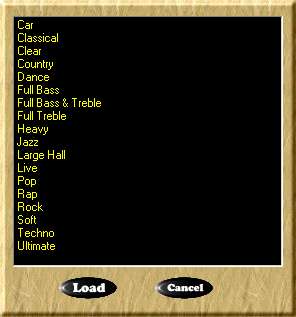
������There are about 18 Presets Effects in MPEG Blaster each of which can be Selected to Vary the Pitch, Loudness, FX and other Musical Effects of the Currenlty Playing MPEG File. These Presets suit almost all type of User Requirements from Rock, Pop, Jazz, Heavy to Classical, Soft, Country, etc., For Example to hear a Melodious Old Song of the Old Times, a Soft Mode or a Classical Mode can be Selected. While hearing a Western Song or a Rap Music the Preset can be set to any of the Following like Rock, Pop, Heavy, Large Hall, Dance, Ultimate, Techno, etc., There are some Special Presets for breaking up the barriers of the Sound file like, Sounds which are not Audible, or Other Unclear Sounds can be easily heard or tuned up in the Clear Mode or the Full Treble, Country, Soft, Car, etc., To get the Feeling like being in a Dance Party or hearing a sound in Hall you can choose the Dance Mode or the Large Hall Mode. Like this each and every Mode of Preset in Carefully Designed with these Features in MindPreview of Presets in MPEG Blaster

Drag and Drop Playlist Selector
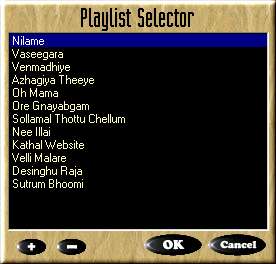
������For Playing More than One File, this Playlist Selector can be used to Choose files that is to Played and the Files to be played can be arranged in a Order. To add a File Just Press the Plus Button available in the Playlist Selector or Just Press the Plus Key in the Keyboard. A dialog will appear and ask you to select the File that is to be added to the Playlist Selector. After Selecting the File Just Press the Open button in the Dialog. The Selected file will be added to the Playlist. Repeat the Previous Steps to add more files. To play a Particular file, Just Double Click on the Song in the Playlist or Select the Song and press the Enter Key. The Selected Song will Begin to Play. To Remove a Song from the Playlist, Just Press the Minus Button or the Minus Key in the Keyboard. The Selected file will be removed from the List. After adding the files to the Playlist click the Ok Button or Press Enter or Escape key to Close the Playlist. Drag and Drop Playlist of MPEG Blaster

Completely Skinnable Interface
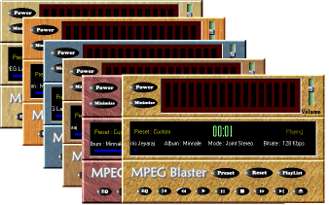
������As we change our Appearence Frequently MPEG Blaster can also be made to Change its Appearence by changing the Skin. i.e., MPEG Blaster is Completely Skinnable and has 6 Inbuilt Skins. A Sample is Shown aside how would be the appearence of MPEG Blaster with its different skins. Just Select the Skin Browser from the Popup Menu when right clicked anywhere in MPEG Blaster or when right clicked the Icon in the Taskbar. A Window will appear showing the Different Skins available. Just choose the Skin and MPEG Blaster will Automatically Load the Skin. Like this the Appearence of MPEG Blaster can be Changed. Completely Skinnable Interface of the MPEG Blaster

Global Volume Control
������The Volume Control Present in MPEG Blaster is not Only used to reduce the Volume of the Current Song Playing. Apart from that it can Control the Global Windows Mixer Volume Control so that any device Playing with the Windows Mixer Volume, can be controlled with this Volume Controller. >Global Volume Control of MPEG Blaster

Tray-Icon Spectrum Analyzer
������The Tray Icon Spectrum Analyzer of MPEG Blaster is a Cool Effect like the Spectrum Analyzer in the Main Window. The Only difference between the Main Spectrum Analyzer and this one is that this Works even in Windows NT and Windows 2000 where as the Main Spectrum Analyzer will not Work in the above Spectified Operating Systems. MPEG Blaster can also be Controlled with this Spectrum Analyzer. When right-Clicked on this a menu will Pop-up having the most Commonly used functions like Play, Pause, Stop, Skip, Online Help, Skin Browser, etc., Tray-Icon Spectrum Analyzer of MPEG Blaster

On Screen ID3 Info
������In MPEG Blaster the ID3 Info will be Scrolling little above the Position Indicator. ID3 is nothing but which tells the Info of the Current Song Playing. The Info will be the Title of the Song, Author, Artist, the Compression Rate, Song Mode (Mono, Stereo or Join Stereo), Bitrate, Layer Name (whether MPEG Layer I, II or III), etc OnScreen ID3 Info of MPEG Blaster

Online Help
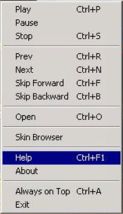
������In this Section you can get Online help about the Functions and Operating MPEG Blaster. When u right Click anywhere on MPEG Blaster a Menu will Pop-up as shown in figure. From that choose Help. A window will appear showing the Functionalites and Features of MPEG Blaster. From here you can get any sort of Help in using the Functions available with MPEG Blaster.
������If you still have any doubts in using MPEG Blaster send me at lvramanan@yahoo.com on what topic you've doubt with ur mail-id. I'll contact you and give the Solution within the next 24 hours. At the worst case 48 hours will be taken.
Online Help for MPEG Blaster
Hosted by www.Geocities.ws

1