 |
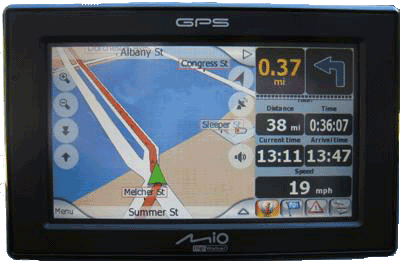
Just so you know, I’m not a total noob. I’ve had a GPS unit for more than a year (see my Becker review). But then it was stolen. I was going to replace it with a duplicate but when I learned how “hackable” the Mio units are, I knew I had to have one. Being hackable means that I will easily be able to access the underlying Win CE.Net operating system, and convert this GPS unit into a handheld computer, or even into a different GPS system! Since this is a bit scary for the first time GPS hacker (like me!), I’m going to describe exactly what I went through to get it working. I plan to install MioPocket 2.0, which is the software package that frees the GPS unit from its built-in software. But first, a brief review of the C320 itself... |
|
|
|
|
Mio GPS units are sometimes criticized for being too complicated. That’s simply not true. Don’t get me wrong; there are a LOT of options and settings (which I like, as it means I can customize this unit to work the way I like). But if you just want to type in an address and drive there, go for it! The C320 offers all the needed functions – it’ll get you from point A to point B, and it’ll help you find nearby points of interest (POIs). During navigation, you get a nice map view (2D, 3D or Overview) with optional automatic zoom. You get voice prompts for all turns. You get the remaining distance and time shown to you. It can also help you review and plan your trip ahead of time, and it can show you nearby POIs during your trip. And it’s got the easiest system for adding waypoints I’ve ever seen. In short, you just enter an address, and off you go! Really nice features include: automatic switching between day and night color schemes, the ability to “avoid” roads on your route, and a nice route preview system. You can also mark roads and turns to avoid during this preview (if you know there’s a certain point you’d like to avoid) – this means the Mio will route you around this area, and you don’t have to actually go there to avoid it! But, for me, it’s best features are that it is very user-customizable, and easily hackable. Garmin and TomTom units cannot do this. So get a Garmin for your Mom, but get a Mio for yourself! |
Now, onto the hacking...
| 9/18/08 |
I discovered MioPocket on GpsPasSion.com. This sounds like an incredible package that will turn a nice GPS unit into a fully-functional computer. I have got to get me one of these! So, I surfed around and found a good deal on eBay for a brand new Mio c320. I read through the forum, and downloaded the necessary MioPocket 2.0 r27 (9/2/08) software. Ooh, I can’t wait! |
| 9/20/08 |
I got my Mio C320 today! I played with it for a bit just to get used to it (and to write the short review above). I followed the MioPocket installation instructions (copying everything to an SD card, and then inserting the card into the Mio), and then held my breath.... And everything worked, just like it was supposed to! MioPocket truly is an impressive package. It transforms a nice GPS unit into a fully functional handheld, tablet computer, and comes with all the software you’ll need (plus you can add more!). And it includes instructions so you can customize it to your heart’s content (I’ve already started!). Thanks to the kind folks at GpsPasSion.com, there are lots of additional resources. I first added the “text-to-speech” system, as well as a few other voices (I now have a total of 11 english-speaking voices to choose from, with 3 being TTS!). You’ll need the TTS_PPC.ZIP file. UnZIP this file, and copy it to your SD card (with folder structure) to the MIOMAP\MIOMAP folder. Then, copy COMBRK.DLL, COMRSRC.DLL and RSSOLOAPI.DLL from the MIOMAP\MIOMAP\TTS_PPC\SPEECH\components folder to the \Miomap\Miomap folder. Then, you’ll want to add more voices from Mio Infinity and other sources. I then unlocked the MioMap license file (just follow the directions) and installed upgraded maps with 12 million POIs (put some of them in MIOMAP\MIOMAP\MAPS on your flash drive, and the rest in MIOMAP\MAPS on your SD card – these map files are much larger than the original ones, so won’t all fit on the flash drive). Quite nice, and newer than the maps provided with the C320. |
| 9/21/08 |
Today I added more maps to my SD card, just because I can: Canada, Mexico and the UK. I also have the rest of Europe and Australia, but I suppose I’ll wait until I’m planning a trip there to actually load them! I also loaded a new “skin” on my Mio. Called Jerry’s skin, it alters the appearance and functionality of the device. It is incredible! Makes a good GPS unit a great GPS unit! And (probably my favorite part), it’s all user-customizable! |
| 9/22/08 |
Played around with Jerry’s skin. Added an extensive set of icons (Haplo’s) for POIs. Also added a bunch of color schemes; I prefer Google Day and Green night, although Jerry_Day adds some neat 3-D textures. I also downloaded a couple of card games to add, mostly to see if I could. One or two of them didn’t work (not WinCE compatible), but the others did. |
| 9/25/08 | I ordered a 4GB Kingston mini-SD card today, as I’m pretty sure that 2GB just won’t be enough! |
| 9/30/08 | Today I combined a few nice skin features and created a few of my own, and packaged them into my own override set. This is an extra file of resources, which will “override” the default setting. So, I can continue to customize my Mio, without altering its main software. I can even have multiple override files, and switch between them if I like. |
| 10/4/08 |
The 4GB card arrived today, and works just fine! So I’ve now got nearly 3 GB of free space to play with. UPDATE: Once I loaded more than 2GB on the card, I discovered that it does NOT work just fine. The first 2GB is okay, but the second is not and causes all sorts of odd errors. Apparently, this card is SD but not HC, so it’s just a bit goofy all around. Luckily, I have several 2GB cards, so I’ll just load MioPocket onto each of them, and swap them as needed. |
| 10/5/08 | With all the free space, I wonder if I’ll install another GPS package, just to see how it differs from MioMap. Apparently, iGo8 and OnCourse Navigator are pretty good, and Garmin XT is a possibility (see below). On the other hand, I like MioMap 3.3 with Jerry’s skin so much, I can’t imagine why I’d replace it.... |
| 11/17/08 |
It’s been two months, and I’m even more impressed with my Mio. I’ve customized it a bunch, and I’ve compared it to other GPS units, and I like the Mio best. One minor quibble: it often tells you to “prepare to” make a turn. While I like getting notified ahead of time, I don’t like the actual “prepare to” phrase. So, I edited the sound file (converted it to silence), and I now have a GPS unit that just tells me of the upcoming turn without the annoying “prepare to”! If any other Mio users are reading this, you can have this silent sound file; just rename this MP3 file (since it really is in OGG format) “prepare_to.ogg” and replace the file within the appropriate voice ZIP file. |
| 1/5/09 |
I have found a file with 268 3-D auto graphics, and have learned how to replace the images within Jerry’s skin. So, the generic blue car seen in the screenshots below will now actually be either a PT Cruiser or a Jaguar S-type! If you’d like to replace the generic car icons (6 different colors) with customized graphics, check out Custom 3-D Auto Graphics. |
| 1/30/09 | I finally upgraded to the latest release of MioPocket. There have been lots of discussions of minor bug fixes, and a few claims that some of the upgrades introduce new bugs. But release 39 seems to be stable, and really does add some new features, so I'm going for it! |
| 1/31/09 | MioPocket 2.0 release 39 works great. It’s amazing how much stuff they’ve put in here. The user interface changed just slightly (a “Favorites” tab was added), so I had to re-do much of my customizing. But it was pretty easy, and is now just the way I like it! |
CONCLUSION: I highly recommend the Mio C320, Jerry’s skin and MioPocket.
Caveat: After using the Mio C320 for several weeks, I’ve learned that the TeleAtlas maps are less than perfect. A few POIs are not in the correct location, and perhaps even worse, some of the street addresses aren’t, either. So if you type in 123 Main Street, the location the device gives you may actually be the physical location of 247 Main Street. So, as with any GPS device, don’t rely on it exclusively; use your own judgment. Your actual mileage may vary!
Never Mind!: After installing GarminXT and the very newest Navtep maps, I’ve found they contain the same errors! Oddly, I don’t remember my old Becker (which used Navteq maps, too) having this problem. Score one for German engineering, I guess!
|
Before and After Photos:
|
|
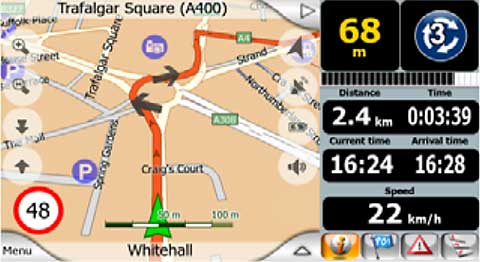 |
This is MioMap 3.3 as it comes out of the box (photo from the MioMap documentation – I haven’t been to London recently!). Like any GPS unit, there’s lots of good navigation information; your next turn, distance and time to destination, etc. The split-screen format of the Mio C320 is really nice. You can switch between full navigation, POI display, TMC or route itinerary at the touch of a button. Really good, but just wait –it gets even better! |
 |
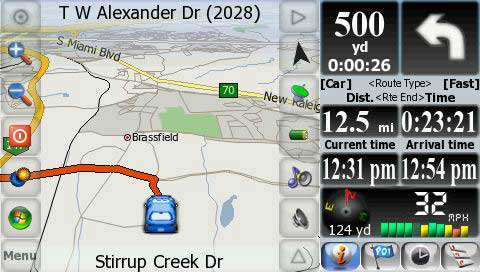
This is MioMap 3.3 with Jerry’s skin. All Mio owners owe Jerry Dabrowski a big “thank you”. His skin not only improves the appearance and organization of MioMap, but it adds lots of additional functions as well. Notice that there are more buttons on either side of the map. Many of these buttons are user-definable (40 new functions!). Notice that you get the time to your next turn as well as the distance. Notice the nice blue car on the map in place of the arrowhead! There’s also a compass and satellite signal graphic, just to pack more stuff on the screen!
|
|
|
This is MY MioMap. I’ve added some of Jerry’s overrides (which changed a few fonts and added the blue background to the buttons), used a different color scheme, edited the POI icons, and in general just played around under the hood until I got everything working just the way I like it. I’m not completely done fiddling. Since taking this screen shot, I’ve changed the Times font to Old Goudy, changed the color of the directional arrows (made ‘em gold) and altered the color scheme yet again! But this still gives you the basic idea – you can customize MioMap to suit your particular wants and needs.
|
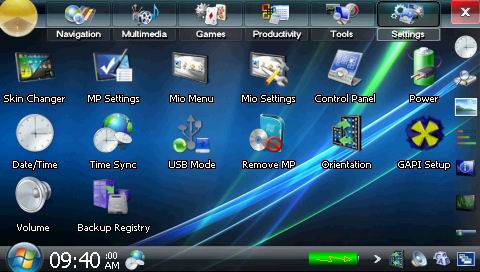 |
And here’s MioPocket 2.0 (after I’ve fiddled a bit with the side bar and bottom row). Just look at all that stuff. And this is only one of the six screens! And of course, different skins are available for MioPocket, too! And you can pretty easily add your own programs (and delete those you don’t want, to free up space). MioPocket is the reason I bought a Mio. |
|
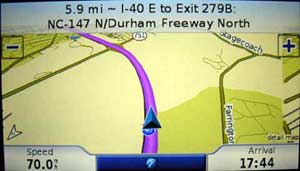
10/20/08 – How cool is this? I just installed Garmin Mobile XT onto my Mio! So, I now have a Garmin GPS unit with brand new Navteq maps! This is why I bought a Mio – there just isn’t a more flexible, configurable GPS device out there. MioMap is really good; but with the Mio C320, I can have any GPS device I want! Of course, now that I can really compare them, I don’t understand what all the fuss is over the Garmin units. Look at that screenshot – it’s cartoonish and overly simplistic (to the point of being insulting), and doesn’t allow any customization at all. While it will get you where you’re going, it provides the bare minimum of information. Me, I like my Mio! |
 |
|
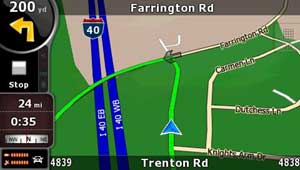
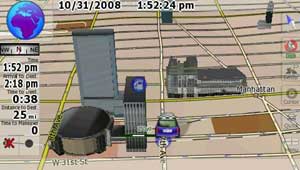
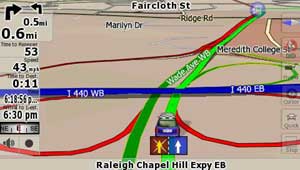
10/30/08 – Today I added iGo8. It’s really pretty similar to MioMap (I guess it’s the “next generation”), but has some impressive graphics (3D terrain, and 3D buildings in selected areas [see second screenshot]). It also adds an indication of which lane you should be in when you’re on a highway (see third screenshot). Of course, being that it’s me, I had to play around with it add add a new skin (diMka 1.5.6a in 480x272 resolution, shown in the second and third screenshots). Why do I keep loading up these different GPS systems? Partly to evaluate them and see which I like best, and partly because I can! This just emphasizes why I think the Mio is one of the most useful GPS devices – it can be whichever one you want!
|
|
last updated February 4, 2009 by Warren G. Lieuallen, DVM, PhD