 |
is
a Tagalog/Filipino phrase HOW-TO |
|
is
a Tagalog/Filipino phrase HOW-TO |
Improving the image on your webcam
Here are some ways you can do to improve the image on your webcam. Of course, it all depends on the webcam if it support features described on this page.
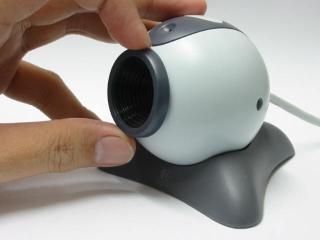
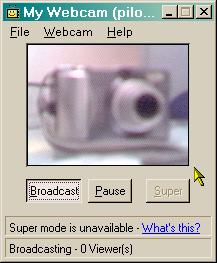
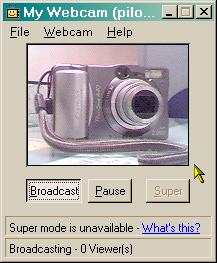
Blurry pictures - If the picture on your webcam appear blurry, the most likely culprit is the iris located right on the webcam lens itself. This requires a bit of an adjustment as shown in the picture below.
 |
 |
|
| Before adjusting the iris | After adjusting the iris |
Another possible reason why the picture is blurry is if the image is too far the webcam's lens. Cheap webcams can show a sharp image at a certain distance only. Once the image is outside this distance, it's out of focus.
Dark images - Obviously, you have to have some proper lighting in order to get bright images!
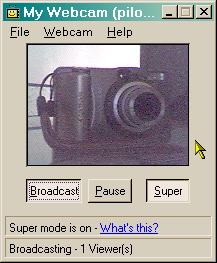
One thing you can do though, if the picture is still a bit dark even if you have ample lighting, is adjust the brightness and contrast. Go to your Yahoo! Messenger preferences. Under the Webcam category, click on the Camera Settings button and adjust the appropriate controls.
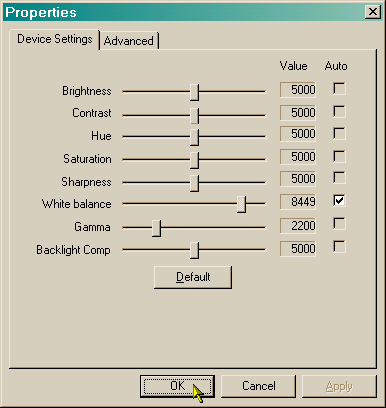
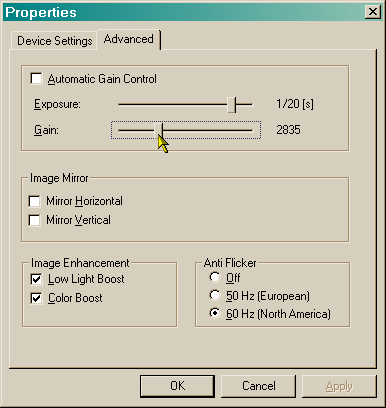
Jagged/Jerky images - Naturally, images eat a lot of bandwidth and if you're on 56K dial-up, you're pretty much stuck with low-quality as well as jerky movements. Broadband users fare a bit better of course, but not everyone is on broadband either.
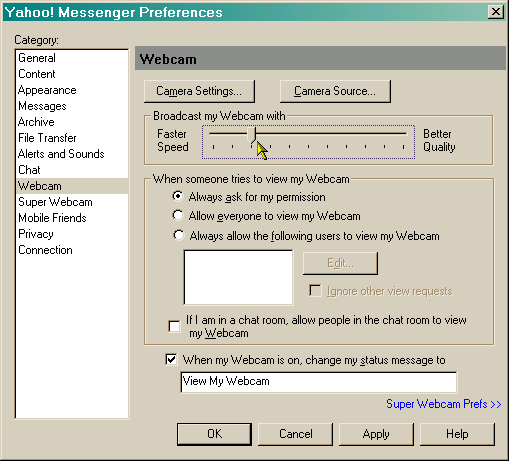
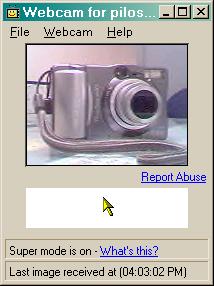
You can adjust how fast your webcam broadcasts (or how sharp the image is) by going through the Yahoo! Messenger preferences. Under the Webcam category, drag the slider toward "Faster Speed" if you want smoother movement or toward the "Better Quality" setting if you prefer a sharper image. Of course, there's a compromise between the two. Faster speed means the image gets the jaggies whereas better quality means stop-motion video.
|
|
 |
|
| Faster speed | Better quality |
Did this page help you solve
your problem?
| Tell me what
you think | What
others have to say | Back
to main page |
 TIPS AND TRICKS