 |
is
a Tagalog/Filipino phrase HOW-TO |
|
is
a Tagalog/Filipino phrase HOW-TO |
Changing the screen resolution and color depth
Changing the resolution and color depth is totally dependent on your video card's capabilities as well as that of your monitor. It is best to read the documentation that came with your hardware before doing this procedure.
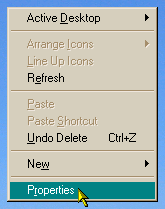
1. Right-click an empty portion of your desktop and select the Properties command from the pop-up menu.
2. The Display Properties dialog box will appear on your screen with several tabs on top. Click the Settings tab.
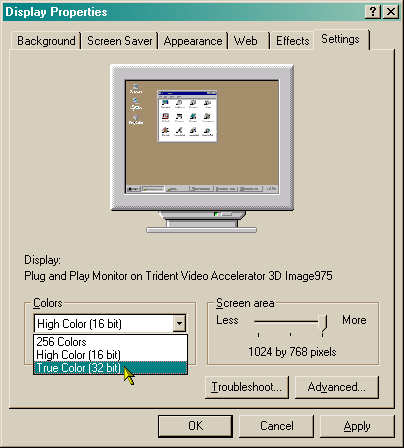
3. There are two items that that you can try changing: Colors and Screen Area. The Colors section is where you choose the color depth, i.e. how many colors you want the display to show. Usually, anything above 256 colors would suffice. The Screen Area refers to how much information can be displayed on your screen. At the minimum, you should never go below 800 x 600 for the screen area. If your video card and monitor can handle it, choose at least 1024 x 768 or better. Hit the Apply button to try out the new settings.
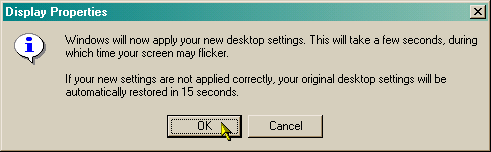
Windows will display a confirmation box. Click the Ok button.
4. If everything goes well, Windows will redisplay the desktop with the new settings. The following dialog box should appear.
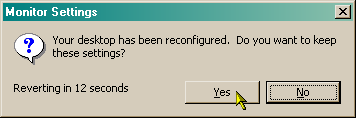
5. If you are satisfied with the new setting, click the Yes button to make the changes permanent. Otherwise, click No and try another setting. On the other hand, if your monitor starts to flicker and display garbage on your screen, it means you chose a setting not supported by the your video card or display unit. Wait 15 seconds and the previous setting will be restored automatically, then try another setting.
6. Click the Ok button to close the Display Properties dialog box.
Did this page help you solve
your problem?
| Tell me what you think
| What
others have to say | Back
to main page |
 TIPS AND TRICKS