 |
is
a Tagalog/Filipino phrase HOW-TO |
|
is
a Tagalog/Filipino phrase HOW-TO |
Add a voice clip to your Yahoo! profile
Adding a voice clip to your Yahoo! profile involves three steps:
(a) Create
the voice clip itself
(b) Upload the file to your free Geocities account,
and
(c) Point the voice clip's URL to your profile
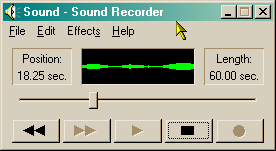
1. To keep it simple, use Sound Recorder that came with Windows to create the voice clip. Click Start > Programs > Accessories > Entertainment > Sound Recorder.
2. Record your voice the usual way. After recording, play it back to hear it. If you're not satisfied, click File > New to start over again. You may also want to tweak with the volume and recording control settings to refine the sound.
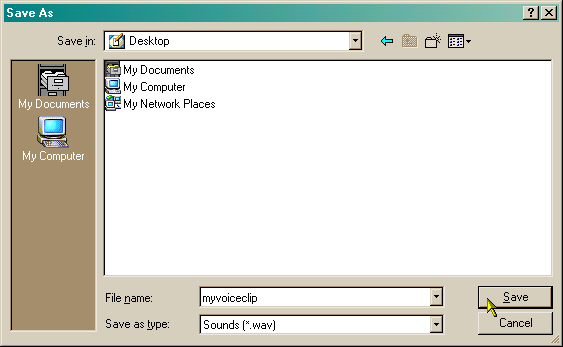
3. Save the clip to the Windows desktop for easy reference later on when you upload. Do not use fancy names or spaces in between the name. Keep it simple and name it myvoiceclip.
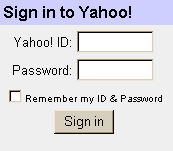
When you signed up to Yahoo! you were automatically given a free Geocities web account. All you had to do now is sign in and upload the file.
1. Click here to open a new browser window and log in to Geocities.
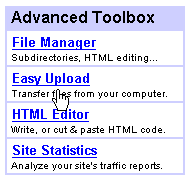
2. Once logged in, click on the Easy Upload link (second item under the Advanced Toolbox on the right portion of the page).
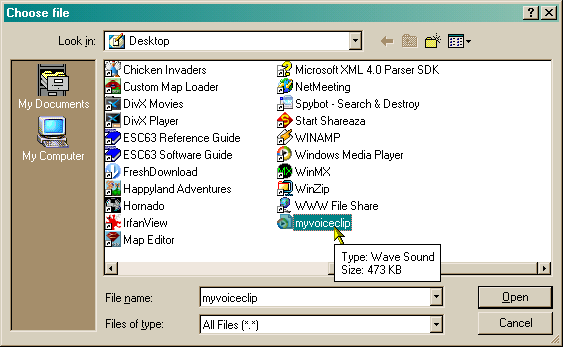
3. Click the  button and select the voice clip you saved earlier on the desktop.
4. Click the  button. Depending on how big the voice clip was when you recorded it
earlier and how fast your internet connection is, it may take a while.
button. Depending on how big the voice clip was when you recorded it
earlier and how fast your internet connection is, it may take a while.
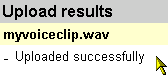
5. If the upload is successful, you'll see the following:
6. Click the Sign Out link (upper right portion of the page) and close the browser window.
Point the voice clip's URL to your profile
1. In Yahoo! Messenger, click
Login > My Profiles and click the  button.
2. In the Public Profiles page click the Edit link for the profile you want to add the voice clip to, then click the Edit Voice link in the next page.
3. In the box beside where it says your Voice URL, type the address of your Geocities account followed by the name of the voice clip using the following format:
http://www.geocities.com/your_yahoo_id_here/myvoiceclip.wav
Of course, the above is just an example, replace the your_yahoo_id_here with your Yahoo! ID.
4. Click the  button to update your profile.
Did this page help you solve
your problem?
| Tell me what
you think | What
others have to say | Back
to main page |
 TIPS AND TRICKS