| Mirror Image Tutorial |
 |
| This tutorial I wrote for a friend to show her how to put an image into a mirror. So you need to have an image to use. In my case I used a doll availiable at any drag and drop doll maker which are free to use all over the web of course you can use my doll image if you like or use one of your own. |
| 1. Open new image (I used 300 x 300 but you can use one suited to your image) |
 |
| My image feel free to use it just right click on it and save as ... |
| Ok lets get started shall we ... I am new to writing tutorials and reasonably new to psp so please let me know if you liked this tutorial and if it was to confusing ... |
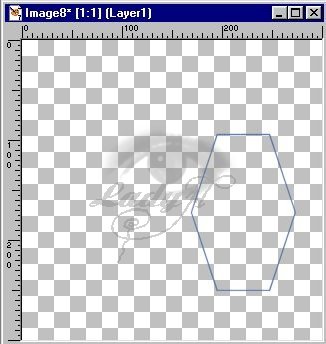
| 3. Pick a frame you already have in PSP or make one with the preset shapes tool with any shape you want I used a hexagon with settings > Antialias checked and Vector UNCHECKED. |
| 2. Set your foreground to your desired color I chose blue and you background to null. |
 |
 |
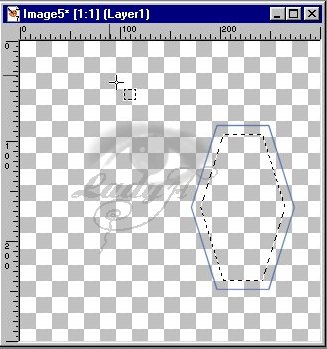
| 4. Now using your magic wand select inside the shape and contract about 10 this is up to you and depends on how large you want your frame or how big your image is ... |
 |
 |
| 5. Choose a color I chose grey to get a feel of the mirror ... and flood fill your selection ... |
| 6. Now using your wand again click in the bit left between the filled selection and the shape. Now goto selections > expand > 1 pixel and flood fill it with your original color. This will make your frame. |
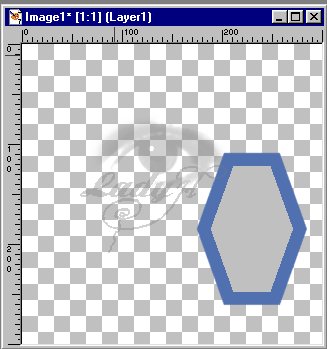 |
| Ok Now you should have something that looks like a frame I am not going to get all fancy here but i will do a little to it later ... |