Toxic-Inc. | -[The Toxic Avenger]-
[ Home | Links | Downloads | Chat And Computer Help ]
Chat And Computer Help
|
How To Clean Out Caches
- Internet Explorer
- To clean out Internet Explorer (IE) Cache, open an IE window.
- Click 'Tools'.
- Click 'Internet Options'.
- Then click 'Delete Files'.
- Might as well clean out Cookies while you are there, just click 'Delete Cookies'.
- Yahoo! Cache
- To delete Yahoo! Cache, go to C:\Program Files\Yahoo!\Messenger\cache
- Delete all files in the cache folder.
How To Turn PMs Off
- To Turn PMs off, so that only people on your friends list can PM you, follow these steps.
- Yahoo! Messenger V5.6
- Go to 'Login'.
- Then 'Privacy Settings'.
- Check the circle where it says 'Ignore anyone who is not on my Friends List'.
- Yahoo! Messenger V6.0
- Go to 'Login'.
- Then 'Preferences'.
- Then 'Ignore List'.
- Check where it says 'Ignore anyone who is not on my Friends List'.
How To Take Screen Shots
- To take a screen shot like the ones below, there might be a key on your key bored that says 'prt scr'.
- Push that, then open up paint or any program that will let you paste a picture.
- Then right click and click paste.
- To take a screen shot of just the active window, use 'alt+prt scr'.
How To UnBan A Banned ID
- First off, I would recommend using the two Account UnBanners in the Downloads section. Which are EliteNicksAccountUnbanner and Shanes-Account-UnBanner. If they don't work, which they should, try this.
- Go to your language settings in your account and change the language to: Yahoo! China. If you do not know where the language setting is, just click here.
- Do Not try to get back on the ID for anything for about 2-3 weeks.
- Change the lauguage back to: Yahoo! U.S.
- Then try and log in.
- Your account should be unbanned now.
- Note: If that dosen't work, put the ID back onto Yahoo! China and leave it there for about 2 months.
How To Play Music In Chat Without Using A Mic
- Note: Not all sound cards will support this type of use.
- Click on this icon in the bottom right of your screen next to the clock.

- With the Master Volume window open, click 'File', then 'Properties'.
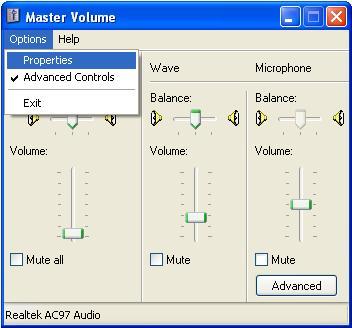
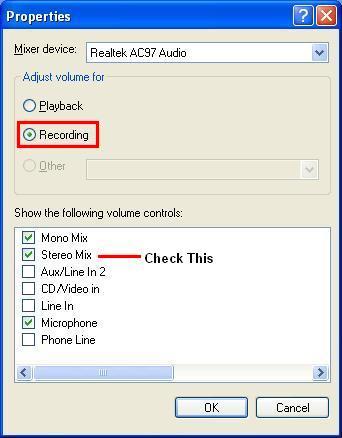
- Make sure 'Recording' is selected, and 'Stereo Mix' is selected. Then click 'OK'.
- Now select the 'Stereo Mix'.
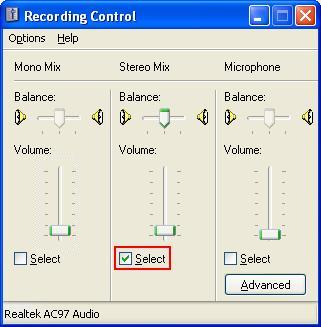
- Now you should be able to play music in the chat room without a mic. Using what ever music program you use on your computer.
(ex: Windows Media Player, MUSICMATCH Jukebox, etc.)
- To go back to using your mic, just select the Microphone again.
|
Windows XP Maintenance
|
Windows Update
- Click the 'Start' button.
- Then click the 'Windows Update' icon.
- Follow the on-screen instructions.
Error Checking
- This Utility will scan your hard drive for any errors.
- Open 'My Computer'.
- Right click the Hard Drive.
- Choose 'Properties'.
- Click the 'Tools' tab on the window that appears.
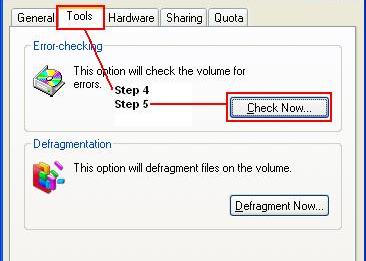
- Then click the 'Check Now...' button.
- In the window that pops up, select both boxes. Which are: 'Automatically fix file system errors' and 'Scan for and attempt recovery of bad sectors'.
- It will then tell you it needs exclusive access to some Windows files, and it must be run next time you start your computer. So click OK and next time you restart your computer, error checking will run.
Disk cleanup
- Open My Computer.
- Right click the Hard Drive.
- Click 'Properties'.
- Click 'Disk Cleanup'.
- Disk Cleanup will then scan your computer and tell you what can be deleted. Which are:
- Downloaded Program Files - Files your Internet browser has downloaded, such as ActiveX controls and java applets.
- Temporary Internet Files - Anything your browser has cached on your computer from the Internet, such as web pages.
- Recycle Bin - Deletes everything in the Recycle Bin.
- Setup Log Files - These are log files that say what happened during the XP setup. There is no use in these unless you are troubleshooting an installation, so you can safely delete them.
- Compress Old Files - This will compress any files you haven�t used for a set period of time (you can determine the time limit by clicking options when compress old files is highlighted), and as a result will free up disk space. Because the files have to be decompressed when you want to use them, it will take a little longer to access them.
- Offline Web Pages - Web pages you have downloaded to your computer.
- Web Client/Publisher Temporary Files - Temporary files from Web Client and Publisher services. These are safe to delete.
- Catalog Files For The Content Indexer - Catalog files left over from a previous disk indexing operation. These are safe to delete.
- Tick the boxes for the files you want to cleanup.
- Click 'OK' and confirm that you want to delete the files when it asks.
How To Clean Out The Prefetch File
- Open C:/Windows/Prefetch.
- Delete all files in the 'Prefetch' folder.
- Now Restart your computer.
- It is recommended that you do this every month.
Cleaning The Internet Explorer Cache
- To clean out Internet Explorer (IE) Cache, open an IE window.
- Click 'Tools'.
- Click 'Internet Options'.
- Then click 'Delete Files'.
- Then click 'Delete Cookies'.
Disk Defragmenter
- This utility rearranges the data on your hard drive to make it more efficient. This can speed up your computer because it will not have to search as far for the data it needs.
- Open My Computer.
- Right click the Hard Drive.
- Click 'Properties'.
- Click the 'Tools' tab.
- Click the 'Defragment Now' button.
- This will open a new window, then you click 'analyse'.
- This will tell you if the drive is actually in need of defragmenting, if it says you don�t need to defragment then don�t. If it says you should defragment the drive, then go ahead and click the 'Defragment' button.
- Note: It is best to run Disk Defragmenter when no other programs are running. And it is important to not disturb it, so once you start it, try to not use the computer until it's done.
|
Yazak Chat Client Help
|
How To Use The Bootback Tool
- To use the Bootback Tool, you must have more than one Yahoo! ID.
- Enter each ID and save the ID and Password on the login screen of the Yazak Chat Client.
- Now login the ID you are going to chat with, and go to the room you want.
- Go to 'Extra Toys' and open the 'Boot Back Tool'.
- Next to the 'Connect' button select the other ID you want the Boot Back Tool to use. (Not the ID your chatting with!)
- Now click 'Connect', in the box above it should say 'Ready To Boot Back'. If not, make sure the ID and Pass you entered is correct and that you have pushed 'Enter' on your keybored to save the ID and Pass.
- When the box fills with IDs (someone is trying to boot you) click 'Boot Back All', and this sends all the codes back to the booter.
How To Use The Ignore
- Temp. Ignore
- Highlight the ID you want to iggy by clicking on it.
- Right click on the ID and select 'Ignore'.
- The ID is now on Temp. Ingnore.
- To un-ignore an ID, click on the ID you want to unignore to highlight it.
- Right click on the highlighted ID and click 'Ignore user (un-ignore)'.
- The ID is now un-ignored.
- Perm. Ignore
- Use the same procedures above to put the ID in ignore.
- When the ignore box pops up, right click on the name.
- Select 'Ignore', then 'Perm Ignore'.
- Then click the 'max' button to ignore them for the maximum number of days which is 9999 days.
- To un-ignore, right click on ID and click 'Remove User Off Ignore'.
How To Use Voice Chat
- How To Lock The Mic
- Click on the talk button.
- Then push 'ctrl+L'. The mic is now Locked.
- To Unlock, just click on the talk button.
- The Yz Icon In The Taskbar
- If you click on this, it works the same as the Talk button, now you don't have to leave the web page or what ever else you are doing, to talk to someone.
- What Right Clicking On The Mute Box Will Do
- If you right click on the 'Mute' box, the user list will change so you only see people on voice chat.
- Also if you right click on the user list when it is showing just voice chat users, you get a list of voice controls.
- How To Leave Voice In One Room
- Simply click the 'Lock' button that is next to the hands free, now your voice stays in one room. It's that simple.
----OR----
- With voice off, simply right click on the Mic button.
- Then right click on the user list, and uncheck 'Auto Updating'.
- Now go to what ever room you want, and leave your 'ears' in one room.
- What Are Voice Clone Alerts
- When someone is connected to voice chat in the room you are in, but they are not in the room, they will show as a voice clone.
PM Preferences
- First off, no matter what you have your PMs set to, you can always click on someone's name and open a PM with them. This will not affect any of your PM settings and will still block other users if you have your PMs set to do so. This is helpful incase you want to PM someone and don't want to open your PMs to everyone. You can also do a combination of any of the following settings below.
- How To Turn PMs Off
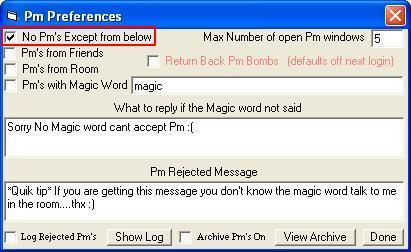
To set your PMs so that noone can PM you, click 'No PMs Except from below'.
- PMs From Friends Only
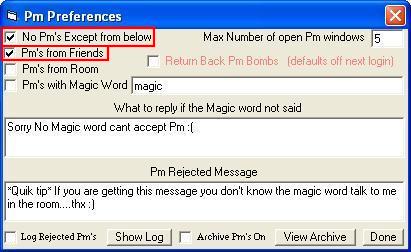
To set your PMs so that only people on your buddy list can PM you, click 'No PMs Except from below', and 'PMs from friends'.
- Only PMs From Room
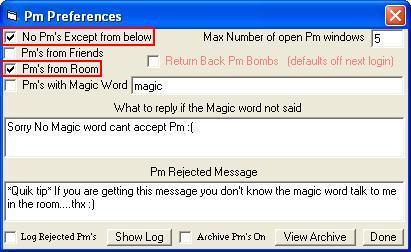
To set your PMs so that only people in the same chat room can PM you, click 'No PMs Except from below', and 'PMs from room'.
- Only PMs With Magic Word
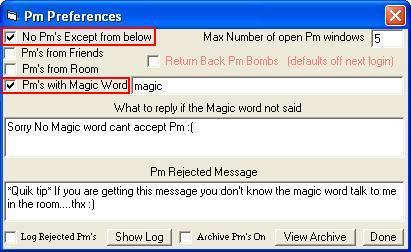
Incase you don't know what the Magic Word setting is, when set, a person has to say the 'Magic Word' in the PM box or else it will get blocked. If they say the 'Magic Word', the PM will get through and you will see what they are typing. To set your PMs so that only people can PM you when they know the magic word, click 'No PMs Except from below', and 'PMs with Magic Word'.
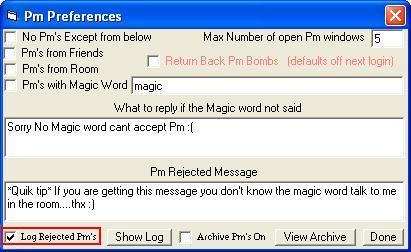
- Log Rejected PMs
To log PMs that have been rejected, so that at a later time you can see what the person said, click 'Log Rejected PMs'. When someone PMs you and they are rejected, the PM Preference button under the user list will light up red like this:  Right click on that and it will show you the log. To delete loged messages, right click on the log and click 'delete messages'. Right click on that and it will show you the log. To delete loged messages, right click on the log and click 'delete messages'.
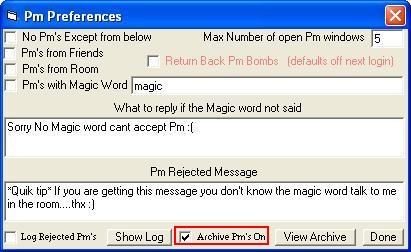
- How To Archive PMs
If you want to Archive PMs, so that you can view your conversations at a later time, put a check by 'Archive PMs On'.
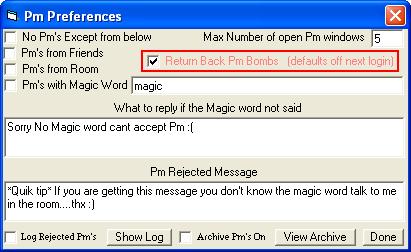
- Return Back PM Bombs
To send a PM Bomb back to a booter, put a check here. This will send the booters PMs back to the booter. You will need to check this everytime you log on yazak.
How To Use The Webcam
- Simply click on the Webcam Icon.

You have to be on YMSG protocal for your webcam to work.
Buddy Lists
- How To Add Someone To Your Buddy List
- If you want to add someone to your buddy list, right click on there ID in the user list.
- Click 'Add As Friend'.
- How To Remove Yourself From Someone Else�s List
- Click on 'Buddies'.
- Click on 'Goto Show Users Added Me List'.
- Right click on the ID and click 'Remove user off there list'.
- Chat Room Buddies
- Click on the ID you want to add to your Chat Room Buddie list to highlight it.
- Now right click on the ID and select 'Add To Chat Room Buddies'.
- Where it says 'Short Name' you can put the users nick name, or you can leave it blank.
- Click 'Save'.
- When you are done close the box.
- If you want to say Hello to all of your Chat Room Buddies at once, right click the Buddies button in the button bar, then click 'Say Hello To All Buddies'.
Fonts
- Hidden Fonts
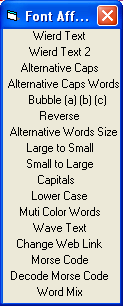
- Type what you want to say.
- Right Click on the Font button.
- Then you can choose 1 of 17 Font Affects that will do different things to your font.
- Always Use My Font Size And Color
- Click on File.
- Then Preferences.
- Then where it says 'Always use my'. Put a check if you want Yazak to always use your Font, your Color, or your Font Size.
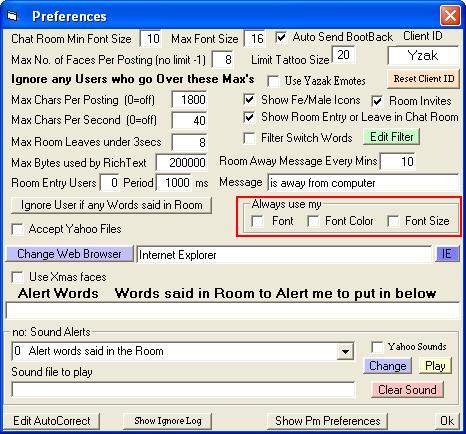
- Now when ever someone types in the chat room, instead of using there font, size, or color, it will use yours.
|
� Copyright 2004-2005 Toxic-Inc. All Rights Reserved.
Page Last Updated: 6:34 PM 5/21/2005