| A Cold War-2 Weeks Diet, Nov 28, 2004 The book 11 Steps to Survival, distributed by the Canada Emergency Measures Organization, advised that fallout shelters should be stocked with 14 days worth of food. Included in the provisions list: two jars of cheese, 14 cans of milk, 14 individual packages of cereal, two cans of meat, chewing gum, two packages of cookies, two cans baked beans, and two pounds of hard candy. |
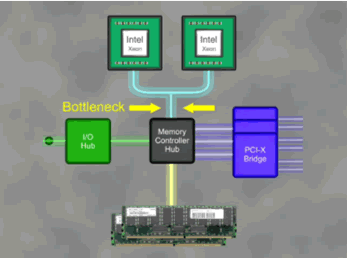
| AMD Opteron vs. Intel Xeon Processor Technology (Reference: DL385 Guide) (Last Updated: April 08, 2005) | |
Intel Xeon DP |
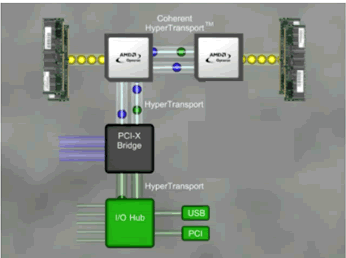
AMD Opteron |
|
|
|
|
| Direct Connect Architecture (Last Updated: April 08, 2005) | |
AMD Opteron Processor with Direct Connect Architecture |
|
| Increases
application performance by reducing memory latency Supports simultaneous 32- and 64-bit computing. Eliminates 4GB memory barrier imposed by 32-bit systems
|
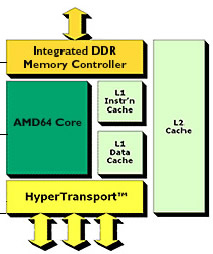 |
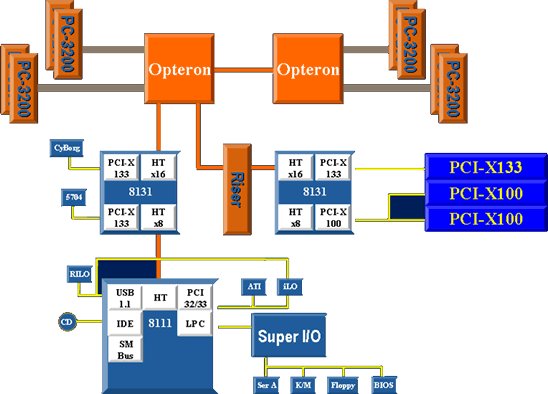
DL385- System Board Architecture |
|
| How to Create a bootable USB drive (Last Updated: April 08, 2005) |
| First Obtain a USB Key and Download the Windows-based
Format Utility for HP Drive Key or DiskOnKey USB Device http://h18007.www1.hp.com/support/files/hpcpqdt/us/download/ 20306.html After you hard downloaded the utility execute it on a windows box 1) hit next 2) Accept the EULA , and hit next 3) Hit Nextà YesàNextà Finish 4) Then hit StartàProgramsàHewlett-Packard CompanyàHP USB Storage Format Tool 5) Have your USB key in a port, then select FAT 6) Check create a DOS startup disk 7) Place a 95/98 boot disk in the floppy drive. If you do not have one go to www.bootdisk.com and download one 8) On the Format utiliy brose to your floppy drive, and hit OK 9) Then Hit Start 10) Hit yes to the warning that all your data on your USB key will be lost 11) Hit close…you now have a bootable dos boot key Then you need to download the firmware you want to flash in our case we will use the DL140 firmware: http://h18000.www1.hp.com/support/files/server/us/download/2 2198.html Download and unzip the file to your boot key Then follow these instruction to get the server to boot from USB Key. 1) Power down the server 2) Place the USB key in a USB Port 3) Power on the server and hit the Delete Key to enter the BIOS 4) Hit the Right arrow key till Boot is Selected ..then Hit Down arrow till HARD DISK DRIVES, is selected 5) Hit enter and select the 1st Drive, toggle the selection until the USB is the first drive 6) Hit F10 and then enter on the OK selection 7) Boot the server from the Boot key and execute the appropriate batch file to flash your system BIOS: 8) Follow onscreen instruction and reboot when you are done For more information about Proliant USB support the following link is very helpful http://h18004.www1.hp.com/products/servers/platforms/usb-sup port.html |
| Quick Links |
| General |
ProLiant Server Support Matrix - WindowsMicrosoft Windows Smart Components for ROM Flash |
| Online Tools |
| Parts |
| SCSI |
|
Rack and Rack Options |
Smart Start |
SmartStart New Product Support Known Important Product Issues on Smart Start ProLiant Software Maintenance CD Matrix ProLiant Firmware Maintenance CD Matrix |
| Storage |
|
Tape Drive Software Compatibility Smart Array controllers Compatibility Table Smart Array Controller Comparison Matrix |
 Troubleshooting Links (Last
Updated: January 01, 2006, while Website updated: March 22, 2007)
Troubleshooting Links (Last
Updated: January 01, 2006, while Website updated: March 22, 2007)