Step 4. Adding a Logo
This step will assume you have some sort of logo or signature that you like to put on your art. Here we will add it to the piece and again, it will be positioned on another layer so that once you have it in place, you can insert another piece of art in behind it and it will automatically be in the right position.
The easiest way to do this is if your work is open in one window and your logo is open in another. Make sure you have the logo window as your active window, and go to the Select menu. Drop it down and hit the All option. This will select everything in the logo window. Then go to the Edit menu and click the Copy option. Then go to the Window menu and click on the name of your art at the bottom of the menu. After your art window has become active, click the Edit menu again, and this time hit the Paste command.
Here we will use my logo. It is a small picture that doesn't draw much attention to itself, but marks the piece as having been done by me.

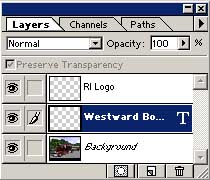
Is their an easier way? Maybe, but this way takes care of creating the additional layer for the logo to sit on for you, so the extra effort is worth it. Whenever something is pasted into Photoshop, it is put on its own layer.
Something you may wish to do is to name your layer that the logo is on. Here I have it marked as RI Logo. To do this, click the black triangle to the right of the tabs and look for an option labeled Layer Options. Click this, and a box will pop up. Highlight the name (default is Layer 1) and type in what you want. Click OK and you're all set.


Yeah, it's the same picture, but with a title up top and a logo in the lower right, as well as a border all around to enhance the contrast, things look a whole lot better in the final one, don't they? Give it a try, you might be surprised how much this spices up that one slightly dull picture or render you're not quite happy with.
--
Raeder
Feel free to comment, I will return the favor.