
Names and addresses placed in the TO line or in the CC line when addressing your emails are always visible to every other recipient. Also, email addresses displayed in the message area are also visible. Visible email addresses are both dangerous and unconfidential. Don't betray your friends -- keep reading.
Visible addresses get passed along as emails are forwarded on & on. Sooner or later the addresses get into hands of folks none of us knows. Just like a pyramid scheme --- If each person sends it to only 5 people and this process repeats 10 times, over 2 million strangers will see your address and your friends'. Those strangers could send you spam, porno, virus, etc. Worse, if opened on an infected computer, certain viruses can 'farm' the addresses, using them to send viruses to all of you.
You can see that hiding addresses is imperative for bulk emails (sent to several persons) & when Reply or Forward show old addressees in the email text area. Since it is easier to use one method for addressing, use the following instructions for sending to one person or many. It won't hurt. . . and . . . it keeps you and your friends' addresses safe.
The more of us who use these techniques
and tell others about them,
the better-protected ALL of our email
addresses will be.
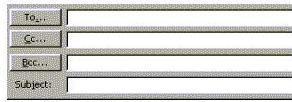
Put all recipient addresses/names in the BCC line -- not in the TO or CC lines. How? Follow the simple steps below. The BCC line entries are filtered...each recipients sees only his/her address -- no one else's. If no BCC line shows in your email (like the sample above right) -- don't worry, these instructions will make it visible.
The hiding technique is exactly the same whether creating a New Email or Replying or Forwarding. To address your email to your friends, etc., use these simple steps:
shown in picture above right. (Don't worry if BCC is not visible yet.)
2. A window with your list of contacts comes up, listed on the left.
3. Click on a leftside name/address. It is highlited.
(if name is not in your list, see NOTE below).
4. Then, in the middle gray area, click the BCC button (third button down). [.DON'T click on "TO"
and also DONT click on "CC".] The name chosen in Step 3 pops into the BCC box on the right.
5. Repeat Steps 3 and 4 for each additional name, if any, until all you want are in the BCC box.
6. Click OK at the bottom
7. Now all names appear in the BCC address box which appears in your address header.
TIP: As a reminder, make the BCC line always visible. Click on "View, Show All Headers ".
From then on, the BCC line will always appear for your emails.
NOTE: To enter addresses not in your address book/list , you can just type them in the BCC
line.... each separated by a semi-colon.