
Most people have their email program set to place a copy of the original email in the text area when clicking Reply or Forward. That's fine. BUT...unfortunately this also places the original Address Block (From, To, Subject, etc) in the body of your new email. Again, all the original addresses show. How many times have you gotten emails with several of these address blocks ...it perpetuates each time someone clicks Reply or Forward. Just like a pyramid scheme -- If each person sends it along to only 5 people and this process repeats 10 times, almost 2 MILLION people now have your email address!!!
It's easy to remove them. Here are the steps.
A. In the body of the message, click mouse just before the start of the address block. I've used the pound sign (#) to show you where to click in the example at left below.
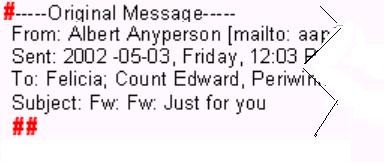
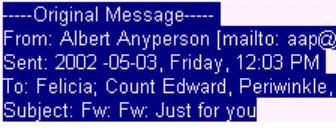
in the example (at left above). I call this a Shift+Click.. Now the entire address block is highlighted
(as demonstrated at right above)
C. Press the Delete key on your keyboard. The address block is removed.
D. Repeat steps 1-3 above for each additional address block in the message area until all the
addresses are removed.
PS......You can use this Click, then Shift+Click technique to highlight any amount
of continuous text -- to delete it or to format (i.e., bold or underline or color) it.
A. Click at the very top of the message area and type your message
B. Click SEND and you are good to go!
The simple email techniques above will protect your address & your friends'
addresses from mis-use and piracy. Please feel free to share this... Just click File,
Send, Link by Email) to email link to friends. Print out for your own reference.