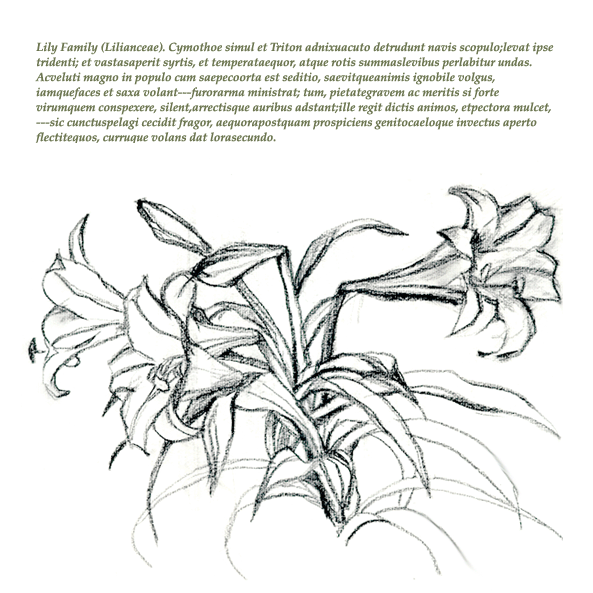
| I began with this image: |
 |
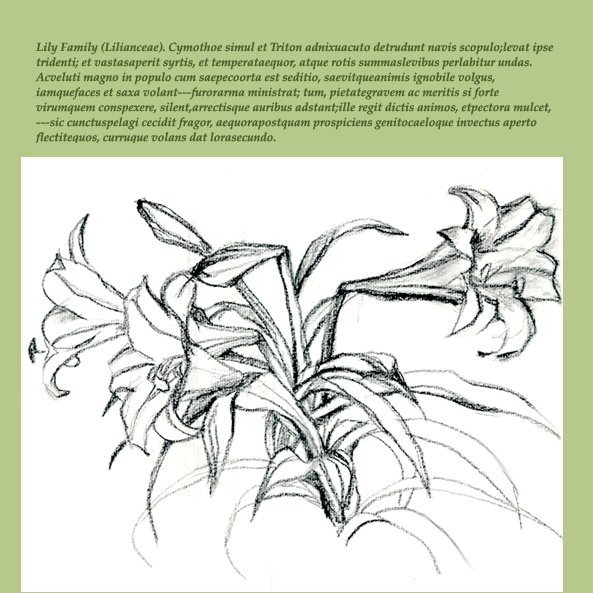
| I then filled the background layer with a pea-green
color. Notice how it didnt affect the flowers, and that they still
have the white background. |
 |
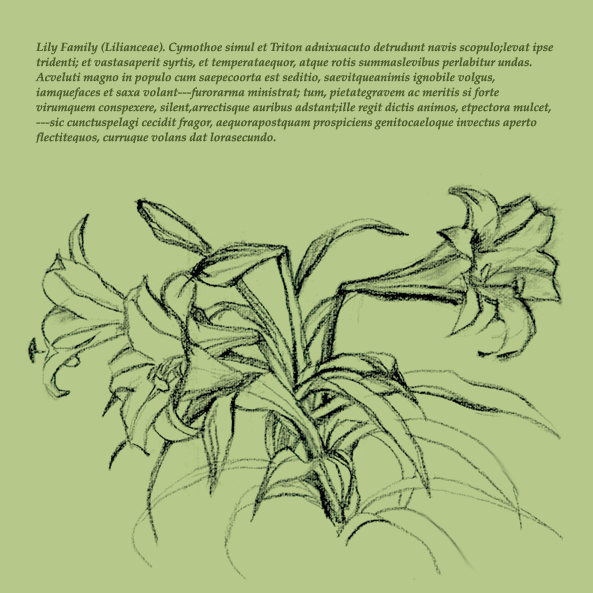
| I then selected the Lily layer and used the multiply
command to blend it's colors with the colors of the other layers. |
 |
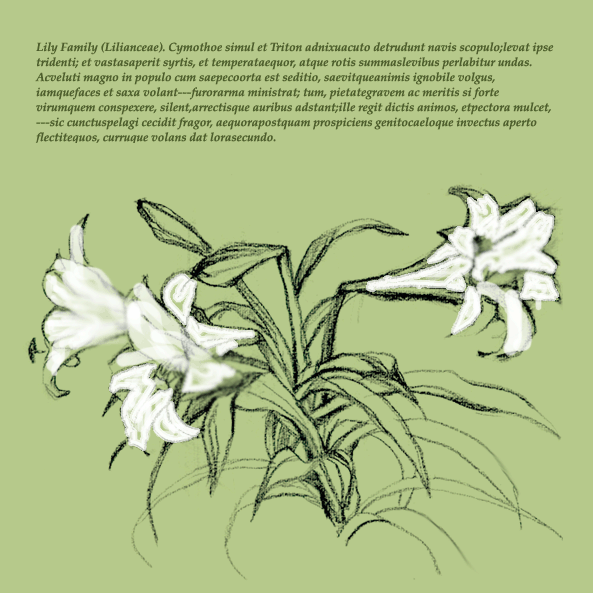
| I then painted each petal white. |
 |
| Next, I used the Smudge tool to smooth out the edges. |
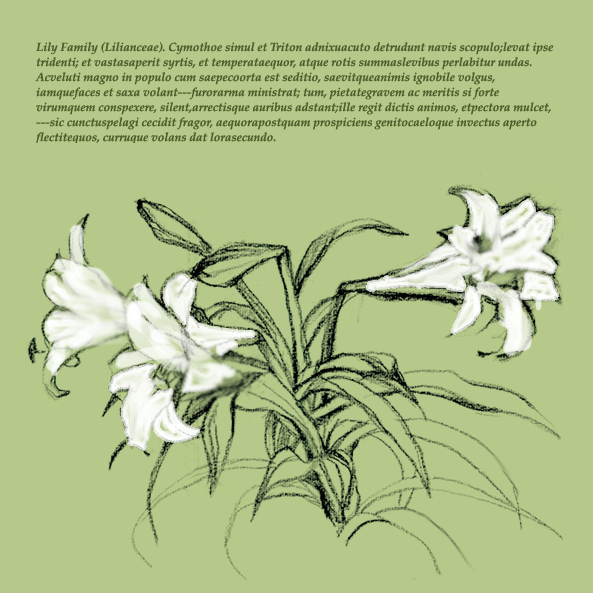 |
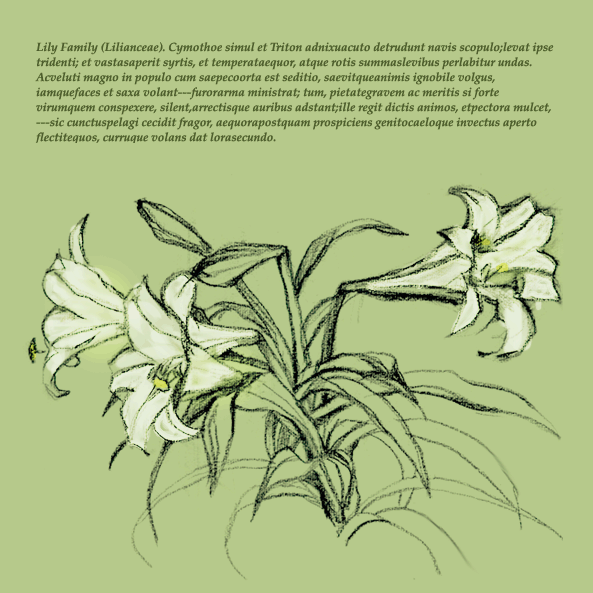
| I then changed the blending options on the flower layer
to Overlay, and its opacity to 70%. |
 |
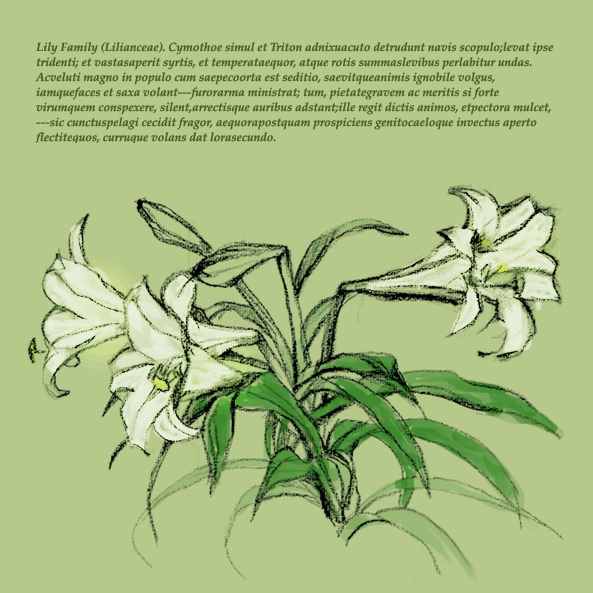
| I then added shadows to the leaves... |
 |
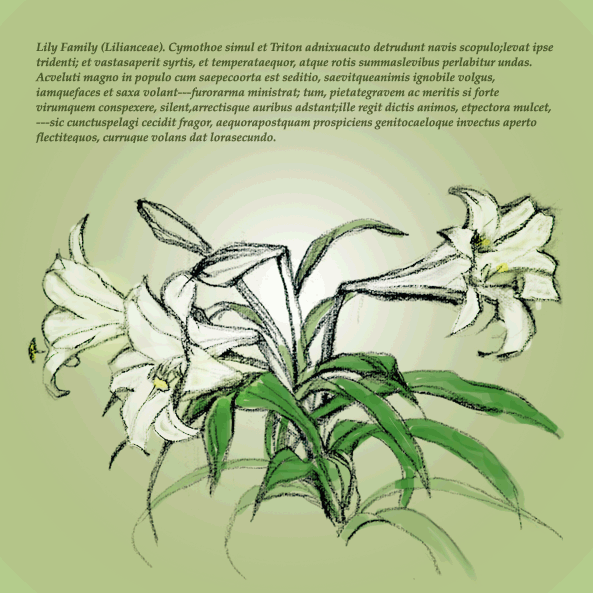
| ...and a gradient to the background by modifying the
gradient layer. |
 |
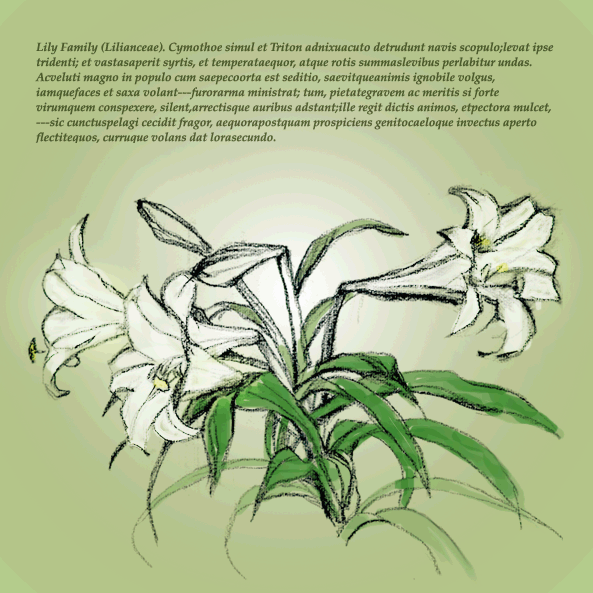
| I then added a glow to each of the flowers. |
 |
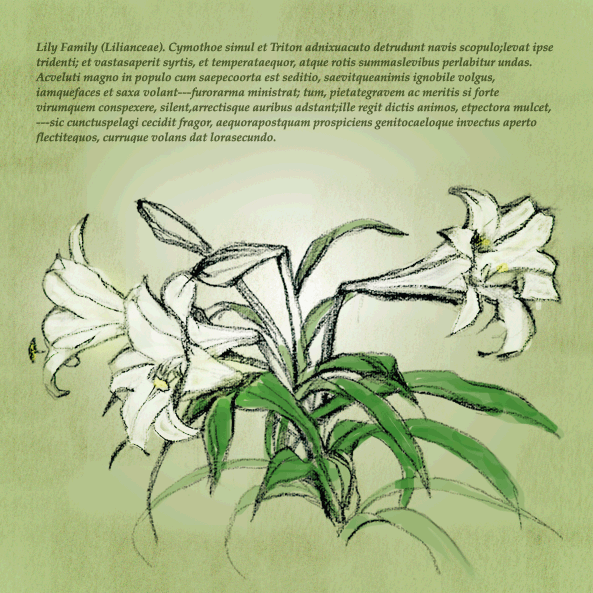
| I then added a textured natural brush effect to the
image. |
 |
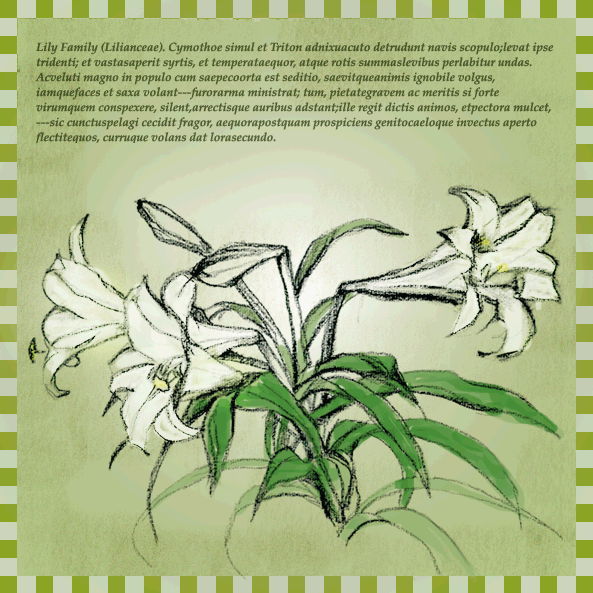
| Finally, I added a border and the text to the image. |
 |