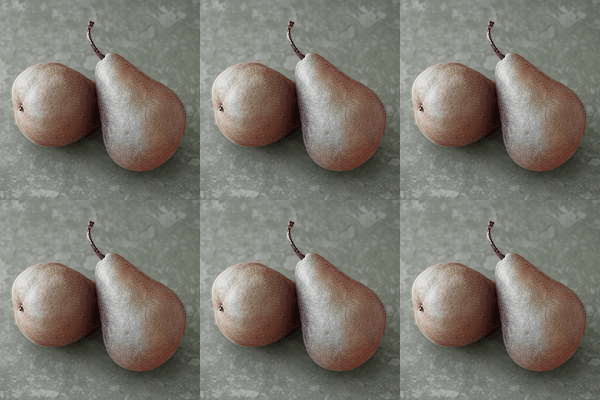
| I began with this image: |
 |
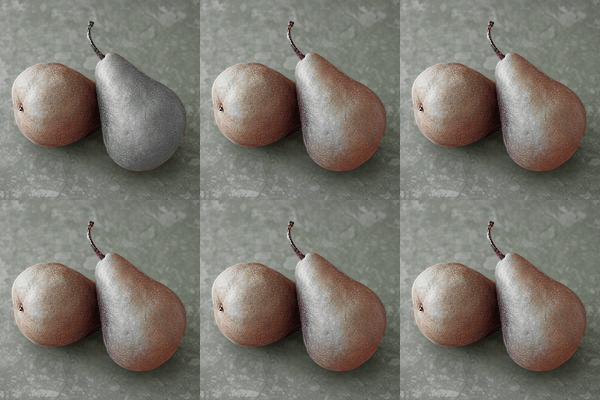
| I then made a template by using the magnetic selection
tool, selecting each pear individually. I started by removing the
color from the right pear (shown to the right)... |
 |
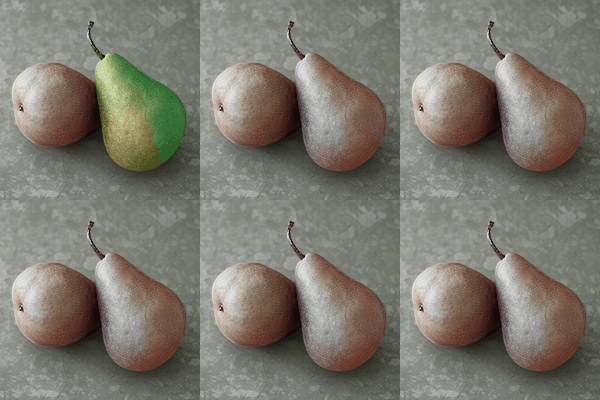
| ...and, with it still highlighted, proceeded to alter
its color. |
 |
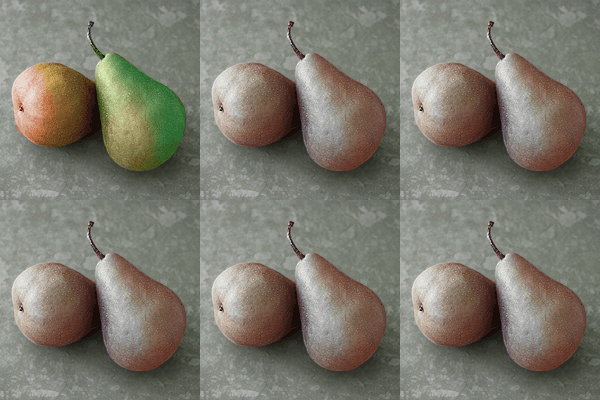
| I then used a gradient for the pear on the left, making
it appear riper then it did in the origional image. |
 |
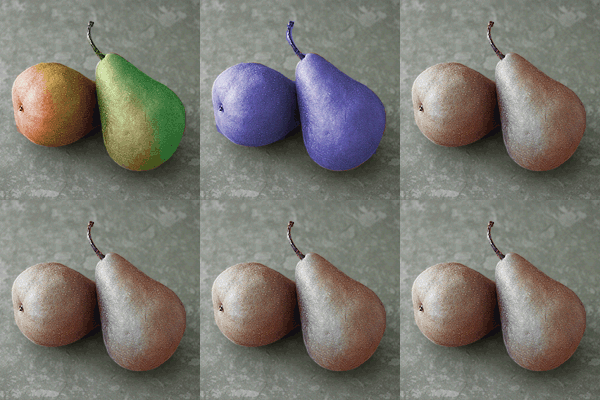
| Using the top center of the image, I then changed the
color scheme of the pears alone, by combining the selected areas and
altering the hue and saturation of only the pears. |
 |
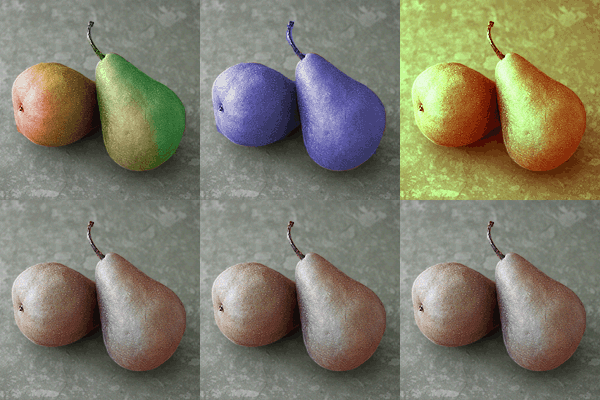
| I then altered the color scheme of only that particular
panel... |
 |
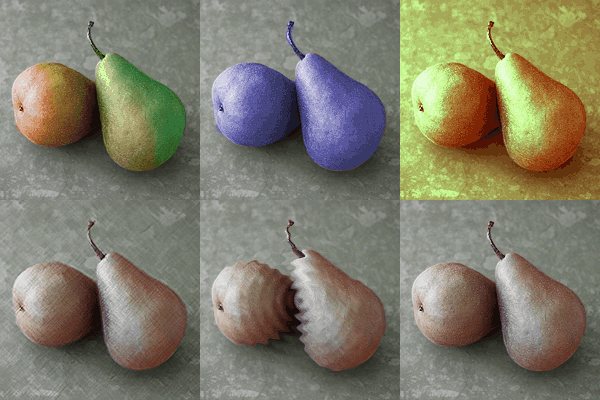
| ...added a colored pencil effect to the bottom left
image and a ripple effect to the bottom middle image... |
 |
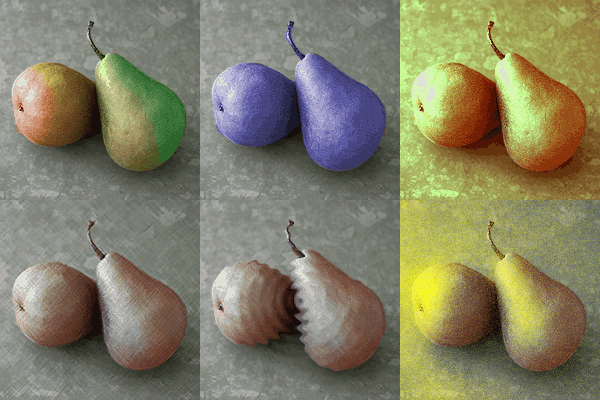
| ...and finally, used the Diffuse Glow feature to give
the bottom right image a classic, artistic look. |
 |