 or select: Insert > Sketch...
Created by Joselito Kuizon Jr.
2-2. Sketcher Mode
2-2-1. Sketcher Environment
The Sketcher allows you to create lines and curves which will be used in the creation of design features aside from primitive features.
To enter the sketcher environment,
click on the icon
or select: Insert > Sketch...

2-2-2. Lines and Curves
Below are the available line and curve options you may use to create sketches:
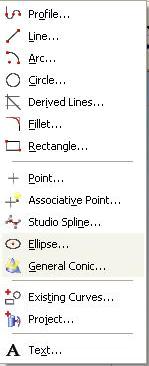
The Profile curve allows you to create continuous line and curves.
2-2-3. Dimensioning
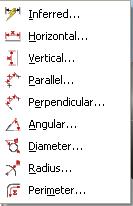
You can dimension sketcher objects using the following options:
2-2-4. Constraining
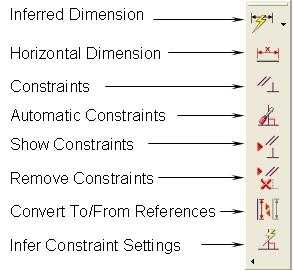
You can also constrain sketcher objects using the following options:
2-2-5 Example
Enter Sketcher Mode by selecting the Sketcher icon or: Insert > Sketch...
Select the plane or surface you want to place your sketch. UG NX3 will present you with the default plane. Click on the check icon. You are now ready to create a sketch.
Click on the Rectangle Icon  to create a rectangular sketch.
Click on one point on the graphics area then click on another point on the graphics area.

To dimension the rectangle, click
on the Infer dimension icon  or: Insert > Dimensions > Inferred...
Click on the line and click on the graphics area near that line and the dimension will be created. You can change the value of the dimension and the sketch will automatically update. Do the same for the other line.
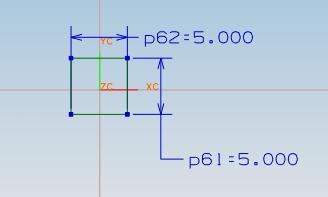
to contrain the sketch, click on
the contrain icon  or select: Insert > Constraints...
Click on one of the lines and a toolbar will appear giving you the available constraints that applies to that object.

Select the fix object icon. This will fix the location of the line. Do the same for the other line (if the first fixed line is vertical then choose the horizontal line and vice versa).
The yellow arrow lines on the ends of the lines are indicators that the object is not fully constrained. The constrains will also turn yellow when the object is "over-constrained".
The status line will also inform you if the object is properly constrained.
Click on the Finish Button  to finish the sketch.
You now have a rectangular sketch.