Documentation Menu
Contents
1. Basic tips for Master SMS 2
2. Install Master SMS 2
3. Setup the application before first use
4. Message form
5. Tools forms
6. Info SMS form
7. Outbox form
8. Inbox form
9. Preferences form

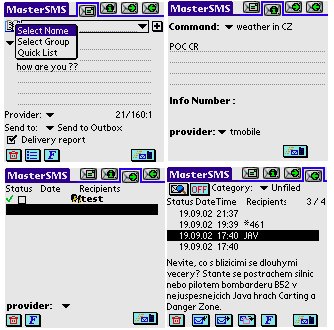
Master SMS have four basic form - Message
form,
Info SMS form, Outbox form and Inbox form.

This program was tested on the PalmOS 3.1 , 3.5 and 4.0 and was tested with following phones : Nokia 7110, Nokia 6210, Ericcson 320S, Ericcson T28,T39,T68, Motorola Timeport 250 , L7089 and Siemens S35i( for PalmOS lower than 3.3 , you need IrComm library from Palm computing).
When you  use the infrared interface with Master SMS under a PalmOS lower than 3.3 you have to install the
Enhanced Infrared Update    .


1.Basic tips for Master SMS 2

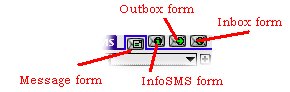
Switching beetwen basic form (Message form,Info SMS form, Outbox form and Inbox) is very simple and quickly - tap on the icon
main-icon
Context help - All icon and button have context help, when do you tap on some icon or button for time longer than about 0,8 second, you can see help for this icon/button.
help_example
Multi select operation - You can select more items at Outbox and Inbox form for some next command - move message or delete. Multi select is very simple, tap on the left side of list items and items is selected or unselected.


back to contents
multiselect


2. Install Master SMS 2


1. Unzip the package you receive.
2. Double click on the MasterSMS2.prc and MasterDB2.pdb files, this will pop up the Palm install tool.
3. Choose "Ok" to have the application installed on your next Hotsync

Hotsync your Palm (just as you would with any Palm application). Once the Hotsync is completed,
you should see a Master SMS 2 icon in the Palm applications list.


back to contents


3. Setup the application before first use


3.1
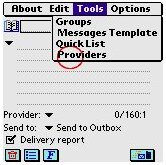
You have create your provider SMSC centru first Click on the Menu button , move to tools and select provider.
provider1
3.2
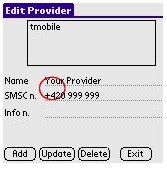
Then you have to add your provider name and your provider SMSC number.SMSC number have to at international number format!.Number.Info is important when do you have use Info SMS service.
(Info SMS is very similar to SIM Toolkit.
[
3.3
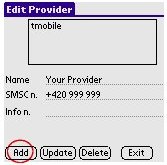
When do you fill provider name and provider SMSC number you can add it to provider list.
If do you need more providers, you can repeat point 2.2 and 2.3. (Do you need more providers, when you have several SIM cards or when you often use roaming )

back to contents
provider3


4.Message form


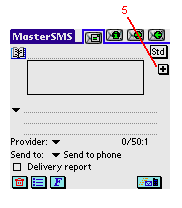
There you can create your SMS message , add text from message template , add recipients , import text from Memo Pad to message body.


1
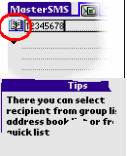
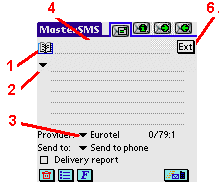
Select recipient - There you can select preddefined  your recipient from address book, group or recipient from
quick list . Forms for create group and quick list is avaliableover Tools menu . ( next chapter )
2
Select message from template list - There you can select preddefined message from template.Selected message is inserted , you can  connect several preddefined message to one message.Forms for  create template message is avaliable over Tools menu. ( next chapter )
3
Select provider - Change your provider from provider list.You can define providers over Tools menu. ( next chapter )
4
Edit recipient - Create new local recipient or edit recipient which selected from address book or quick list .
5
Add to recipient list- When do you want send message to more recipient , you can create recipients list. This icon add recipient to recipient list. ( This icon is available in extended form only.)
6
Switch between normal and extended message form - When you send message to one recipient( or groupo) , you can use normal message form , extended message form is use when you send  message to more recipients...
MainFormDescription1

       main_form_descr3


7
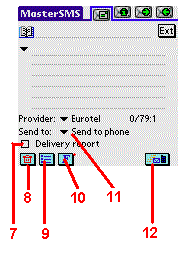
On/Off delivery report - Set delivery report mean that you got SMS message when your message was delivery to recipient.
8
Clear - Clear message field and recipient list
9
Options - There you can select type code for your message ( 7 bit , 160 chars peer message , 8 bit , 140 chars peer message) and how can send long message( longer than 160 chars ) There you can select send as "x/y" or as long message - this message will be automatic concated on the receive side to one message.( depeand on the phone , some phone doesn't support this feature).
10
Select font - select font for message form.You can choose from three fonts, standart, bold and small.
11
Set destination for send message- There you can choose, whether message
will be send directly to phone, or store to Outbox .(You can send it later.. )
12
Send Message - Send message to phone or Outbox( depand on the   setting "Send to" )

back to contents
messageFormDescription2


5.Tools forms

All tools forms are avaliable over tools menu.


Group form

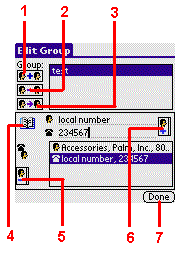
There you can create/delete/rename your groups of recipients. It's important when you need send one message to more recipient. ( send information about meeting or joke and so .. )
1
Add group - insert new empty group to group list
2
Delete group - delete selected group from group list.
3
Rename group - rename selected group
4
Add recipient from Address book to edit field - There you can add selected secipient from Address book to edit field.
5
Delete recipient from group - delete selected recipient from group
6
Add recipient to group - add recipient at edit field to selected group
7
Return  back to message form ..

back to contents
groups


Template Message form

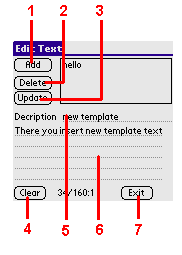
There you can manage(add,delete,update) your template message. This template you can use at message form.

1
Add new template - Add new template to template list
2
Delete template - Delete selected message from template list
3
U pdate template - Update changed template
4
Clear - Clear description and text field
5
Description field - There insert name for your template
6
Text field - place of template text
7
Return  back to message form ..
back to contents
template_message


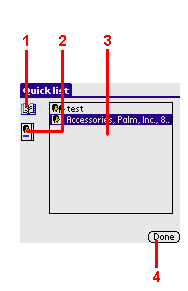
Quick List form

There you can manage(add/delete) your favorite recipient list ( you can add recipient from address book or group)
1
Add recipient - Add recipient from address book or group to quick list .Max numbers recipient at quick list is undefined, but My recommadation is up to 10 -20 items.
2
Delete recipient - Delete selected recipient from quick list.
3
Your favorite list of recipients..
4
Close form - close this form and return back to message form.

back to contents
quick_list


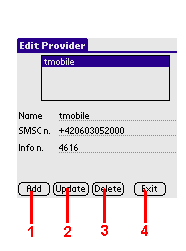
Provider form

There you can add provider to providers list or delete/change provider at provider list. Info number is
 option , you can leave this field empty, it's important for Info SMS service ( similar to SIM Toolkit )
1
Add new provider - Add new provider to providers list
2
Delete provider - delete selected provider from providers list
3
Update provider - update change at selected provider list
4
Close form - close this form and return back to message form

back to contents
provider


6. Info SMS form


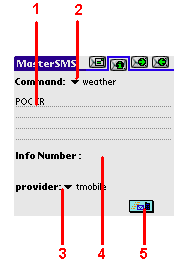
Info SMS is service , very similar to SIM Toolkit, you can create your SMS command ( create at Edit Info SMS - 6.1) and send it to specific number.
1
Command field - you can edit selected command before you send it.
2
Command list - there you can select preddefined command from list
3
Provider - select your provider
4
Info Number - define destination number for this  command,when this field is empty is used default number
.(default number for Info SMS service is defined at provider.
5
Send Command - Send specific command to destination number.
infoSMS


6.1 Edit Info SMS form


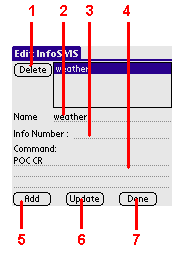
There you can create preddefined commands for Info SMS service.This form is avaliable over menu from Info SMS form
1
Delete - delete selected command from commands list.
2
Description - name for this command, for example when I send command "POC CR" to specific number I got
information
about weather at czech republic.I  think that best name for this command is "weather"
3
Info Number - specific destination number for this  command, empty field mean that number for  
destination is used from selected provider.

4
Command field - there you can specific your command
5
Add - add command to commands list
6
Update - update change to your selected command
7
Done - close this form and return back to Info SMS form.

back to contents
EditInfoSMS


7. Outbox form


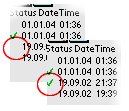
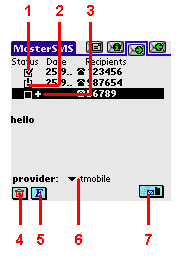
Outbox form stored all sent and unset messagess. All messages have status, status have three state - message isn't send - status is empty , message was send success - status is check and message was send unsuccess - status have exclamation mark.Show detail - there you can see status for message which have more recipients.
1
Send success
2
Send fail
3
Show detail
4
Delete - delete all selected messages from outbox
5
Font - change current font for message field and list of message
6 provider - select your provider.
7
Sent - Sent all unsent message from your outbox.

Delete all sent messages and all message from outbox is avaliable  over menu

back to contents
outbox


8. Inbox form


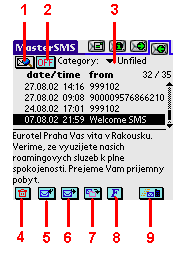
There you can managed your recieved SMS messages. You can view,
delete
, reply,forward or move messages.
1
Set filter - Threre you select number or name for filter. When filter will be on, you see messages with this number only.
2
Filter On/Off - Set filter active/deactive.
3
Category - select any category at Inbox or create new category .
4
Delete - delete all selected messagess
5
Reply - reply selected message.
6
Forward - forward selected message to any recipient.
7
Move - All selected messages will be move to another any category.
8
Font - font change for Inbox ( font is changed for list of messages  and for message field.
9
Receive - Message receive from phone.

back to contents
inbox


9. preferences forms

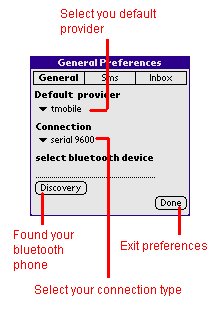
General Preferences


There you can select your default provider , set connection type

and set connection with your phone over bluetooth. ( this version
support palm bluetooth SDIO card only).
prefs-global

SMS Preferences


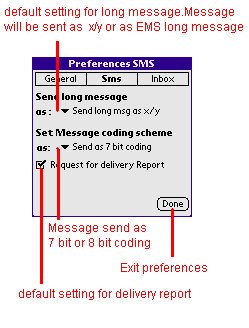
Set your default setting for long message.Long message are divided to several

parts ( lenght of this part depend on message coding scheme - 7 or 8 bit , mean
160 or 140 chars long part of message ).
Long message will be sent with text "x/y" on the begin part of message, or
as EMS long message.

Delivery report mean , when this default setting is set on , you get report when
send message will be delivered to recipient.
prefs-sms

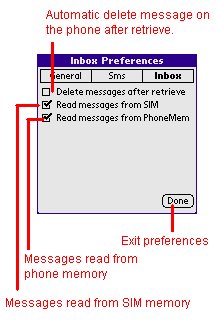
Inbox Preferences

Delete messages mean when this check box is set , all receive messages will be
automatic delete on the phone afte receive.

When next two check box are set , program try receive message from this
memory ( SIM memory or phone memory ) Some phone doesn't support
phone memory(S25 and so.. ) and some other phone have default storage phone
memory .


back to contents

prefs-inbox


Please send me your praises or ideas to my email :   [email protected]


Hosted by www.Geocities.ws

1