JMTOrgan v1.02 User Guide
© 2007, Jeroen Donkers, www.jedosoft.info, [email protected]
First connect your keyboard to the computer and switch it on. Make sure the MIDI connector is running properly. Switch on your PC speakers.
Connecting MIDI input and output
After starting the program, you must connect MIDI input and MIDI output. Select menuitem "Setup", then "MIDI Input". Click on the MIDI device that belongs to your MIDI Keyboard connection (e.g., "1:EDIROL UM-1 MIDI"). Now select "Setup" and "MIDI Output" and select the MIDI device for your soundcard (e.g., "Creative Soundfont Synth"). The message screen (the grey panel at the bottom) repeats the names of these devices and should display "connected…" (this can take some seconds).
You can specify the default MIDI input and output devices in the configuration setup. The devices will then be connected automatically during startup of the program.
Selecting presets
In the preset screen (yellow panel) doubleclick on the box that represents the soundfont that you want to use. The top box contains the default midi instrument presets. If you click on one of the presets, it is immediately selected and you can play using that presets. The name of the preset is repeated in the message screen. (If you switched on the keyboard after you selected a preset, you will have to repeat the selection.)
Selecting a temperament
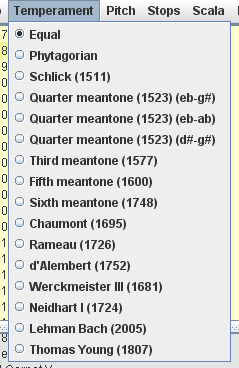
To select a (historical) temperament, choose menuitem "temperament" and click on the desired item. The default temperament is the 12-tone equal temperament.
You can also import any Scala scale file. When the scale has more than 12 tones, you also need to open a Scala keyboard mapping file.
Selecting a pitch
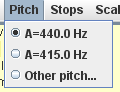
To select a (historical) pitch, choose menuitem "pitches" and click on the desired item. The default pitch is "A=440 Hz". You can enter a pitch manually by selecting "other pitch...". You can add more pitches to this list in the configuration setup.
Loading Scala scale files
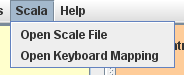
Select "Open scale file" in the Scala menu to load a scale file into JMTOrgan. In principle, any scala .scl file can be opened, but for scales with another amount of degrees than 12, you need to load an appropriate keyboard mapping.
Opening a keyboard mapping
When you load a 12-tone scale, it is mapped automatically to the 12 normal keys on the keyboard. The reference tone for the pitch is 9 (= the A key). When you load a 5-tone scale: the scale is mapped to the black keys. A 7-tone scale is mapped to the white keys, automatically. Reference tone is then set to 0.
You can load Scala keyboard mapping files into JMTOrgan. The two restrictions are however: the mapping should contain no more than 12 keys. The octave is fixed to the common value of 2/1.
Setting up a stop board
You can add presets to the stop board (orange panel) by dragging the preset to it. A second way is to select the preset and press on the "+" button at the bottom. The third way is to select "Add Stop" in the menu "Stops".
Using the spacebar to activate stops
Stops are activated by clicking on them. The active stop is "pulled out". Use the  button to cycle through the stops. Once you have clicked on , you can use the spacebar to cycle through the stops during rehearsal or performance.
Removing stops
The active stop is removed by pressing on the "-" button. All stops are removed at once by pressing the "X" button. You can also use the menu "Stops".
Recording and playback
Start recording your performance by clicking on the button with the red circle. JMTOrgan waits with recording until you press the first key on the keyboard. Click on the button with the black square to stop recording. After recording, the button for immediate playback (triangle) is activated.
Saving
The recorded music can be saved to disk by clicking on the save button (the diskette). Select a directory and filename for the midi file. This midi file can be played as any midi file, but since the soundfonts on the soundcard are used, it can only be played properly on a computer that has the same soundfont installed at the same banks. Using a soft synthesizer such as SynthFont the midi file can be transformed into an mp3 file that can be played on any computer or mp3-player.
Loading midi files into JMTOrgan
Standard midi files can be loaded by clicking on the Load button. When loaded, the file can be played while changing the instrument, pitch and tuning. The retuned midi filed can be saved by clicking on “save”. JMTOrgan neglects all pitch-bend and instrument/bank-select commands that may be present in the original midi file.
Files that have been saved by JMTOrgan should not be loaded again into JMTOrgan, since they are retuned and keycommands have been altered. Therefore, always save midi files using an additional suffix such as “myname.jmt.mid”.
Back to the JMTOrgan page.Send comments and questions to: [email protected].