JAL Computing
|
|
|
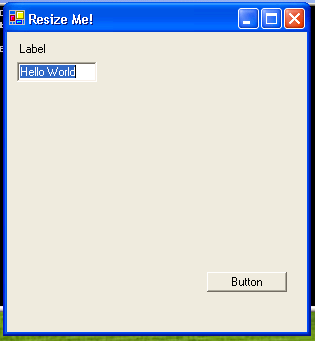
Here is our first Windows Form Program, TestForm1.js. It demonstrates adding a Label, TextBox and Button to a Form. No event handling yet!
Source CodeNotice the package declaration to avoid namespace collisions. import System;
import System.Windows.Forms;
import System.ComponentModel;
import System.Drawing;
package JAL {
// demonstrates a basic windows form and resize behavior
class TestForm extends System.Windows.Forms.Form {
// declare variables
private var label1: Label;
private var textBox1: TextBox;
private var button1: Button;
private var panel1: Panel;
// constructor
function TestForm() {
//SuspendLayout(); // suspend layout events
// label, size, and center form
Text= "Resize Me!";
ClientSize= new System.Drawing.Size(300,300);
StartPosition= System.Windows.Forms.FormStartPosition.CenterScreen;
// create a label
label1= new Label;
label1.Location= new Point(10,10);
label1.Size= new System.Drawing.Size(80,20);
label1.Name= "label1";
label1.Text= "Label";
label1.Anchor= AnchorStyles.Left;
// create a TextBox
textBox1 = new TextBox;
textBox1.Location= new Point(10,30);
textBox1.Size = new System.Drawing.Size(80,20);
textBox1.Name= "textBox1";
textBox1.Text = "Hello World";
textBox1.Anchor= AnchorStyles.Left;
// create a Button
button1= new Button;
button1.Location= new Point(200,240);
button1.Size= new System.Drawing.Size(80,20);
button1.Name= "button1";
button1.Text= "Button";
button1.Anchor= AnchorStyles.Right | AnchorStyles.Bottom;
// create a Panel
panel1= new Panel;
panel1.Location= new Point(0,0);
panel1.Size= new System.Drawing.Size(300,300);
panel1.Name= "panel1";
// resize panel on resize form
panel1.Anchor= AnchorStyles.Top | AnchorStyles.Left | AnchorStyles.Right;
// add controls to the panel
panel1.Controls.Add(label1);
panel1.Controls.Add(textBox1);
panel1.Controls.Add(button1);
// add panel to form
this.Controls.Add(panel1);
//ResumeLayout(); // resume layout events
} // end_constructor
} // end_class
}
// enable event loop
Application.Run(new JAL.TestForm());
Learn More About PackagesThe package key word is used to avoid name collisions. In this sample project all of the code in the outer curly braces following the key word package is considered to be in the JAL namespace. This allows us to use class names inside of the JAL package that might conflict with class names used by other developers or even names of classes in the System namespace. To call in the JAL namespace we use the dot notation as in: Application.Run(new JAL.TestForm()); We can also import a namespace outside of the JAL package allowing us to use partially qualified names. In this sample project, we imported the System namespace so that we could have called: Console.WriteLine(); Instead of using the fully qualified call: System.Console.WriteLine(); Previous Next |
Send mail to [email protected]
with questions or comments about this web site. Copyright © 2001, 2002, 2003,
2004, 2005, 2006, 2007, 2008, 2009 ©
|