|
Table of Contents
|
********************************************************************
*........................... Code and Article : James Smith .......
*........................01. Software Requirement
*........................02. Installation of BEA WebLogic Server 7.0
*........................03. Test Run your Installation
*........................04. Smart Guys at WebLogic
*........................05. Starting Server
*........................06. Shutting Down the Server
*........................07. Setting Up ODBC
*........................08. Installing my Application jamesj2ee.zip
*........................09. Setting Environment and Compiling Java Beans
*........................10. Running My Application
*........................11. Final Output
*............................ Email Me : [email protected] .......
********************************************************************
|
|
Software Requirement
Top
|
1. I am using JavaTM Development Kit 1.2.1 even thought I have higher version I don't want to use it
file name: jdk1_2_1-win.exe
Download URL: http://java.sun.com/
[ This also works with jdk1.3.1 file name is j2sdk-1_3_1_02-win.exe ]
2. BEA Weblogic Server 7.0
file name: weblogic700beta_win.exe = 127,209 KB with....... 30 Day License ? 
Download URL: weblogic700beta_win.exe
3. My Java WebLogic Codes :
file name: javamysql.zip
Please note this is the same zip file that is used for J2EE with Struts on Tomcat
Download URL: javamysql.zip
4. Macromedia Homesite 5 [Optional] I say one of the best Editors Available
file name: Homesite5.exe
Download URL: http://www.macromedia.com/software/homesite/
[ Smart Guys can crack the key too ] 
|
|
Installation of BEA WebLogic Server 7.0
Top
|
01. I assume that ur JDK 1.2.1 and above is running fine and ur PATH and JAVA_HOME are well configured
02. Double click on the weblogic700beta_win.exe File [BEA WebLogic System Installer]
03. They tell u how "Business Becomes E..... ? Business"
04. Click Next Accept Agreement Choose BEA Home Directory as D:\Bea
05. Create a New Bea Home Radio Button
06. Product Installation Directory as D:\bea\weblogic700b
07. Domain Directory as D:\bea\user_domains\mydomain
08. Default Platform Webservice say NO
09. After the Progress Bar goes off it says username and password for all Domains is "installadministrator"
10. Click on DONE Button
|
|
Test Run your Installation
Top
|
1. D:\>CD D:\bea\weblogic700b\samples\server\config\examples
2. D:\bea\weblogic700b\samples\server\config\examples>startExamplesServer.bat
...............
$$$$$$$$$$$$$$$ License Exception $$$$$$$$$$$$$$$$$$$$$$$
Unable to Start WebLogic Server !!
Weblogic: License has expired on Wed May 01 12:00:00 2002
...............
|
|
I thought the Guys at WebLogic are Real Smart ????
Top
|

1. Double click on the clock on ur Task Bar u get to see Time and Calendar Box
2. Change Date to year 2000
|
1. D:\>CD D:\bea\weblogic700b\samples\server\config\examples
2. D:\bea\weblogic700b\samples\server\config\examples>startExamplesServer.bat
3. .......................
4. Server Started at http://james:7001/examplesWebApp/index.jsp
5. Running in Development Mode
|
3. Open http://localhost:7001/examplesWebApp/index.jsp Internet Explorer ,
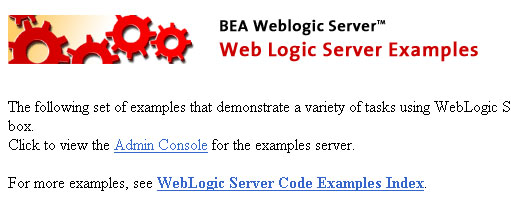
4. DONE....... [Things work fine Now]
|
|
Shutting Down the Server
Top
|
01. Open http://localhost:7001/console Internet Explorer ,
02. Accept the Default username and password that is "installadministrator"
03. U could see a 2 Frame Screen with an Applet at left Frame
04. Excellent Design Work ? I must say.......
05. Click on examples -> Servers -> examplesServer
06. Right Click on examplesServer u will get a Menu select Start/Stop this Server
07. Click on Shutdown this Server Link and then on YES Button
08. It says it did Shut down......... and left frame dies off leaving Applet frozen
09. Close the Browser things were fine till now
10. Close 2 Dos Windows [One for Weblogic and other for Pointbase] using Exit and Ctrl+C
|
|
Setting Up ODBC
Top
|
Setup your ODBC Database Connection
click on start -
setting -
control panel -
Administrative tools -
Data sources ODBC -
System DSN Tab-
Add Button -
Select Microsoft access driver *.mdb Option-
finish Button -
Type in james as Data Source name -
click on select button -
Browse for D:\bea\weblogic700b\samples\server\config\examples\applications\DefaultWebApp\database\james.mdb
Select it click OK
and OK again
Your ODBC is Setup
|
|
Installing my Application jamesj2ee.zip
Top
|
1. Download and Unzip jamesj2ee.zip into ur D:\ so that it create D:\jamesj2ee Directory
2. Open your Windows Explorer go to this Directory
3. Goto D:\bea\weblogic700b\samples\server\config\examples\applications\DefaultWebApp
4. Rename the images folder to imagesold
5. Rename the WEB-INF folder to WEB-INFold
5. Rename the index.jsp folder to indexold.jsp
6. Now copy all the files and folders inside D:\jamesj2ee
7. Into D:\bea\weblogic700b\samples\server\config\examples\applications\DefaultWebApp
|
|
Setting Environment and Compiling Java Beans
Top
|
D:\> CD D:\bea\weblogic700b\samples\server\config\examples
D:\bea\weblogic700b\samples\server\config\examples\>setExamplesEnv
.............
Your Environment has been Set.
.............
D:\bea\weblogic700b\samples\server\config\examples\>CD\
D:\>CD D:\bea\weblogic700b\samples\server\config\examples\applications\DefaultWebApp\WEB-INF\classes\BeanDir
D:\bea\weblogic700b\samples\server\config\examples\applications\DefaultWebApp\WEB-INF\classes\BeanDir\>javac *.java
D:\bea\weblogic700b\samples\server\config\examples\applications\DefaultWebApp\WEB-INF\classes\BeanDir\>CD\
D:\>CD D:\bea\weblogic700b\samples\server\config\examples
D:\bea\weblogic700b\samples\server\config\examples\>startExamplesServer
|
|
Running My Application
Top
|
01. Open Your IE at http://localhost:7001/console
02. Shut Down the Examples Server see above how to
03. Re-Start the Server see above how to
04. Step 3 and 4 are neccessary because if u dont u will get "Page Forbidden Error" Message
|
|
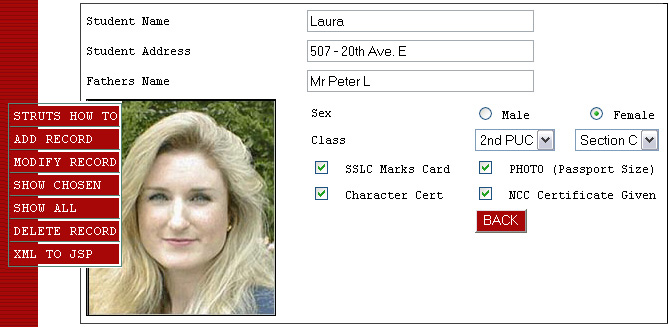
Final Output URL : http://localhost:7001/introduction.jsp
Top
|
1. Actual Code Involved in this is explained at j2ee.html
|
|
My Dream to be your Friend and Create a Group of Intelligent and Understanding Programmers
|
 If you like this article and/or code mailme or Join our small Java User Group which is by the Programmers for the Programmers , If you like this article and/or code mailme or Join our small Java User Group which is by the Programmers for the Programmers ,
Till we meet next time BYE  Kind Regards - James Smith Kind Regards - James Smith
|
|
Java, J2EE, J2SE and all Java-based marks are trademarks or registered trademarks of Sun Microsystems, Inc.
in the United States and other countries. 
|