
I will give you two options of doing this.
IMPORTANT!
Which ever way you choose, the Anfy.class, AnLake.class and the AnLake.jar must
be in your root directory.
(the directory that the html file is in)
STEP 1: Copy the Anfy class, AnLake class and AnLake jar files that you
downloaded from me to your root directory.
STEP 2: Copy the code below and paste it in your page were you
want the graphic shown.
STEP 3: Make the noted changes to the code.
copy this code |
NOTE! In line one the width= and height= must be the same sizes as your overlay.gif. In lines 4 and 13 make sure the path leads to your graphics. example pictures/laketop.jpg |
STEP 1: Open Anfy and set as follows. (Leave the fourth screen blank).
Make only the changes I have shown below. Everything else can be left as is.
Screen 1:
Click image effectschoose Lake in drop down menu click Next 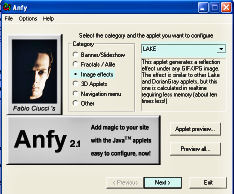 |
Screen 2:
Click browse, find the laketop.jpgLeave half reflect unchecked Click Next 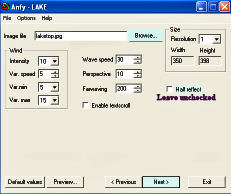 |
Screen 3:
Enable overlay checkedClick browse, find overlay.gif Click Next 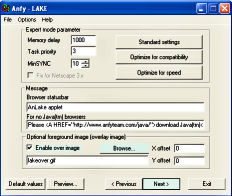 |
Screen 5: Click Copy to clipboard Click Exit 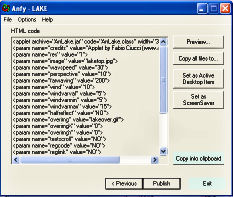 |
*** Try playing with some of the values in the code to get
different wave effects.
I hope this tutorial was of some help to you. I will be adding more in the near future.
| Click on a folder to continue |
 Main Page
Graphics
Tutorials
Tubes & Frames
Web Rings
Resources Main Page
Graphics
Tutorials
Tubes & Frames
Web Rings
Resources
|