|
|
|
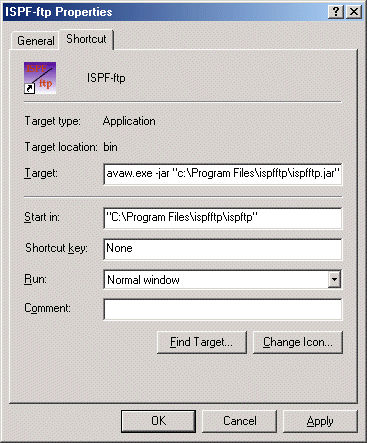
To install ISPF/ftp on a Windows PC: First ensure that a Java runtime environment has already been installed of at least version 1.3.1. Either the Java RTE (RunTime Environment) or the Java SDK (System Development Kit) can be used. Once a Java environment is installed and ISPF/ftp has been downloaded, all that is needed is a shortcut placed on the desktop and/or within the Start Programs folder. To put a shortcut on the desktop, right-click on the desktop, and select "New..." then select "Shortcut". The program to be executed is "javaw.exe", within the Java RTE or SDK. If you're not sure where that is, use Start->Search for files/folders, and search for file "javaw.exe". Once the shortcut is created, the properties of the shortcut must be set as follows: "Target" should specify 3 things: the executable Java program "javaw.exe", the option specification of "-jar", and the location of the downloaded ISPF/ftp jar file. It should look like this: C:\jdk1.3.1_01\bin\javaw.exe -jar "c:\Program Files\ispfftp\ispfftp.jar" "Start in" should should specify the directory containing the ISPF/ftp
jar file (the same directory used above, in the "Target"
specification). For example, it should look something like: Optionally, an icon can be set. You can use any icon you want, or you can use ours as follows: download ispfftpicon.zip, save it to the same directory as the JAR file above, and unzip the file ispfftp.ico. Then click the "Change Icon..." button in the Properties, and point to the "ispfftp.ico" file that was just unzipped. Click "OK". That's it! This shortcut should then start Java's interpreter, which will in turn start ISPF/ftp.
|